
You plug in a USB stick or open Device Manager, and there it is: a little yellow warning triangle and the message “Windows has stopped this device because it has reported problems. (Code 43).” Suddenly a device that worked yesterday refuses to do anything at all. The Code 43 error is one of the most common and most frustrating problems in Windows — but in the great majority of cases it is fixable, and often without spending a penny.
Despite how alarming it sounds, Code 43 is usually not a sign that your hardware has died. More often it is a driver that has become confused, a power-management quirk, or a temporary fault that a few well-chosen steps will clear. It shows up most on USB devices and graphics cards, but the approach to fixing it is much the same whatever the device.
This guide walks through the fixes in a sensible order, starting with the quick and easy and working towards the more thorough. Follow them one at a time and stop as soon as your device springs back to life — for most people, the error is beaten well before the end of the list.
What the Code 43 Error Means
The Code 43 error is a message from Device Manager, the part of Windows that keeps track of your hardware. In plain terms, it means the device’s driver told Windows that something had gone wrong, so Windows responded by stopping the device altogether. It is essentially the system throwing up its hands and saying it cannot safely continue using that piece of hardware right now.
Crucially, that report of a “problem” does not necessarily mean the hardware itself is broken. Very often the culprit is a corrupted or outdated driver, a hiccup in how the device is being powered, or a one-off glitch that occurred when the device was connected. This is why the error is so commonly seen on USB gadgets and graphics cards, which rely heavily on both drivers and steady power, and it is also why software fixes so frequently resolve it.
It also helps to know that the same Code 43 message is used across many different devices, from a webcam to a printer to a sound card, and the meaning is identical in each case: Windows has halted that specific piece of hardware. That means the fixes below are general-purpose — the same handful of steps applies whether the trouble is a flash drive, a graphics card, or something else entirely, so you do not need a different approach for each kind of device.
Understanding this is genuinely reassuring, because it means you should not rush out to replace the device at the first sight of the error. The sensible order is to rule out the software and power causes first, since they are far more common and cost nothing to fix, and to treat actual hardware failure as the last suspect rather than the first. That is exactly the order the rest of this guide follows.
Start With the Simple Fixes
Before changing any settings, it is well worth trying the quick fixes, because a surprising number of these errors are temporary and clear on their own with a little prompting. These take moments and often save you the more involved steps below.
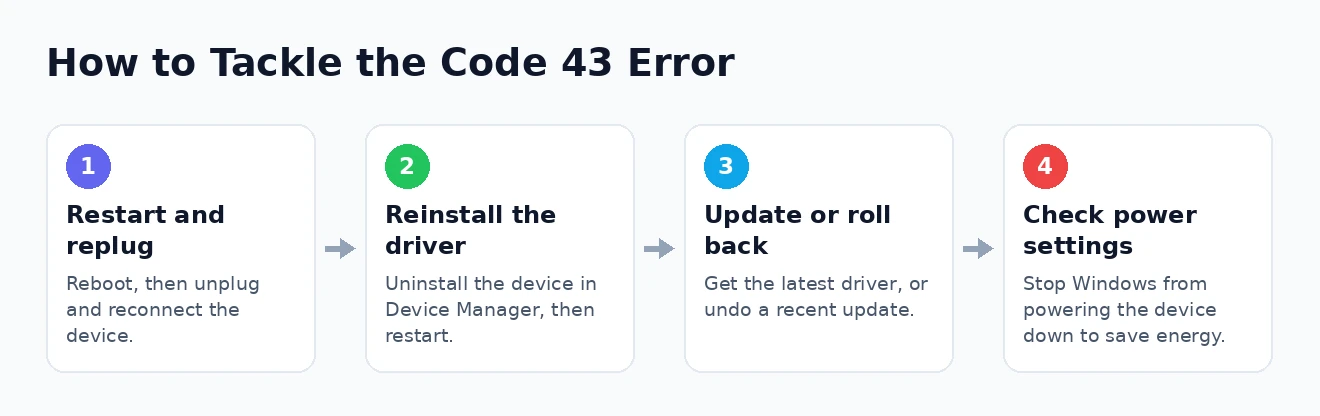
- Restart your PC. A full reboot clears temporary faults and is the single most likely quick fix. Shut down completely, wait a moment, and start again.
- Unplug and reconnect the device. For anything external, physically disconnecting it and plugging it back in often prompts Windows to re-detect it cleanly.
- Try a different port. If it is a USB device, plug it into another port — ideally one directly on the PC rather than through a hub — to rule out a faulty port or hub.
- Check the cable and connection. A damaged or loose cable can trigger the error, so try a different cable if you have one and make sure the connection is secure.
If one of these brings the device back, you are done — there is no need to go further. It is genuinely common for a reboot or a reconnection to clear the error entirely, particularly when it appeared out of nowhere on a device that had been working fine. If the error persists, though, the problem is more stubborn and it is time to look at the driver, which is the most frequent underlying cause.
Fix 1: Reinstall the Device Driver
Because a faulty driver is the most common cause of the error, reinstalling it is the most valuable single fix, and it resolves a large share of cases. The idea is to remove the potentially corrupted driver entirely and let Windows install a fresh copy. It sounds drastic but is quick and safe.
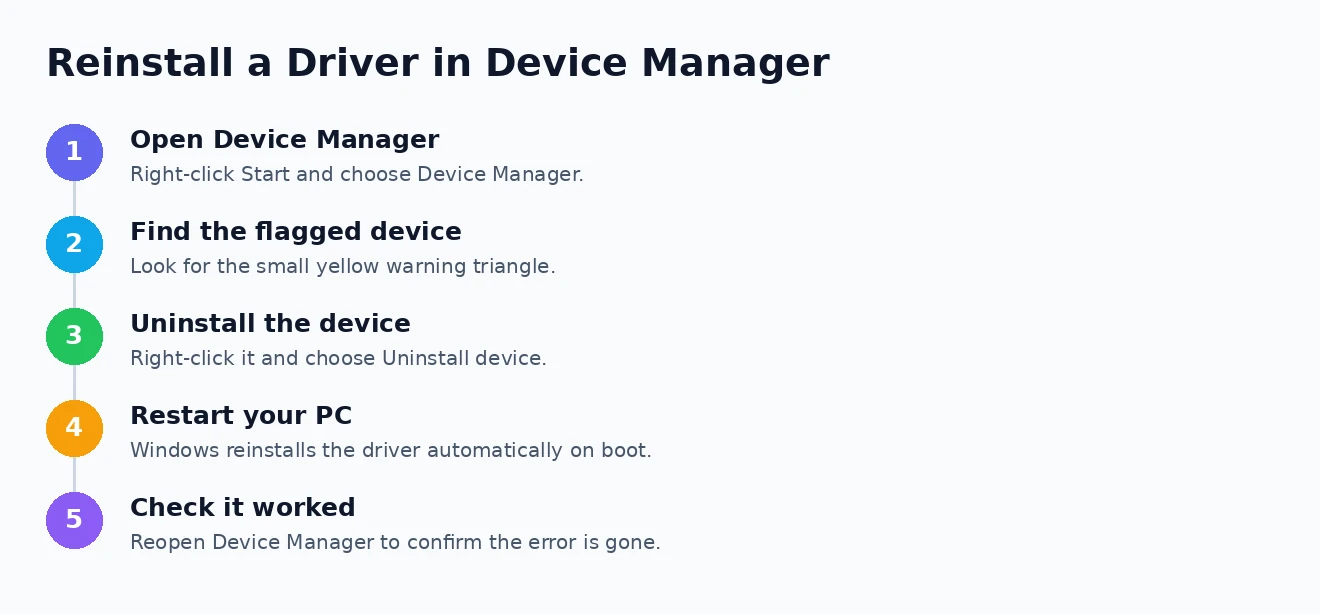
- Right-click the Start button and choose Device Manager.
- Find the device showing the error — it will have a small yellow warning triangle next to it.
- Right-click that device and select Uninstall device, then confirm.
- Restart your PC. On startup, Windows automatically detects the device and reinstalls its driver from scratch.
- Reopen Device Manager to check whether the warning — and the error itself — has gone.
One small note during the uninstall: if Windows offers a tickbox to also delete the driver software for the device, you can usually leave it unticked on a first attempt, since you simply want Windows to rebuild the existing driver. If a plain reinstall does not help, repeating the process with that box ticked forces a completely fresh driver, which can resolve more stubborn cases.
This clean reinstall clears up the corrupted-driver cases that a simple restart cannot. If Windows does not reinstall the driver automatically, you can prompt it by choosing “Scan for hardware changes” from the Action menu in Device Manager. Should the error survive even a full driver reinstall, the next step is to make sure you have the right driver version in the first place.
Fix 2: Update or Roll Back the Driver
Sometimes the problem is not a corrupted driver but the wrong version of one — either too old to work properly, or a recent update that introduced a bug. Fortunately Windows lets you move in either direction, and which way you go depends on when the trouble started.
If the device has been troublesome for a while, try updating the driver: in Device Manager, right-click the device, choose Update driver, and let Windows search, or better still download the latest version directly from the manufacturer’s website. This matters most for graphics cards, where installing the newest driver straight from the maker frequently cures it — the NVIDIA website has resources you may find useful for graphics drivers, as do the equivalent pages for other makers. If your graphics card is not being picked up at all, our guide to a GPU not being detected covers related steps.
For graphics cards in particular, some people go a step further and use a dedicated driver-removal tool to strip out every trace of the old driver before installing the new one, which can clear up cases that a normal reinstall leaves behind. For most other devices, though, the standard uninstall-and-reinstall is more than enough.
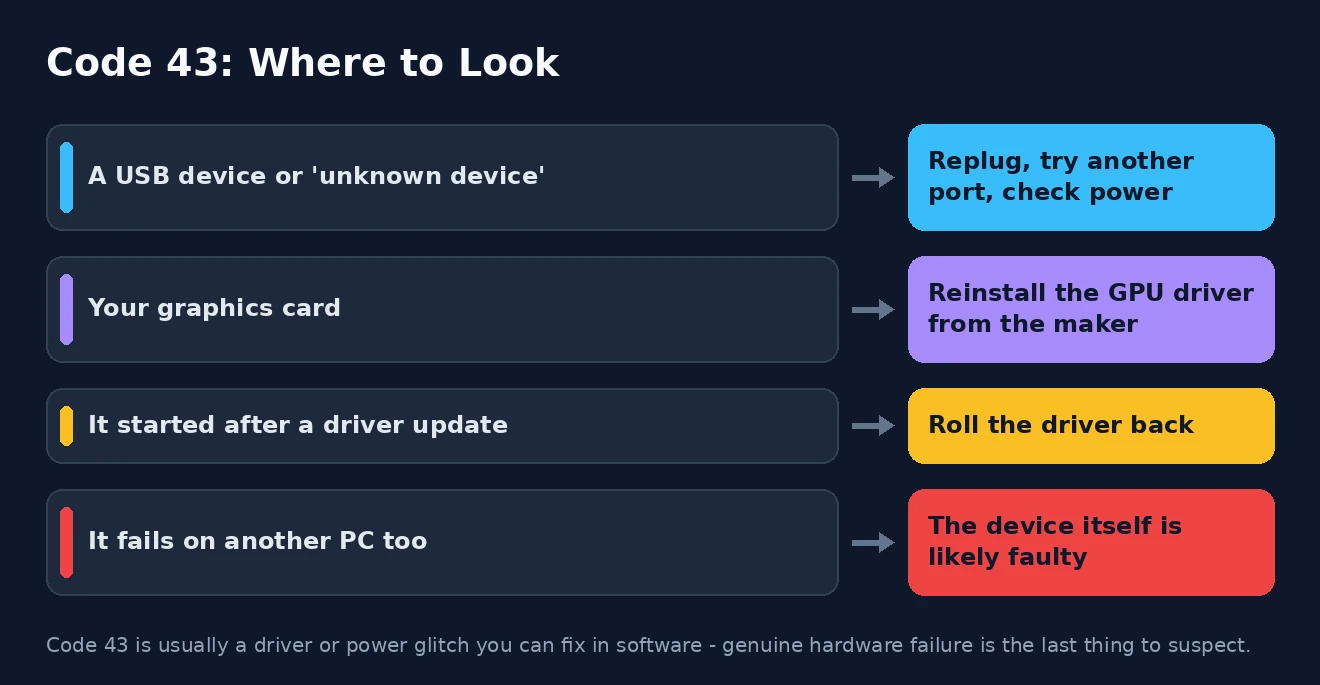
If, on the other hand, the error appeared right after a driver update, the fix is to go the other way and roll it back. In the device’s Properties, on the Driver tab, click Roll Back Driver to return to the previous working version. This is the ideal remedy when an update is clearly to blame, and it is a common cause of a display driver that has stopped responding as well.
Fix 3: Check Power Management Settings
This fix is easy to overlook but is one of the most effective for USB devices specifically, because a great many of these errors on USB hardware come down to Windows cutting power to the device to save energy. Stopping it from doing so often resolves the problem for good.
In Device Manager, expand the Universal Serial Bus controllers section, right-click each USB Root Hub entry, choose Properties, and on the Power Management tab, untick Allow the computer to turn off this device to save power. It is worth doing this for the affected device itself too, where the option appears. For a more complete fix, open your power plan settings, find the USB settings, and disable the “USB selective suspend” option.
Power management is the hidden cause behind a huge number of USB Code 43 errors. If a USB device keeps failing with this error, especially after the PC has been idle, stopping Windows from powering it down is very often the answer.
These power tweaks are safe and reversible, and they address a cause that the driver-focused fixes simply do not touch. If your USB device tends to drop out repeatedly rather than fail outright, the same settings help, and our guide to a USB device that keeps disconnecting goes further into that particular pattern. With power ruled out, only a couple of steps remain.
Fix 4: Run the Troubleshooter and Update Windows
Windows includes built-in help that can catch causes the manual steps miss, and it is worth calling on before concluding the problem is hardware. Both of these are hands-off and occasionally fix the problem without any further effort from you.
First, run the hardware troubleshooter, which automatically checks for and repairs common device problems. Our guide to the Windows troubleshooters shows how to find and run it. Second, make sure Windows itself is fully up to date, because Windows Update delivers not only system fixes but also updated drivers, one of which may be exactly what your device needs. Install any pending updates and restart.
Between them, these two steps close off the remaining software possibilities. If the troubleshooter reports a fix, test your device afterwards to confirm; if Windows Update installs new drivers, the same applies. Should the error still refuse to budge after everything so far, it is finally reasonable to consider that the hardware itself may be at fault.
When It’s a Genuine Hardware Problem
If you have worked through every fix above and the error remains, the odds shift towards a real hardware fault — but even then, a couple of simple tests will tell you for sure before you spend any money. The goal is to work out whether the problem lies with the device or with your PC.
The most decisive test is to try the device on a different computer. If it throws the same error elsewhere, the device itself is almost certainly failing and likely needs replacing. Conversely, plug a different, known-good device into the same port on your PC: if that one also fails, the port or the PC is the problem rather than the original device. For an internal component such as a graphics card, carefully reseating it in its slot can occasionally restore a solid connection.
As a final software step before giving up, you can rule out a deeper Windows problem by resetting Windows 11, which reinstalls the system cleanly. If the device works after that, the fault was software after all; if it still fails, and it fails on other PCs too, you can be confident it is hardware. Microsoft also documents these device errors in detail, and the Microsoft website has resources you may find useful for the technical specifics.
How to Fix the Code 43 Error: Frequently Asked Questions
What does the Code 43 error mean?
It means Device Manager has stopped a device because its driver reported a problem. Despite the wording, it usually points to a driver or power issue rather than broken hardware, which is why reinstalling the driver and adjusting power settings so often fixes it.
Is Code 43 a hardware or a software problem?
Far more often software. Corrupted or outdated drivers and power-management settings cause the majority of Code 43 errors, and these are all fixable for free. Genuine hardware failure is possible but should be the last thing you suspect, after the software fixes have been tried.
How do I fix Code 43 on a USB device?
Start by restarting, reconnecting the device, and trying another port. If that fails, reinstall the driver in Device Manager, then disable the power-saving option on the USB Root Hub and turn off USB selective suspend, which resolves a large share of USB Code 43 errors.
How do I fix Code 43 on my graphics card?
For a graphics card, the most reliable fix is to reinstall the driver with the latest version downloaded directly from the manufacturer. Uninstall the current display driver in Device Manager first, restart, then install the fresh driver. Reseating the card can help if a loose connection is involved.
That is the full playbook for the Code 43 error. Begin with a restart and a reconnection, reinstall the driver, update or roll it back, check your power settings, and lean on the built-in troubleshooter — only treating hardware failure as the answer once everything else is exhausted. Worked through in order, these steps clear the error for the overwhelming majority of people, turning an intimidating warning back into a working device.