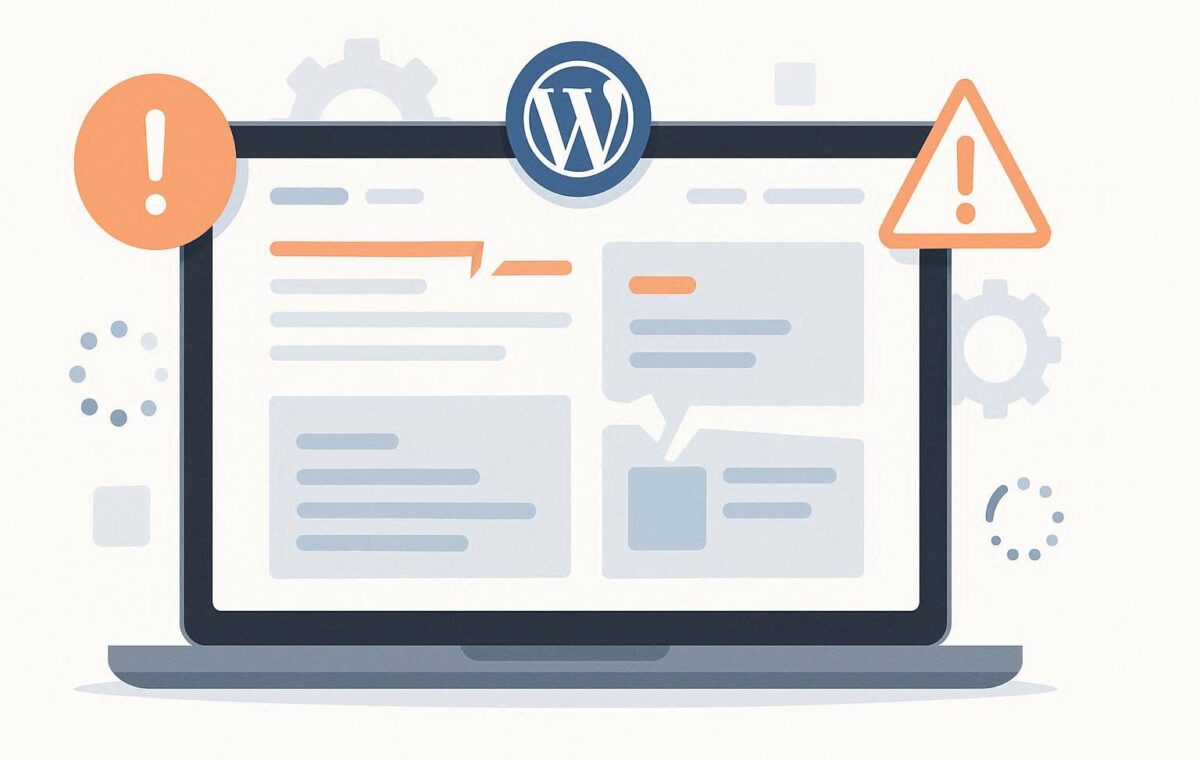
The message “There has been a critical error on your website” alongside the notice that the WordPress site experiencing technical difficulties email has been sent to your admin address is one of the most alarming things a site owner can see. Unlike vague errors that leave you guessing, the WordPress site experiencing technical difficulties notice is WordPress’s own critical error handler firing — which means PHP threw a fatal error severe enough that WordPress itself caught it and displayed a user-facing message rather than a blank screen or a generic server error. The WordPress site experiencing technical difficulties error was introduced in WordPress 5.2 as part of the fatal error recovery mode, specifically designed to help site owners recover from these situations without needing FTP access or server-level knowledge. Understanding what that system does — and how to work with it — makes fixing this error significantly faster than the equivalent problem on older WordPress versions. For the bigger picture, our WordPress Errors Complete Guide pulls everything together.
What Triggers the WordPress Site Experiencing Technical Difficulties Error
The WordPress site experiencing technical difficulties notice appears when WordPress’s fatal error handler catches an unhandled PHP fatal error during a page request. In versions before WordPress 5.2, the same underlying error would have produced a white screen of death or a 500 server error with no recovery path. WordPress’s error recovery mode — which the WordPress site experiencing technical difficulties system uses — catches these fatal errors, displays a user-friendly message on the front end, and sends an email to the site administrator containing a link to the WordPress admin panel in recovery mode.
The fatal errors that produce the WordPress site experiencing technical difficulties notice most commonly originate from three sources. First, a PHP fatal error in a plugin — most commonly triggered immediately after a plugin update that introduces a bug, or after a WordPress core update that breaks compatibility with an older plugin. Second, a PHP fatal error in a theme — particularly in functions.php or a template file that calls a deprecated or removed WordPress function. Third, a corrupted WordPress core file that throws an error during the execution of a standard WordPress process. The common thread across all three is a PHP fatal error that WordPress can intercept and report, rather than a server-level failure that bypasses WordPress entirely.
The WordPress site experiencing technical difficulties email that WordPress sends to the administrator email address is one of the most useful aspects of the recovery system. The email contains a link to the WordPress admin panel in recovery mode — a special mode that pauses all plugins and themes to give you admin access even when the WordPress site experiencing technical difficulties error has made the regular admin inaccessible. If you receive this email, use that link immediately. Recovery mode gives you a working dashboard from which you can deactivate the problem plugin or theme, check error details, and restore normal function without needing FTP.
Access Recovery Mode to Fix the WordPress Site Experiencing Technical Difficulties Error
The recovery mode link in the administrator email is the fastest path to resolving the WordPress site experiencing technical difficulties error when it is caused by a plugin or theme. This link is time-limited — it expires after 24 hours — and it is single-use, meaning it is tied to the specific error session rather than being a permanent back-door to your site. When you follow the link, WordPress loads the admin panel with all plugins temporarily paused, showing you which plugin or theme caused the WordPress site experiencing technical difficulties error in the recovery mode dashboard.
In recovery mode, navigate to Plugins → Installed Plugins. WordPress recovery mode highlights or indicates the plugin that caused the fatal error — the one that is paused specifically because it triggered the WordPress site experiencing technical difficulties notice. Deactivate that plugin while still in recovery mode, then exit recovery mode by clicking the “Exit Recovery Mode” button in the admin toolbar. The site should return to normal operation without the WordPress site experiencing technical difficulties error once the problematic plugin is deactivated.
- Check the administrator email address for WordPress for an email with subject “Your Site is Experiencing a Technical Issue”
- Click the recovery mode link within the email — it opens the WordPress admin in recovery mode
- In the recovery mode dashboard, note which plugin or theme is identified as the error source
- Deactivate the identified plugin, or switch to a default theme if a theme is the cause
- Click “Exit Recovery Mode” in the admin bar
- Reload the site’s front end to confirm the WordPress site experiencing technical difficulties error has cleared
- Check whether the deactivated plugin has a newer version that fixes the issue; if so, update it before reactivating
Enable WordPress Debug Mode When the Email Link Has Not Arrived
If the WordPress site experiencing technical difficulties email has not arrived — because the admin email is incorrect, because the site’s email sending is broken, or because recovery mode was not triggered cleanly — enabling WordPress debug mode reveals the underlying fatal error directly so you can identify and fix it without the recovery mode system.
Connect to your server via FTP and open wp-config.php. Add or modify these lines before “That’s all, stop editing!:”
define( 'WP_DEBUG', true );
define( 'WP_DEBUG_LOG', true );
define( 'WP_DEBUG_DISPLAY', false );
With these settings, PHP errors are written to wp-content/debug.log rather than displayed on screen. Reload the page showing the WordPress site experiencing technical difficulties error, then download and read wp-content/debug.log via FTP. The log entry closest to the top contains the fatal error that caused the WordPress site experiencing technical difficulties notice — including the error type, the file path, and the line number. This information identifies exactly which plugin or theme file triggered the fatal error, giving you the same information the recovery mode dashboard provides through the email link path. Once you have identified the problem file, deactivate the corresponding plugin or theme via FTP by renaming its directory in wp-content/plugins/ or wp-content/themes/.
When a WordPress Core Update Causes the Site Experiencing Technical Difficulties Error
A WordPress core update is occasionally the trigger for the WordPress site experiencing technical difficulties notice, particularly major version updates that deprecate or remove functions that installed plugins or themes still call. The update itself completes successfully — WordPress reaches the newer version — but the first page load after the update triggers a fatal error because a plugin is calling a function that no longer exists in the new WordPress version, producing the WordPress site experiencing technical difficulties error for all subsequent requests.
The debug log approach described above identifies which specific function call is failing after the update. Knowing the function name and the plugin that calls it tells you exactly which plugin needs updating or deactivating to resolve the WordPress site experiencing technical difficulties error in this context. Plugin developers typically release compatibility updates within days of major WordPress version releases for their actively maintained plugins. If the plugin responsible for the WordPress site experiencing technical difficulties error has a pending update, applying it through the recovery mode dashboard or via FTP often resolves the incompatibility immediately.
When a core update is the trigger and no plugin update is yet available, the temporary options are to deactivate the incompatible plugin (using recovery mode or FTP) and replace its functionality with an alternative, or to roll back to the previous WordPress version while waiting for the plugin fix. WP Rollback plugin handles plugin version rollbacks cleanly once you have admin access again. For WordPress core rollbacks, a manual process is required — download the previous version from wordpress.org/download/releases and upload the wp-admin and wp-includes directories over the current ones via FTP. Neither is ideal, but either is preferable to leaving the WordPress site experiencing technical difficulties error active on a live site.
What to Do When Recovery Mode and Debug Mode Both Fail
In rare cases, the WordPress site experiencing technical difficulties error is severe enough that neither recovery mode nor debug mode produces a usable admin panel or a readable debug log. This typically indicates that the fatal error is occurring at a very early stage of WordPress execution — before WordPress’s error handler can intercept it — or that multiple interacting errors are preventing clean debug output. When this happens, the systematic FTP approach remains available regardless of WordPress’s own error handling.
Via FTP, rename wp-content/plugins/ to wp-content/plugins_off/. Reload the site. If the WordPress site experiencing technical difficulties error clears, a plugin is responsible — rename the folder back and work through plugins one at a time. If the error persists with all plugins deactivated, rename the active theme folder in wp-content/themes/ to force a fallback to a default theme. If the error still persists, replace the WordPress core files by uploading a fresh copy of the wp-admin and wp-includes directories from wordpress.org. This sequence eliminates each possible cause of the WordPress site experiencing technical difficulties error systematically without requiring the WordPress admin to function.
Our guide on fixing the WordPress white screen of death covers the closely related pre-5.2 version of this same category of fatal error — the same underlying PHP errors, just without the recovery mode system that the WordPress site experiencing technical difficulties notice provides in modern WordPress. Our guide on how to backup a WordPress site properly explains the backup practices that allow full site restoration when the WordPress site experiencing technical difficulties error is caused by a corrupted database or a failed update that cannot be fixed at the file level alone. The WordPress fatal error handler documentation covers recovery mode in technical detail, including the nonce-based link generation and the plugin pausing mechanism that the WordPress site experiencing technical difficulties recovery system relies on. Our guide on WordPress Site Lockout covers an adjacent issue.