Chrome’s tracking extends across more layers than most people realise. It’s not just cookies. When you’re signed into Chrome with a Google account: your browsing history syncs across devices, your searches connect to your account, and personalised ads follow you from site to site. Chrome also runs background services — Safe Browsing lookups, prediction services, crash reporting — even when you’re not actively browsing. Turning this off properly means working through several settings areas, not just toggling one option. For the bigger picture, our How to Manage Google Chrome pulls everything together.
A realistic starting point: what level of privacy do you actually want? Someone who wants targeted ads gone but doesn’t mind Chrome remembering their passwords has different needs than someone who wants Chrome to store nothing and sync nothing. This guide covers the full range from “reduce the most obvious tracking” to “lock down everything.”
Start with your Google Account activity settings
For signed-in Chrome users, this matters most. Visiting myaccount.google.com → Data & Privacy → History settings shows what Google is recording and linking to your account:
That is the tracking side. The opposite complaint — when Chrome stops saving browsing history entirely — is almost always a privacy setting working too aggressively, usually clear-on-exit, rather than a bug.
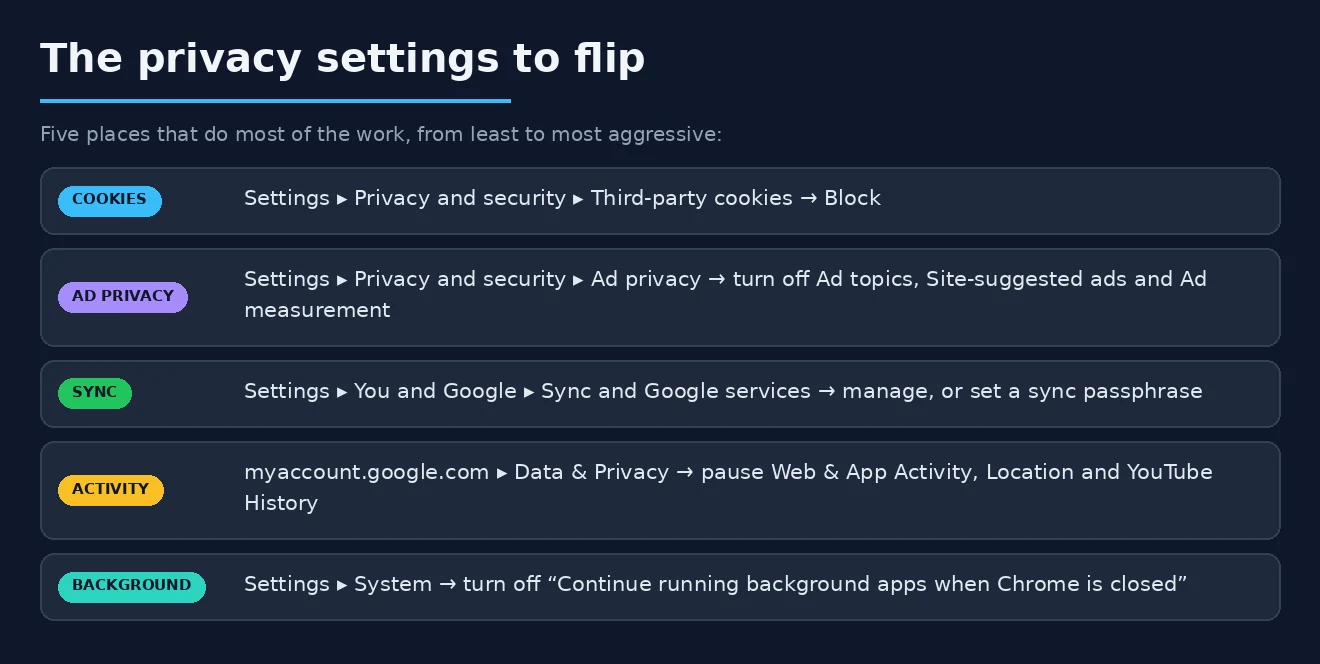
- Web & App Activity: records pages you visit in Chrome and searches you make. Turning this off stops Chrome searches and page visits from being saved to your account. You can also delete historical data from here.
- Location History: separate from browsing, but often enabled. Turning it off stops Google from logging where your devices have been.
- YouTube History: affects video recommendations. Relevant if you use YouTube inside Chrome.
Turning these off doesn’t break Chrome — your bookmarks, passwords, and extensions still work. It just stops the data from accumulating in your Google account.
Control what Chrome Sync shares
Chrome Sync is the feature that makes Chrome seamless across devices — your tabs, history, and saved passwords appear on your phone when you log in from your laptop. It’s convenient, but it means all of that data lives in Google’s servers.
To manage what syncs: click your profile picture in Chrome → Sync and Google services → Manage what you sync → switch from “Sync everything” to “Customize sync.” From there, you can turn off individual items:
- Browsing history
- Open tabs
- Bookmarks (you may want to keep this on)
- Saved passwords
- Addresses and payment methods
If you want nothing synced at all: sign out of Chrome. Your local data (passwords, bookmarks) stays on the device, but nothing goes to Google’s servers. Signing out of Chrome is different from logging out of Google — your Gmail and other Google services stay logged in in the browser tabs.
Cookies and the Privacy Sandbox
Third-party cookies are the mechanism most people associate with ad tracking. Sites from ad networks load invisible tracking code alongside the page you’re visiting and build a profile of your behaviour across the whole web. Chrome has been slowly moving away from third-party cookies, but in the meantime you can limit them.
chrome://settings/privacy → Cookies and other site data → “Block third-party cookies.” This is the single most impactful tracking reduction setting for most users. Some sites may prompt you to enable cookies for login to work — usually the first-party cookies needed for authentication are not blocked by this setting, just the third-party tracking ones.
The Privacy Sandbox (also in chrome://settings/privacy) is Google’s newer approach: instead of individual cookie tracking, Chrome groups you into interest-based cohorts and shares topics (rather than your identity) with advertisers. You can turn Topics, Site-suggested ads, and Ad measurement off entirely in Privacy Sandbox settings if you’d prefer no participation.

Turn off Chrome’s background services
Several Chrome features send data to Google in the background, even when you’re not actively on a page:
- Safe Browsing: checks URLs against Google’s database of phishing and malware sites. Standard Safe Browsing sends limited data; Enhanced Browsing sends significantly more. chrome://settings/security → set to “Standard protection” or “No protection” depending on your preference.
- Search and URL predictions: sends partial search terms to Google as you type in the address bar. chrome://settings/syncAndGoogleServices → turn off “Autocomplete searches and URLs.”
- Page preloading: Chrome loads pages it thinks you’ll visit before you click. Useful for speed, involves sending URLs to Google. chrome://settings/cookies → “Preload pages for faster browsing” → Standard or No preloading.
- Help improve Chrome: sends crash reports, usage statistics, and diagnostics. chrome://settings/syncAndGoogleServices → turn off “Help improve Chrome’s features and performance.”
These are the background data flows that continue even when you’re not doing anything. Turning them off reduces background tracking without affecting your ability to browse normally.
Site permissions — what you’ve already allowed
Every “allow” click on a site permission prompt (location, camera, microphone, notifications) stays saved permanently until you review it. Sites you gave permissions to years ago still have them.
chrome://settings/privacy → Site settings → review each permission type. Location, Camera, Microphone, and Notifications are the main ones. Each shows which sites are “Allowed” — scroll through and revoke any you don’t actively need. For most users, the Notifications list is the most surprising: it often contains 20-30 sites that were allowed over the years.
Also worth setting: Microphone and Camera → “Sites can ask” rather than blanket block, so you get prompted each time rather than having to remember to reset permissions per-site.
Incognito for sessions you don’t want recorded
Incognito mode doesn’t make you anonymous on the internet — the websites you visit, your ISP, and your employer (if using a work network) can still see your activity. What it does do: prevents Chrome from saving that session’s history, cookies, and form data locally. When you close the Incognito window: everything from that session is gone from Chrome.
Practical use: banking on a shared computer, looking up something you don’t want in your history, testing a site’s logged-out experience. Not useful for: hiding from ISP, hiding from employer, or bypassing website tracking (the site still knows who you are from your IP address and any account you’re logged into).
Our guide on digital privacy best practices covers the broader approach to online privacy beyond browser settings, and our managing Chrome cookies covers specific cookie scenarios. For a comprehensive overview of what Google collects and how to review it, Google’s My Activity dashboard shows everything recorded across your account with options to delete by topic, date range, or product.
Extensions that help — and ones that don’t
Browser extensions can add meaningful privacy protection or just create the illusion of it. A few worth knowing:
- uBlock Origin: ad and tracker blocker. Open-source, lightweight, consistently rated as the most effective. Blocks third-party tracking scripts that cookie settings alone don’t catch.
- Privacy Badger: EFF’s tracker blocker. Learns which trackers to block based on your behaviour rather than using a fixed list. Complements uBlock rather than replacing it.
- Cookie AutoDelete: automatically removes cookies from sites after you close their tabs. More granular than Chrome’s built-in cookie clearing.
What doesn’t help as much as marketed: VPN extensions inside Chrome. A VPN extension changes your IP address for Chrome traffic but doesn’t prevent Chrome or Google from tracking you through cookies, account login, or fingerprinting. A VPN is useful for network-level privacy (hiding traffic from your ISP) but doesn’t address Chrome’s own data collection.
Browser fingerprinting — the tracking Chrome can’t easily stop
Beyond cookies and account data: websites can fingerprint your browser using the combination of your screen resolution, installed fonts, browser plugins, hardware capabilities, and timezone. This fingerprint is often unique enough to identify you across sites without any cookies at all.
Chrome doesn’t have a built-in fingerprinting protection. If fingerprinting is a concern: Firefox with Resist Fingerprinting enabled or the Brave browser (which randomises fingerprinting data) provide better protection than Chrome. This is a genuine limitation of Chrome’s privacy model — the browser is built by an advertising company and has design trade-offs that reflect that.
Using a different search engine inside Chrome
Google is Chrome’s default search engine. Every search you make goes to Google. Switching to a privacy-respecting alternative means your search queries don’t add to your Google profile:
- DuckDuckGo: no personal profiles, no tracking between searches
- Brave Search: independent index, no tracking
- Startpage: proxies Google results without identifying you to Google
chrome://settings/search → “Search engine used in the address bar” → change to your preferred option. Searches still happen inside Chrome, but the query data goes to the alternative provider instead of Google’s profile system.
A practical privacy tier guide
| Privacy level | What to enable | Trade-off |
| Basic (most people) | Block third-party cookies, turn off Enhanced Safe Browsing, disable search predictions | Minimal. Chrome works the same. |
| Moderate | Above + sign out of Chrome, disable Sync, use DuckDuckGo, install uBlock Origin | No cross-device sync. Passwords stay local. |
| Strong | Above + disable all background services, use Incognito for sensitive browsing, revoke all site permissions | Manual password management. Some site features won’t work. |
| Maximum | Switch to Firefox or Brave, use Tor for sensitive browsing, VPN at system level | Different browser. Some compatibility issues on specific sites. |
For most people: the Basic tier settings take 5 minutes to configure and meaningfully reduce the most obvious tracking. The Moderate tier adds meaningful protection for anyone concerned about their data being tied to their Google identity. The Strong and Maximum tiers are for people with specific privacy requirements — journalists, researchers, or anyone who has decided that the convenience of Google’s ecosystem isn’t worth the data trade-off.
Google Chrome’s privacy settings are more configurable than the browser’s reputation might suggest. The default configuration is set to Google’s advantage (as you’d expect from a company whose business model is advertising data). But the controls exist to change that — they just require knowing where to look and what each setting actually does, rather than just toggling “private mode” and assuming the job is done.
Regular maintenance — what to actually do monthly
Privacy settings drift over time. Sites get new permissions, Chrome updates change defaults, and old cookies accumulate. A quick monthly routine keeps things in order:
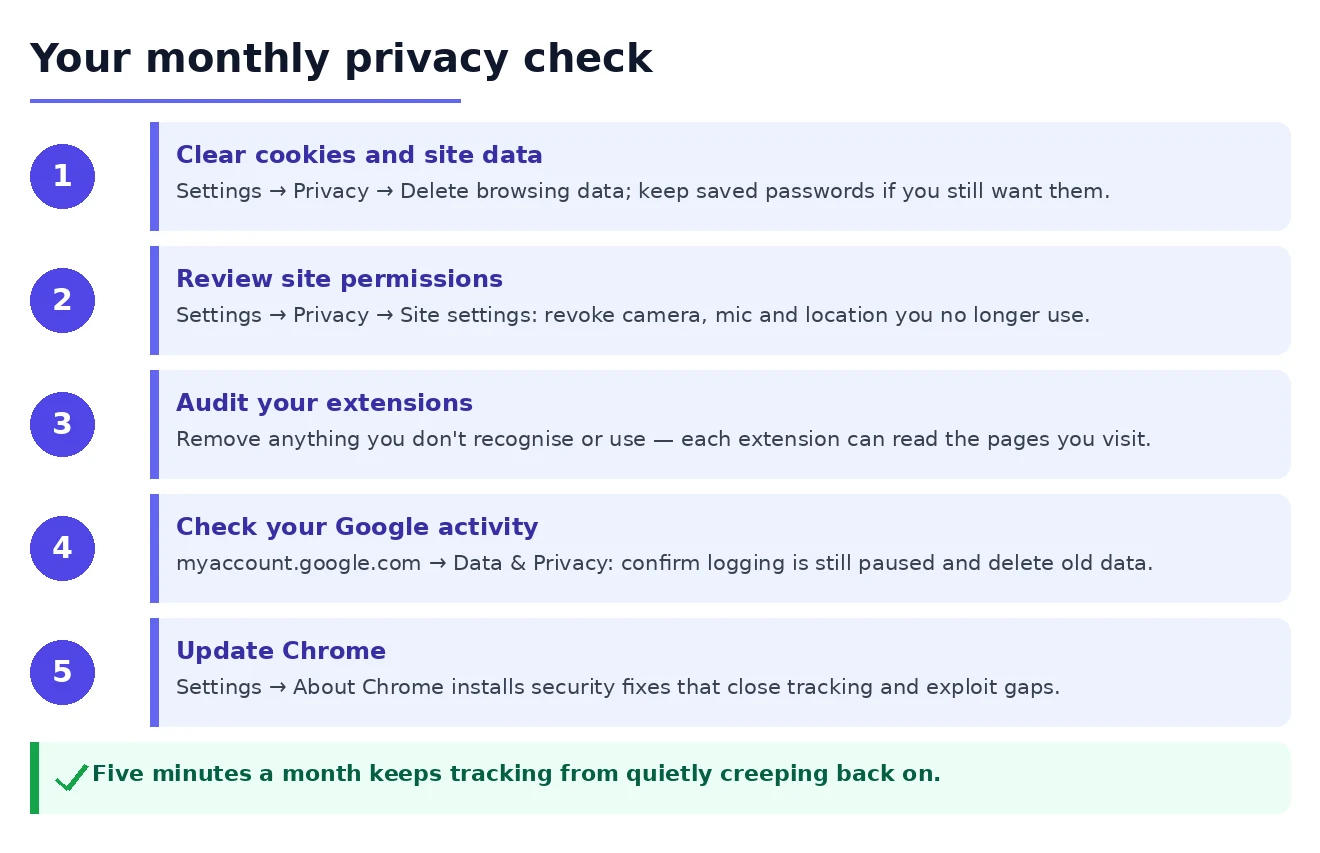
- Clear cookies and cached data: Ctrl+Shift+Delete → All time → Cookies and cached images → Clear data
- Review site permissions: chrome://settings/privacy → Site settings → Notifications → remove anything you don’t want
- Check My Activity: myaccount.google.com → Data & Privacy → My Activity → delete any recent data you don’t want stored
- Check extensions: chrome://extensions → remove anything you installed for a one-time purpose and forgot about
None of this takes more than 10 minutes. The notifications review in particular tends to accumulate over time — sites add themselves to the allowed list opportunistically, and most users have dozens of sites with notification permission they never consciously gave.
The most common mistake people make with Chrome privacy: focusing entirely on cookies while leaving account sync, search predictions, and background services fully active. Cookies matter, but they’re one part of a larger data collection system. Working through each layer methodically — account activity, sync settings, cookies, background services, site permissions — gives you actual control rather than the feeling of control.
When to consider switching browsers entirely
Chrome with privacy settings configured is meaningfully better than Chrome with defaults. But there’s a ceiling to what Chrome can do because of its fundamental architecture and business context. If you find yourself spending significant effort maintaining Chrome privacy settings and still feel like too much data is flowing to Google: that’s a reasonable point to evaluate alternatives.
Firefox offers stronger anti-fingerprinting protection, is maintained by a non-profit with no advertising business, and with uBlock Origin installed matches Chrome’s performance on most sites. Brave is Chrome-based (easier transition, same extension compatibility) but with aggressive built-in tracking protection and a different business model. Both are more private by default than Chrome without requiring the manual configuration this guide describes.
Switching browsers isn’t for everyone — Chrome’s DevTools, some enterprise apps, and specific web features are uniquely well-supported in Chrome. But it’s worth knowing that “make Chrome as private as possible” and “use a more private browser” are both valid answers to the same concern, depending on your priorities.
One practical note: if you share a Chrome profile with family members on the same device, privacy settings affect everyone on that profile. If one person wants privacy settings tightened while another prefers the convenience of full sync and saved passwords: separate Chrome profiles (each with their own settings) are the right solution. Each profile can have different sync behaviour, different extensions, and different cookie policies — they’re fully independent environments within the same browser installation. If this sounds familiar, Disable Chrome Location Tracking is worth a look.
If your privacy settings have drifted or an extension changed them, starting from a clean baseline helps. Our guide on resetting Chrome settings safely shows how to reset without losing saved passwords or bookmarks.