You receive a link from an email, a social media post, or a messaging app. The URL looks slightly off — a transposed letter, an unfamiliar domain extension, or a subdomain you wouldn’t expect. Or a search result leads to a site you’ve never heard of that claims to offer something you need. Before entering any personal information, credentials, or payment details: check. This fits into the wider topic we cover in our Complete Guide to Online Security and Privacy.
Knowing how to check website safety protects against two distinct threats — sites that are actively malicious (credential theft, malware installation) and sites that are legitimate but handle your data irresponsibly. The tools overlap but aren’t identical, and a thorough safety check addresses both.
The visual checks — what to look at first
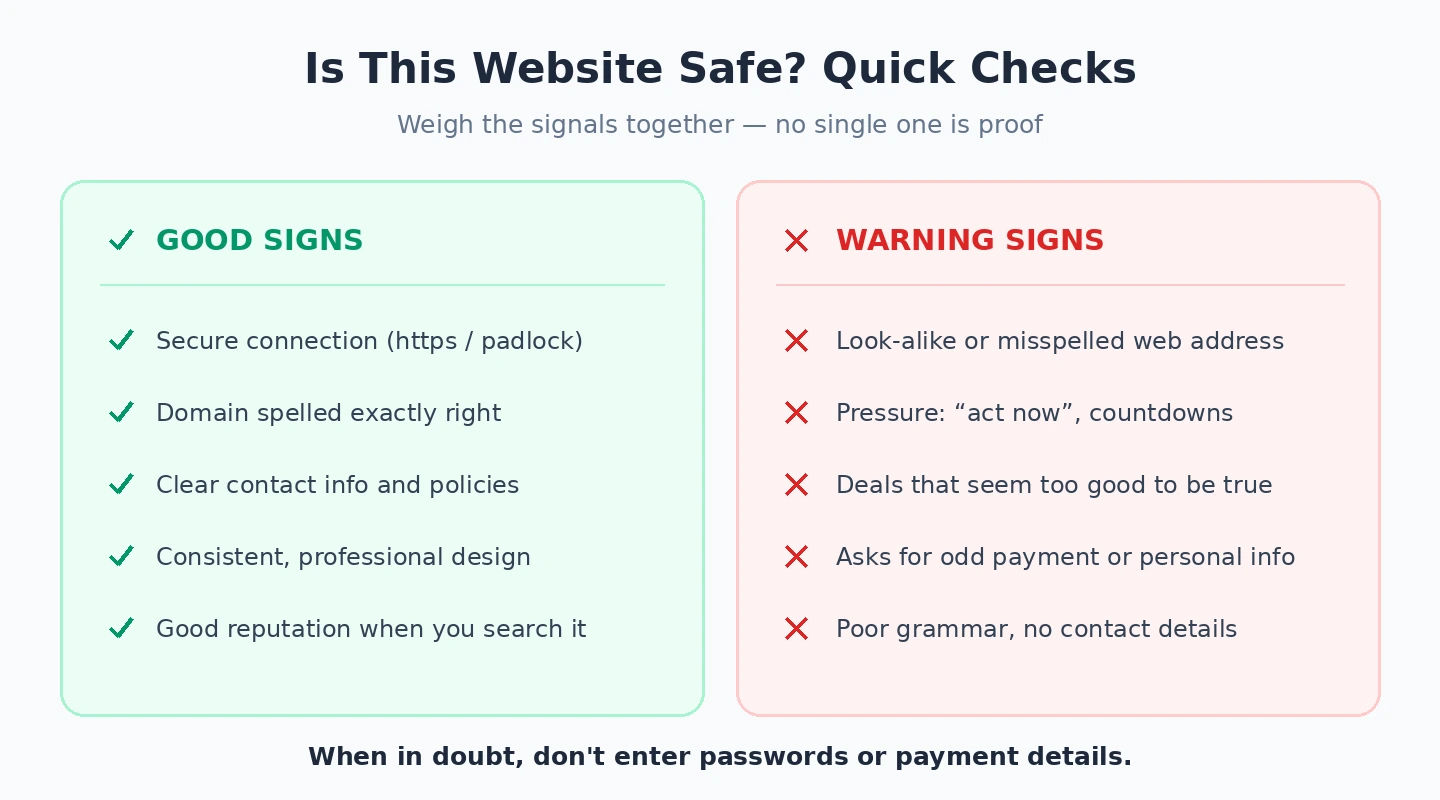
Start with the URL. The real domain is the portion immediately before the TLD (.com, .org, .net) — everything before that is a subdomain. So “amazon.customer-support.com” has the real domain “customer-support.com,” not amazon.com. Phishing sites use domain confusion as their primary deception: transposed letters (arnazon), lookalike characters, or legitimate brands buried in long subdomains.
The padlock icon in the address bar indicates HTTPS — the connection is encrypted. That’s a floor condition, not a safety guarantee. Phishing sites routinely use HTTPS because TLS certificates are free. A site without a padlock is categorically worse; a site with one can still be malicious. The padlock only tells you the connection is encrypted, not that the site is trustworthy.
Design quality is an informal early signal. Phishing sites created quickly from templates often have visual inconsistencies — blurry logos, mismatched fonts, grammatical errors, placeholder text that wasn’t replaced. Not definitive (legitimate sites can be poorly designed, and sophisticated phishing closely replicates real sites), but if something feels off, run the tools-based check before proceeding.
The tools — free services that check unknown URLs
Google Safe Browsing Transparency Report is the best first check. Navigate to transparencyreport.google.com/safe-browsing/search → enter the URL → check the result. Google’s Safe Browsing database covers billions of URLs and updates continuously. A red result is a definitive warning. A clean result means Google hasn’t flagged it — not that it’s definitively safe.
VirusTotal URL Scanner (virustotal.com → URL tab → paste → Analyse) scans the URL against more than 70 security vendor databases simultaneously. A URL flagged by multiple vendors is definitively dangerous. Flagged by one vendor may be a false positive — check which vendor and whether the flag type makes sense. This is the most comprehensive single tool for checking against known malicious classifications.
URLScan.io actually loads the page in a sandboxed browser and shows you what it does — what scripts load, what connections it makes, what it looks like — without your browser visiting it. Particularly valuable when you want to see the site’s behaviour without exposing your own environment. Use this alongside VirusTotal: VirusTotal tells you what security vendors think about the URL’s reputation; URLScan.io shows you what the site actually does when loaded.
WHOIS domain lookup (whois.domaintools.com or just search “whois [domain]”): look at the registration date. A domain registered days ago claiming to be your bank is a phishing site — full stop. Also check the registrant country. A mismatch between the claimed identity and the registration jurisdiction is a warning sign.
Sucuri SiteCheck (sitecheck.sucuri.net): scans for malware, blacklist status, and security anomalies. Most useful for sites you’re considering using regularly rather than just visiting once — reports known vulnerabilities and security header configurations.
SSL certificate details beyond the padlock
Clicking the padlock → “Connection is secure” → Certificate shows the certificate issuer, validity period, and the exact domain it covers. A certificate covering a slightly different domain than the URL you visited — even by a single character — is a phishing indicator. The domain match between the URL and the certificate’s “Common Name” or “Subject Alternative Names” is the critical check.
One useful investigative tool: crt.sh shows every certificate issued for a domain name, searchable for free. This reveals whether suspicious lookalike domains have been issued certificates in preparation for a phishing campaign targeting a specific brand — useful if you’ve received an email from a domain that looks almost like a company’s real domain.
Checking legitimate-but-risky sites
Some sites pass all malware checks cleanly but are risky in other ways — poor data handling, bad security practices that make them breach targets, or questionable data sharing. For sites where you’ll enter personal or payment information:
- Privacy policy review: absence of a privacy policy on a data-collecting site is a regulatory violation under GDPR and CCPA — a signal of poor compliance practices generally. A privacy policy that explicitly states data is shared with unlimited third parties is worth factoring into your decision to use the site.
- Sucuri SiteCheck for known vulnerabilities and security headers
- Chrome DevTools Lighthouse audit (F12 → Lighthouse → Security): assesses whether the site uses HTTPS correctly, has security headers set, and blocks mixed content — a more technical check for sites you’ll use regularly
Checking website safety on mobile
Mobile browsers provide fewer visual URL indicators — the address bar is smaller, the full URL may be truncated, and the padlock is less prominent. Tap the address bar to expand and read the full URL before tapping links from emails or messages.
QR codes present a specific mobile safety challenge — they direct the camera to a URL the user can’t read before following it. Most modern camera apps provide a preview URL before navigating. Read this preview and apply the same domain-inspection checks used for typed URLs. If the preview URL uses a URL shortener (hiding the destination), an unfamiliar domain, or a domain that doesn’t match the expected destination — decline to navigate.
Physical QR code tampering is a real attack: a sticker placed over the original code redirects to a different site. In public spaces, ask whether the code is in an official location before scanning.
Browser extensions that automate safety checks
Manually running every URL through VirusTotal isn’t practical for regular browsing. Extensions that run checks automatically:
- Microsoft Defender Browser Protection (Chrome and Edge): checks every URL against Microsoft’s threat intelligence database and blocks known malicious sites before they load. Integrates with Windows Security and updates alongside Windows Defender definitions.
- Malwarebytes Browser Guard: checks URLs against malware and scam databases, blocks tracking scripts and phishing pages simultaneously.
- uBlock Origin (Chrome/Firefox): not specifically a website safety checker, but blocks known malicious ad networks and domains used to distribute malware through advertising.
Chrome, Edge, and Firefox all have built-in protection from their respective threat intelligence databases (Google Safe Browsing, SmartScreen, Firefox’s anti-phishing database). When these built-in warnings trigger, they come from constantly-updated threat intelligence — not from the browser subjectively judging the site. A SmartScreen or Safe Browsing warning on a site you intended to visit is worth heeding even if the site looks legitimate to your eyes.
Our guides on avoiding phishing scams and using a password manager cover the complementary practices that reduce the impact of any phishing that does succeed despite these checks. For network-level filtering that blocks malicious domains before they reach the browser on all household devices, Cloudflare’s 1.1.1.1 for Families provides free DNS-based malware filtering without per-device configuration.
The quick-check sequence for an unknown URL
When a link arrives from an unfamiliar source and you’re not sure whether to visit it:
- Read the URL first. Check the real domain (the part immediately before .com/.org/.net). Does it match the claimed sender or purpose?
- Run it through Google Safe Browsing (transparencyreport.google.com/safe-browsing/search). 30 seconds.
- If it passes and you’re still unsure: run it through URLScan.io to see what the site does without visiting it yourself. 60 seconds.
- If asking for personal or payment information: run a WHOIS lookup to check the domain registration date. A recently registered domain claiming to be an established company is a phishing site.
This sequence adds two to four minutes to the process of visiting an unfamiliar URL. Most successful phishing attacks succeed because users didn’t check before entering credentials — not because checking failed to detect the threat. The tools work; the habit is the variable. Building the check-before-you-click reflex for unfamiliar URLs is among the most effective individual actions available for reducing phishing risk.
DNS-level filtering for organisations and households
For organisations or households where consistent website safety checking is needed across multiple devices, DNS-level filtering applies protection at the network layer without per-device or per-browser configuration. Services like Cisco Umbrella, Cloudflare Gateway, and NextDNS maintain databases of malicious, phishing, and inappropriate domains. When a device on the protected network tries to visit a blocked domain, the DNS query doesn’t resolve — the browser receives no IP address and cannot connect.
NextDNS offers a free tier that covers most household needs with a clean configuration interface. Configure it in your router’s DNS settings (router admin panel → DNS settings → enter NextDNS’s IP addresses) and every device connected to the home network benefits from the filtering without browser extension installation on each device.
The combination of DNS-level filtering at the network layer and browser-level protection (Safe Browsing, SmartScreen, or a dedicated extension) creates overlapping coverage where a malicious site must evade both layers to reach the user — significantly reducing the probability of a successful phishing or malware delivery attempt.
When a site seems safe but something still feels off
Sometimes a site passes technical checks cleanly but the context is still suspicious — an unexpected email from a company you haven’t done business with, a payment request that doesn’t match your normal process, a site asking for more information than seems necessary for the stated purpose.
Technical website safety checks don’t replace contextual reasoning. A brand-new malicious site may have no history in threat databases — it’s too new to have been reported. The domain registration date check (WHOIS) is specifically useful here, since most phishing campaigns use recently-registered domains. But even a clean WHOIS can’t guarantee a site is legitimate.
For high-stakes decisions — whether to enter payment information, submit government ID documents, or create an account on an unfamiliar service — the independent verification route is more reliable than any URL checker: navigate directly to the company’s website by typing the URL yourself (not following the provided link), verify the company exists through independent search, and complete the transaction through the official channel rather than the link you received. This bypasses the URL safety question entirely.
Checking website safety for shortened URLs
Shortened URLs (bit.ly, tinyurl.com, t.co, etc.) hide the destination domain — you can’t read the real URL before following it. Safe approaches:
- Use a URL expander (unshorten.it, expandurl.net) to reveal the destination URL before visiting it, then apply the standard domain-check process
- Run the shortened URL itself through VirusTotal — it follows the redirect and checks the destination URL as well as the shortener
- For t.co (Twitter/X) links: add a + to the end of the URL (bit.ly/example+) to see the destination without following the redirect, a feature most major URL shorteners support
URL shorteners are frequently used in phishing and spam campaigns specifically because they obscure the destination. Treating all shortened URLs from unexpected sources with the same scrutiny as any unknown URL — and using an expander before visiting — significantly reduces the risk of following links that lead to malicious destinations hidden behind a trustworthy-looking shortener domain.
Checking website safety is a learnable skill that compounds in value as threats evolve. The specific tools and services mentioned here — VirusTotal, URLScan.io, Google Safe Browsing, WHOIS — are stable, free, and actively maintained. Building the reflex to run an unfamiliar URL through one or two of these before visiting, particularly for sites asking for sensitive information, creates a reliable filter against the large category of attacks that depend on users not checking before they click. Our guide on Online Privacy Tools covers an adjacent issue.