Live streaming software on PC serves several genuinely different purposes, and the right tool depends entirely on what you are streaming and to whom. Five distinct streaming purposes account for most use cases. Gameplay streaming for an audience watching you play games — Twitch, YouTube Live, and similar platforms with viewers who follow gaming content. Just-chatting and conversation streams where the host talking is the primary content rather than gameplay or external visuals. Professional broadcasts where the output quality matters substantially — corporate streams, professional events, structured productions. IRL or outdoor content streaming where the production happens away from a desk. Educational streaming for tutorials, classes, or instructional content with specific structural needs.
The streaming software optimised for each is different in ways that matter. A tool excellent for high-end gameplay streaming may be overkill or awkward for casual conversation streams. A tool designed for professional broadcasts produces friction for casual gameplay streaming where the time investment in production exceeds the audience size. The “best streaming software for PC” question becomes answerable only after identifying which streaming purpose actually applies to you.
This guide is structured around streaming purposes because the recommendations differ. For broader context on the content creation software stack that streaming sits within, our guide to the best software and apps covers the adjacent categories like screen recording and video editing.
For Gameplay Streaming and Most Serious Use: OBS Studio
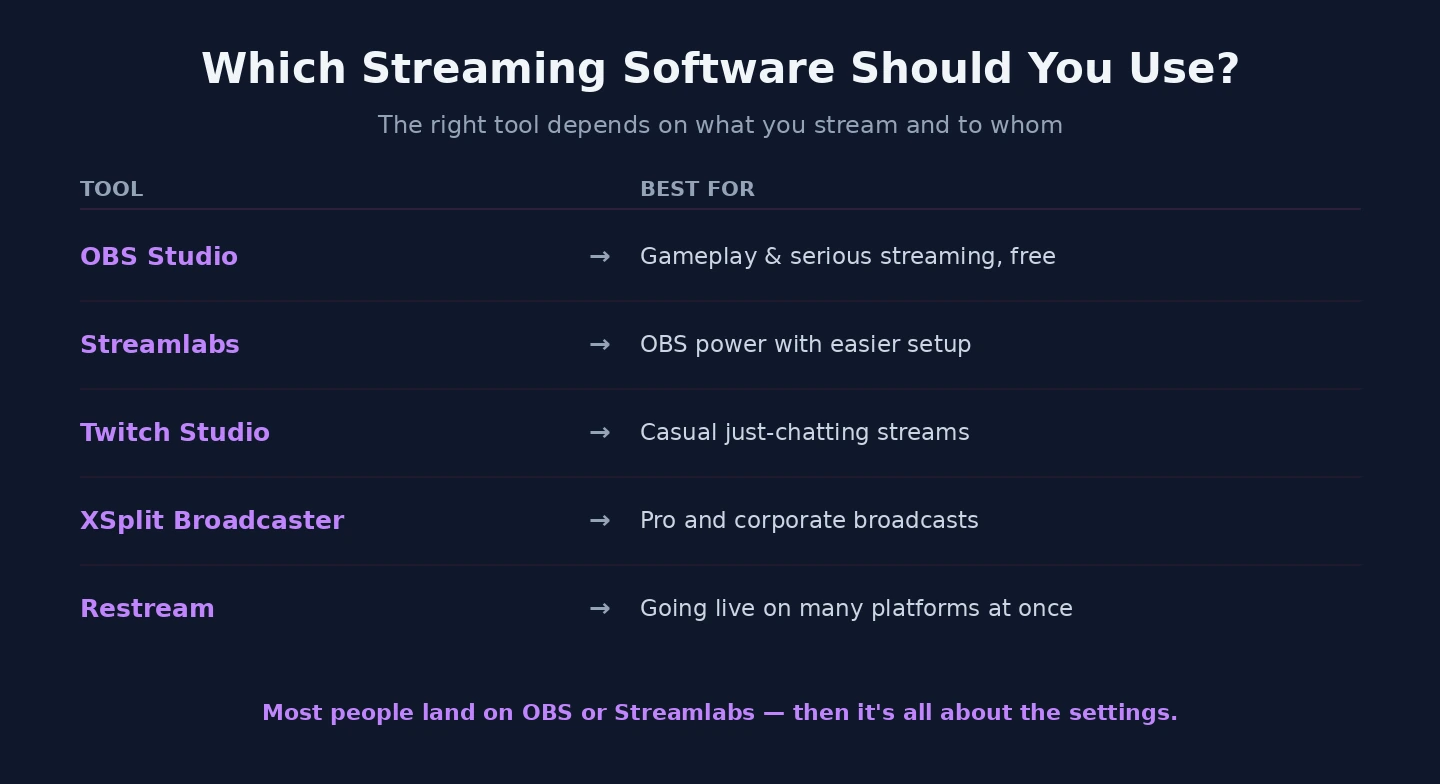
OBS Studio (free, open-source; obsproject.com) is the right streaming software for PC for the broadest range of users including most gameplay streamers, professional broadcasters, and anyone serious about streaming as more than casual experimentation. The product has dominated the streaming category for years because the capability is genuinely substantial and the price is genuinely zero.
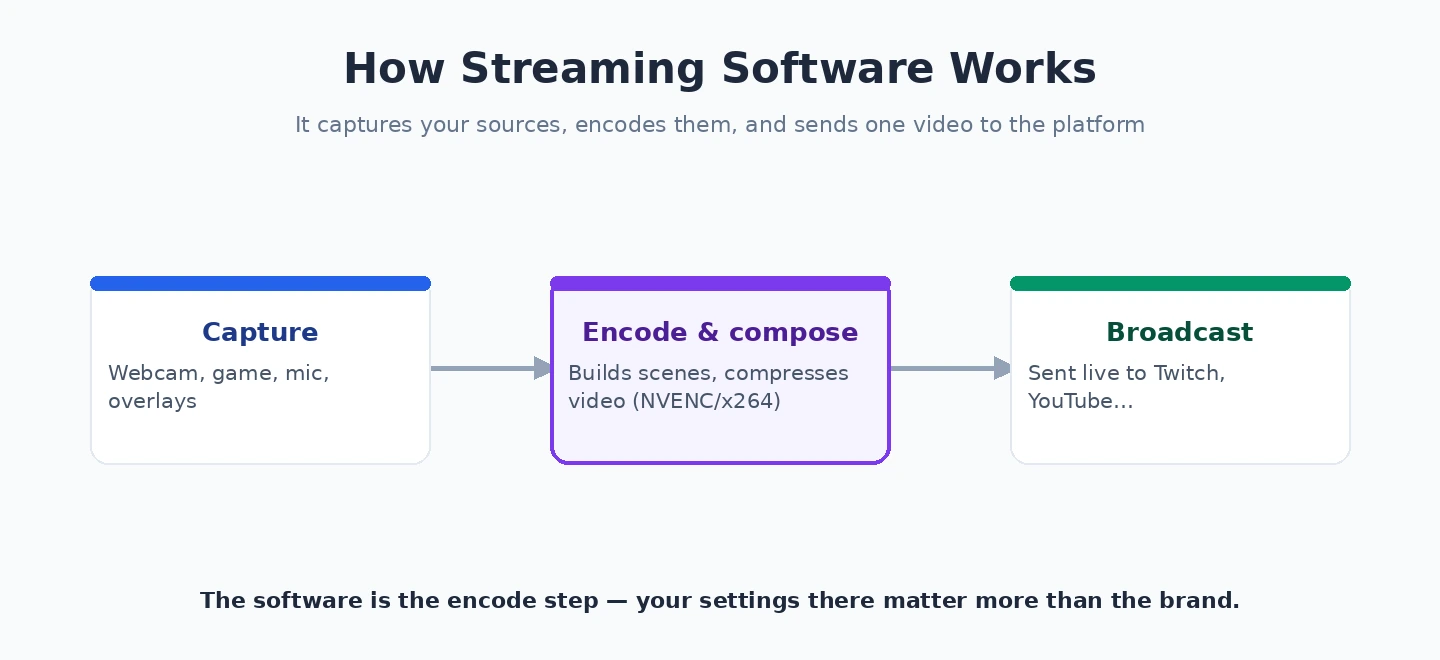
The strengths are real and span the realistic needs of serious streamers. Multiple sources composited into a single output (your gameplay capture, your webcam, overlay graphics, microphone audio, system audio, alerts and notifications) with control over how each layer appears. Scene transitions for switching between layouts (starting soon screen, gameplay layout, BRB screen, ending screen). Recording capability alongside streaming, so you can save broadcast-quality copies of your streams locally. Direct integration with major streaming platforms (Twitch, YouTube Live, Facebook Gaming, custom RTMP servers). The plugin ecosystem extends functionality substantially.
The case for OBS specifically over alternatives is the combination of capability and the zero cost. The product handles essentially everything that professional streaming requires, development is actively maintained by a substantial community, and the free pricing means you can invest in setup and tuning without first committing budget to discover whether it fits your needs. For streamers who would otherwise pay for streaming software, OBS produces equivalent capability at no cost.
The realistic friction is the configuration depth and the learning curve. OBS expects understanding of audio mixing, scene composition, encoder settings, and the various technical concepts that determine streaming quality and reliability. Users who invest the setup time get dramatically better streams than the defaults; users who do not get streams that are functional but not obviously better than simpler alternatives.
The configuration that matters most for new OBS users: appropriate output resolution and bitrate for your internet upload speed and target platform, audio level metering and basic noise filtering on the microphone source, scene layouts that match your stream type with backup scenes for when something goes wrong. Investing 2-3 hours in initial configuration before going live publicly produces dramatically better results than diving in with defaults.
For gameplay streamers, serious broadcasters, and anyone whose streaming work justifies the setup investment, OBS is the right pick. The alternatives below matter for specific use cases where OBS is not optimised; for the general case, OBS is the strong default.
For Streamers Who Want OBS Capability With Easier Configuration: Streamlabs
Streamlabs (free with limits, paid plans from $19/month annually; streamlabs.com) is the streaming software built on top of OBS Studio with additional features layered on top — automated alerts and notifications, integrated themes and overlays, easier scene management, and direct integration with Streamlabs’ ecosystem of streaming tools.
The case for Streamlabs specifically is when you want OBS’s underlying capability without investing in the configuration depth that OBS expects. The product handles the setup choices OBS leaves to the user, provides themed scene collections that produce polished-looking streams without manual design work, and integrates streaming tools (alerts, donation overlays, chat integration) that OBS users would otherwise configure separately.
The strengths for newer streamers are real. The onboarding workflow handles initial configuration with sensible defaults that produce working streams faster than starting from blank OBS. The themed overlays produce immediate visual polish that takes substantial design work to achieve manually. The integrated tools eliminate the need to install and configure multiple third-party browser sources and integrations.
The honest concerns with Streamlabs are about resource usage and the paid tier pressure. The application is meaningfully heavier than pure OBS, which matters on lower-end systems where the gaming performance is already pushing hardware limits. The free tier nags toward paid features in ways that some users find frustrating. The reliance on Streamlabs’ cloud infrastructure for some features creates dependencies that OBS does not have.
For new streamers who specifically want easier onboarding and are willing to accept the resource and dependency trade-offs, Streamlabs is genuinely valuable. For streamers comfortable investing in OBS configuration directly, the case for Streamlabs is weaker — you can achieve the same results in OBS with more setup work but without the ongoing dependencies.
For Casual Just-Chatting and Conversation Streams: Twitch Studio or Direct Browser Tools
For streamers whose content is primarily conversation rather than gameplay — just-chatting streams, podcast-style content with video, talking head streams — the production complexity that OBS supports is often overkill. Simpler tools serve this use case adequately and with less setup friction.
Twitch Studio (free; downloadable from Twitch) is Twitch’s own streaming application designed for casual streamers whose primary content is conversation or simple gameplay without extensive production. The setup is dramatically simpler than OBS, the integration with Twitch is native, and the result is workable streams for casual content without serious configuration investment.
The case for Twitch Studio specifically is for casual streamers who do not need OBS’s depth and whose content does not justify the setup time. New streamers exploring whether streaming fits them, occasional streamers who broadcast casually rather than as serious creative work, and streamers whose content is genuinely simple (just talking to chat with maybe a webcam) all benefit from Twitch Studio’s simplicity over OBS’s depth.
The realistic limit is that Twitch Studio is Twitch-only and casual-only. Streamers who grow into serious work or who want to stream to multiple platforms simultaneously outgrow Twitch Studio. The migration to OBS at that point is straightforward but represents a tool change that more committed streamers avoid by starting on OBS.
For specifically casual conversation streaming where production quality is genuinely not the primary concern, browser-based streaming through tools like Restream Studio or StreamYard (covered in our video conferencing software comparison) handles the use case without installing dedicated software. These tools work in the browser, handle multi-platform streaming, and produce adequate quality for conversation content. The case for them is concentrated in remote interview formats and collaborative streaming with multiple hosts in different locations.
For Professional Broadcasts and Corporate Content: XSplit Broadcaster
XSplit Broadcaster (paid subscription from $5-15/month, lifetime licenses available; xsplit.com) competes with OBS in the professional and serious-broadcast category with a more polished commercial interface and specific features that some users find genuinely valuable.
The case for XSplit specifically is when you want commercial software with paid support rather than open-source software with community support. For corporate environments where IT departments prefer commercial tools, professional broadcasters where support contracts matter, or users who specifically value the more polished interface, XSplit is the credible alternative to OBS.
The honest framing is that the capability gap between XSplit and OBS is small enough that the choice often comes down to preference rather than capability. XSplit has historically had some specific features that OBS adopted later; OBS has features that XSplit may not have or may handle differently. For users with specific feature requirements, comparing the current state of both products against those requirements produces better information than general recommendations.
The pricing case for XSplit is the lifetime license option that produces lower total cost of ownership than subscription pricing over multi-year use. For users committed to XSplit specifically for the long term, the lifetime license is reasonable. For users uncertain about long-term commitment, the subscription option provides flexibility.
For most users, OBS is the right starting point and XSplit is the alternative to consider if specific reasons motivate looking beyond OBS. For users with those specific reasons (corporate procurement requirements, support contract preferences, particular feature needs), XSplit is genuinely competitive.
For IRL and Mobile Streaming: Platform-Specific Tools
Streaming away from a PC desk — IRL streaming, mobile content, outdoor broadcasts — uses fundamentally different tools because the primary capture device is a phone or dedicated streaming hardware rather than a PC. The dedicated PC streaming software does not apply directly to this use case.
For mobile IRL streaming, applications like Streamlabs Mobile or the Twitch iOS and Android apps handle the basic mobile streaming case. For more serious mobile work, hardware-based solutions (LiveU, Teradek) combined with PC software for production output produce broadcast-quality mobile streams that the consumer mobile apps cannot match.
The case for using a PC at all in mobile streaming workflows is when the mobile capture is part of a larger production with overlays, scene transitions, or other PC-side production elements. The mobile device acts as a camera input to the PC streaming software, which adds production layers and outputs the final stream.
For pure mobile streaming without PC involvement, the realistic answer is to use mobile-specific tools rather than trying to apply PC streaming software to mobile contexts. This category is genuinely a different tool ecosystem from PC streaming software.
For Educational Streaming: Specific Considerations
Educational streaming has specific requirements that the general-purpose streaming tools handle adequately but not optimally. Tutorials, classes, instructional content, and educational livestreams benefit from features that gameplay streaming tools de-emphasise.
The features that matter for educational streaming: clear capture of screen content (often more important than webcam quality), annotation tools for marking up content during the stream, structured layouts that present information clearly rather than gaming-aesthetic overlays, and integration with recording so the educational content is captured for later asynchronous viewing.
OBS handles educational streaming competently with appropriate scene configuration. Streamlabs adds some specific educational features through its theme library. For dedicated educational streaming, specialist tools like ManyCam (focused on virtual classroom use) offer features specifically tuned for instructional contexts.
For most educational streamers, OBS configured appropriately for the educational use case serves better than specialist tools that produce friction outside their narrow specialty. The investment in configuring OBS for educational streaming (clear screen capture, simple overlays, recording alongside streaming) pays back for users who stream educational content regularly. Our screen recording software comparison covers the related category for educational content that is recorded rather than streamed live, and our video editing software comparison covers the post-production tools that pair with streaming for users who edit highlights from their streams.
The Streaming Settings That Matter More Than Tool Choice
One framing point worth making explicitly: the streaming software produces output that depends substantially on the encoder settings, the source quality, and the internet upload connection. The same tool produces dramatically different results based on these factors, and getting them right matters more than the tool choice.
Internet upload speed determines the maximum achievable stream quality. For 1080p 60fps streams to most platforms, you need approximately 6-8 Mbps of stable upload bandwidth. Higher quality (4K) requires substantially more. Lower bandwidth means reducing resolution, framerate, or bitrate — the tool cannot exceed your connection’s actual capability regardless of how you configure it.
Encoder choice and configuration affect quality at any given bitrate. Hardware encoders (NVIDIA NVENC, AMD AMF, Intel QuickSync) produce streams without consuming the CPU your game needs. Software encoders (x264) produce slightly better quality at the same bitrate but consume substantial CPU. For users on machines where the game is the primary load, hardware encoders are typically the right choice. For users with dedicated streaming machines, software encoding can produce marginally better results.
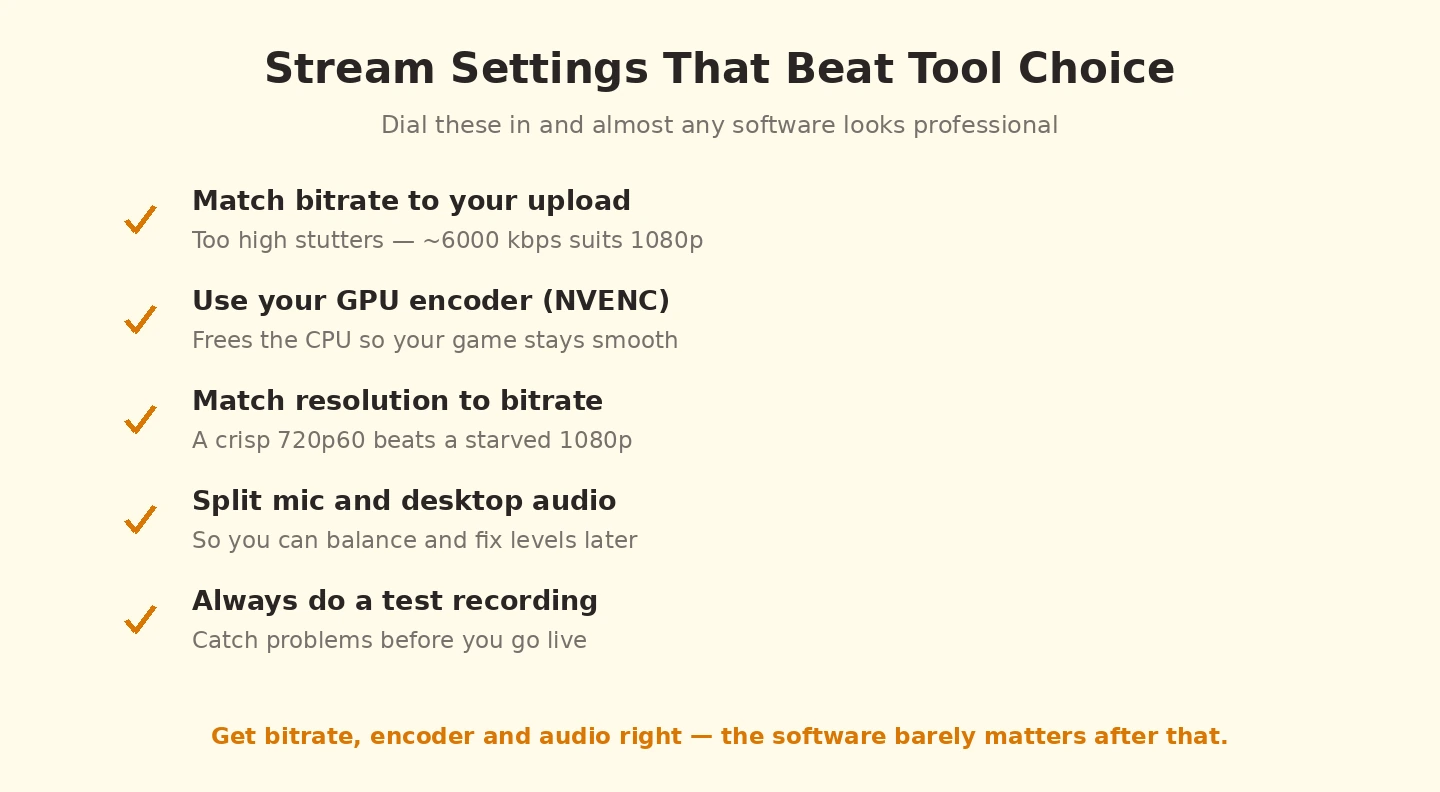
Audio quality affects audience retention more than visual quality. Viewers tolerate visual compromises far more than poor audio. A decent microphone (USB condenser microphone in the $50-150 range) and basic acoustic treatment produces audio quality that makes streams listenable in ways that built-in laptop microphones cannot. Our voice recording software comparison covers the audio side that affects streaming quality substantially.
Scene composition and visual design affect how professional streams appear to viewers. Even free OBS produces professional-looking output with deliberate scene design; even paid streaming software produces amateur-looking output with sloppy scene composition. The visual design investment matters more than the tool choice.
Hardware and System Considerations
Live streaming is genuinely resource-intensive in ways that affect tool choice and configuration. The same software performs differently on different hardware, and matching configuration to hardware capability matters substantially.
For users streaming gameplay on a single PC, the GPU is doing both rendering the game and (potentially) encoding the stream. Hardware encoders that work on dedicated silicon (NVENC on NVIDIA, AMF on AMD) free the GPU to focus on game rendering. The CPU handles the audio processing, OBS overhead, and operating system tasks. RAM should be 16GB minimum for serious streaming; 32GB removes essentially all RAM-related concerns.
For users with two-PC setups (one PC running the game, separate PC running streaming software), the streaming PC can handle more sophisticated production without affecting game performance. This setup matters mostly for high-end gameplay streaming where the game itself is pushing hardware limits.
For users with older or lower-end hardware, accepting compromise on stream quality is often necessary. A 720p 30fps stream on an older PC is meaningfully better than struggling to deliver a 1080p 60fps stream that drops frames and looks worse than the lower-quality option would have. Honest assessment of hardware capability before configuring stream settings produces better outcomes than attempting maximum quality on insufficient hardware.
The Practical Recommendation
For most streamers in 2026, the answer follows from your streaming purpose. Gameplay streaming and serious work generally: OBS Studio for the capability at zero cost. Easier onboarding with OBS-equivalent capability: Streamlabs, accepting the resource and dependency trade-offs. Casual conversation streams or just-getting-started: Twitch Studio for simplicity, or browser-based tools for multi-platform casual streaming. Corporate or professional broadcasts where commercial software matters: XSplit Broadcaster as the credible alternative. Mobile and IRL streaming: platform-specific mobile tools rather than PC streaming software. Educational streaming: OBS configured for educational use, or specialist tools for serious instructional production. The wrong move is picking by general reputation without identifying your streaming purpose, because the same tool excellent for one purpose produces friction or quality compromises for others. Match the tool to your actual streaming purpose, invest in audio quality and scene design rather than chasing better software, and the category produces effective streams rather than ongoing tool churn.