There is a particular flavour of household frustration where everyone knows the WiFi feels slow but nobody knows why. The video call buffers, the streaming stutters, a download crawls — and there is no obvious culprit. Somewhere on the network, something is using more bandwidth than its share, but the question of “what” usually goes unanswered because most households have no visibility into their own internet use. Learning to monitor network traffic turns this guesswork into clear, actionable information, and the tools to do it have become genuinely accessible in 2026. If you want the full context, see our Home Networking.
The encouraging news is that the gap between “I have no idea what is using my internet” and “I can see exactly which device is doing what” is much smaller than it used to be. Modern routers ship with reasonable built-in traffic reporting, several free tools handle the monitoring on a separate device for households that want more detail, and the dashboards have become friendly enough that you do not need a networking background to read them. The harder part is choosing the right level of detail for your actual needs and avoiding the rabbit hole of obsessive monitoring once you can see everything.
This guide walks through everything I check when helping someone monitor network traffic in their household for the first time — what the visibility genuinely buys you, the tools that work well for everyday use, the configuration steps to get useful data flowing, and the patterns worth watching for once the dashboard is live. By the end you will have practical visibility into what your home network is doing, with enough information to answer real questions without drowning in noise.
Why It Helps to Monitor Network Traffic in a Modern Household
The everyday reasons to monitor network traffic at home come up more often than most people realise. The streaming stutter, the work-call dropout, the mysterious data-cap warning from the provider, the kid claiming they have not been online when the router log says otherwise — every one of these is easier to resolve when you have actual data rather than guesses. Visibility converts arguments into facts and turns vague suspicion into specific evidence.
Beyond the household-management questions, the ability to monitor network traffic is genuinely useful for security awareness. A smart-home device that has been quietly making thousands of connections to unfamiliar domains is the kind of thing you only notice if you are watching. A new device that appeared on the network without anyone adding it deserves investigation. According to official cybersecurity guidance, the discipline of basic traffic visibility on home networks remains among the underrated personal-security practices in 2026 — not because households need enterprise-grade monitoring, but because even a glance at a basic dashboard surfaces obvious anomalies before they become problems.
The third category of benefit is performance tuning. Households on slower internet plans, or families with patchy WiFi coverage, can use traffic monitoring to identify which devices are the heaviest consumers and decide whether the consumption matches the value. A smart TV consuming a hundred gigabytes a month makes sense; a smart thermostat consuming the same amount does not, and is worth investigating. The data lets you decide whether to upgrade the plan, change behaviour, or replace a device, based on actual usage rather than vague intuition.
Tools That Make It Easy to Monitor Network Traffic at Home
The tooling landscape to monitor network traffic on a home network in 2026 has matured considerably. The right choice depends on whether you already have an always-on device on the network, how much detail you actually want, and whether you are comfortable with command-line setup or prefer a polished app. The main options worth knowing:
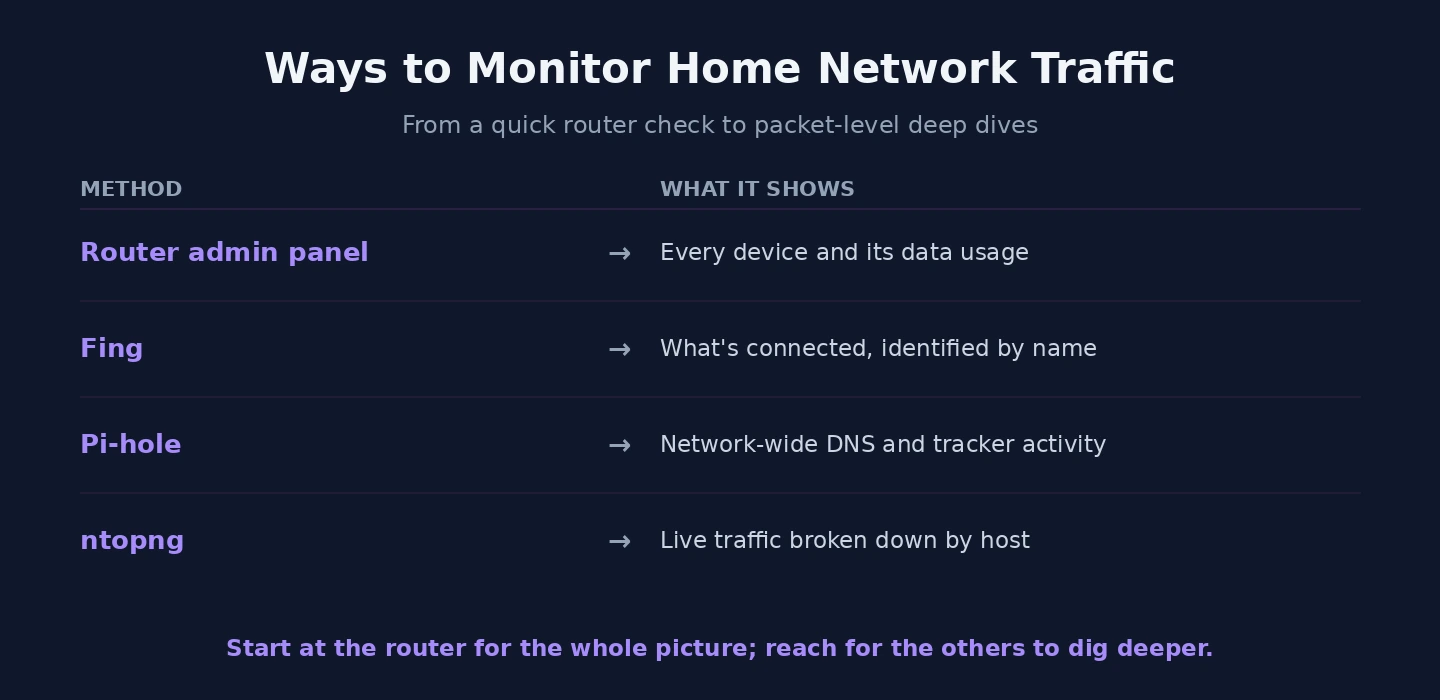
Several practical approaches that cover most household needs:
- Router-built-in traffic reporting. Most modern routers from Asus, TP-Link, Netgear, and Synology include some form of per-device traffic dashboard. Quality varies wildly; some are excellent, others barely usable.
- The router admin pages of mesh systems. Eero, Google Nest WiFi, and Orbi all surface per-device usage in their mobile apps. The quality on mesh systems has improved meaningfully in the past two years.
- Pi-hole’s query log. If you already use Pi-hole to filter ads, its query log doubles as a basic record of which devices are reaching which domains — useful for monitoring purposes even if filtering is not your goal.
- Glances, ntopng, or vnstat on a small home server. Free open-source tools that produce richly detailed traffic dashboards if you have a Raspberry Pi or similar device on the network.
- Subscription services like Firewalla or Fingbox. Polished hardware plus app combinations that handle the entire monitoring stack with no manual configuration. Higher cost; almost zero learning curve.
- Whole-home routers from Eero with subscription Plus tier. Adds richer traffic analytics on top of the built-in features for households already in the Eero ecosystem.
For households that have an existing always-on device — a NAS, a home server, a Raspberry Pi — the open-source path is genuinely excellent and costs nothing. For households without that infrastructure, the router’s built-in features are the right starting point, and a subscription service is worth considering if the built-in quality is poor. Reviews from outlets like major technology publications regularly compare the current state of consumer monitoring options, which is more useful than relying on older write-ups because the category evolves quickly. Our companion walkthrough on setting up a home server covers the foundation that lets you monitor network traffic with open-source tools without buying anything new.
One useful mental model: think of the dashboard as a household appliance rather than a security console. You glance at the dishwasher to see whether it is running; you glance at the traffic monitor to see whether the network is behaving normally. Both should require seconds of attention rather than minutes, and both should fade into the background until something looks off. If your monitoring setup demands more attention than that, you have likely picked too detailed a tool for your actual needs and the result is that you will eventually stop checking.
How to Monitor Network Traffic Through Your Router Admin Panel
The fastest path to useful visibility is enabling whatever traffic monitoring your existing router already supports. The exact menu names vary by brand, but the underlying capability is similar across most modern routers from the past few years. The sequence:
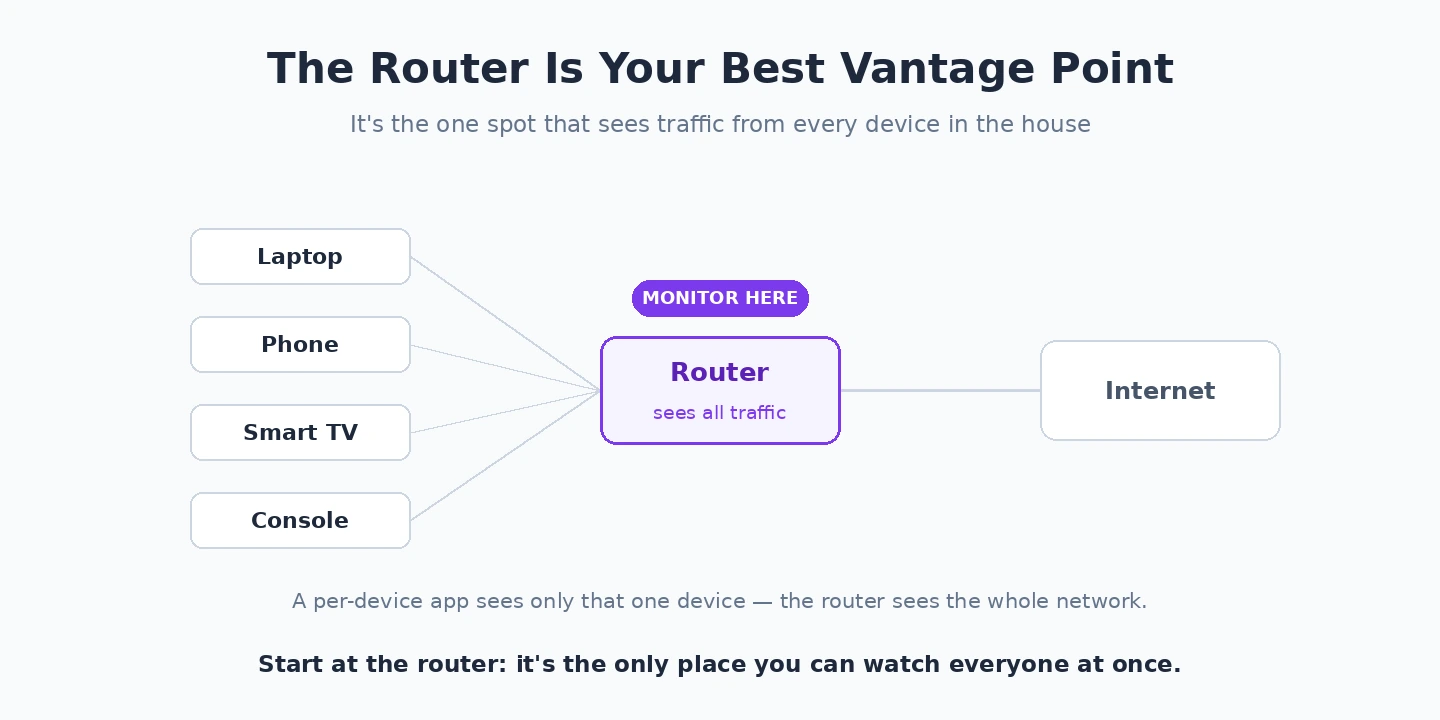
- Log into your router admin panel. Our walkthrough on accessing your router settings covers this for the common brands.
- Find the Traffic Monitor or Statistics section. On Asus this lives under “Adaptive QoS” then “Traffic Monitor.” On TP-Link the section is “Network Map” or “Statistics.” On Netgear it is “Traffic Meter” or “Attached Devices.”
- Enable per-device tracking if it is not on by default. Some routers monitor network traffic only as a household total until you specifically turn on per-device statistics.
- Rename connected devices to meaningful labels. “Sarah’s MacBook” tells you something at a glance; “ESP32-3DA9F8” tells you nothing. Most routers let you rename devices once and remember the labels permanently.
- Set a baseline window by letting the router collect a week or two of data before drawing conclusions. Single-day snapshots are misleading; weekly averages start to be informative.
- Configure alerts if available. Some routers send notifications when a specific device exceeds a usage threshold or when an unknown device joins the network.
- Bookmark the dashboard on your phone or laptop so checking it takes seconds rather than minutes. Visibility you have to dig for is visibility you will stop using.
The renaming step makes more difference to the experience than people initially expect. A dashboard full of cryptic hostnames is intimidating; a dashboard with human-readable names is informative. Spending fifteen minutes renaming every device the first time you monitor network traffic seriously transforms the dashboard from a curiosity into a tool you actually use.
Deeper Ways to Monitor Network Traffic With Open-Source Tools
If the built-in router reporting cannot monitor network traffic in enough detail — either because the router’s reporting is weak or because you want more detail — open-source tools running on a small always-on device produce dramatically richer visibility. The setup requires a bit more effort but the result is information that genuinely no consumer router currently matches.
Quick tip — if you are already running Pi-hole on your network, you already have basic per-device traffic visibility through its query log without installing anything extra. Pi-hole records every DNS lookup with the originating device and the queried domain, which surfaces exactly which device is talking to which service. This is not full bandwidth monitoring, but it answers most “what is this thing doing” questions without any additional setup.
For full bandwidth monitoring on top of DNS visibility, ntopng is the open-source option I recommend most often. It runs on a Raspberry Pi or any Linux machine with two network interfaces, watches all traffic flowing through, and produces a clean web dashboard showing per-device bandwidth, per-protocol breakdown, and historical trends. The installation takes about an hour the first time and produces visibility comparable to entry-level commercial network management products. Vnstat is a simpler alternative that tracks just total interface bandwidth over time — less detail but dramatically simpler to set up.
For households that want the convenience of a polished product without giving up the privacy of self-hosting, Firewalla deserves consideration. The device is a small box that plugs into your network and runs comprehensive traffic monitoring out of the box with a clean mobile app. The upfront cost is meaningful but the experience is significantly more polished than the open-source path. According to national standards body publications, the consolidation of consumer network monitoring tools around either fully open-source stacks or polished commercial appliances has been one of the more positive shifts in personal-infrastructure software, with the middle ground of half-finished commercial offerings largely disappearing. To monitor network traffic effectively across many devices, you really do need one of the two extremes, and the choice is mostly about budget versus time.

Worth noting that visibility itself has a small privacy cost. Detailed traffic logs reveal patterns about household members — when they sleep, what they watch, which services they use — and those logs deserve some thought about retention. Most household monitoring tools let you configure how long history is kept; choosing a reasonable retention window (a few weeks rather than indefinite) keeps the tool useful without accumulating data that nobody needs.
What to Actually Look For Once You Can Monitor Network Traffic
Once you can monitor network traffic through a live dashboard, the question becomes what to actually pay attention to. The default mode for most people is to glance at the dashboard for a few days, find it overwhelming, and gradually stop looking. The fix is to know what specifically is worth your attention so the dashboard becomes a tool rather than a curiosity.
Watch the totals weekly. Total household traffic over a week tells you whether your internet usage is roughly stable or trending upward. A sudden jump — fifty percent more usage than the previous week with no obvious explanation — is the kind of signal that justifies a closer look. Most weeks, the totals look similar to last week, and that is exactly what you want to see.
Watch the top-five devices by traffic. The heaviest consumers are usually obvious — the streaming TV, the work laptop, the gaming console. When something unexpected appears in the top five, it is worth investigating. A smart-home device suddenly using more bandwidth than your laptop probably has either a bug or a security issue. A new device you do not recognise warrants immediate attention. Our companion walkthrough on WiFi network security covers the broader practices around device awareness that complement traffic visibility.
Watch for sustained late-night activity. Most household devices are quiet between, say, 1 AM and 6 AM. Devices that are consistently busy during these hours are doing something specific — automatic updates, cloud backups, telemetry uploads — and it is worth understanding what. Some of this is benign; some of it is configurable or removable. Either way, knowing about it lets you make informed decisions. With these patterns in mind, the ability to monitor network traffic in your household becomes the kind of quiet awareness that surfaces real issues without becoming a daily obsession — exactly the right relationship with the visibility this tool was designed to provide. Visibility is most valuable when it sits quietly until you need it, and the household that builds this kind of quiet awareness ends up with both fewer mystery slowdowns and a much faster path to resolving the ones that still occur.