Video calling apps have largely consolidated since the pandemic-era boom — the major players settled into clear strengths and weaknesses. The right choice depends almost entirely on who you’ll be calling: business colleagues, family members, or your existing Discord community. This fits into the wider topic we cover in our Best Software and Apps.
The quick recommendations by use case: Zoom for business meetings with external participants. Microsoft Teams if your organisation uses Microsoft 365. Google Meet if you live in Google Workspace. FaceTime for Apple-to-Apple personal calls. Discord for gaming and community voice/video. WhatsApp/Signal for casual mobile-first personal calls.
The detailed comparison below covers each by use case, pricing, and where each falls short. None of these is universally best — they’re optimised for different needs. Skip to whichever section matches your situation.
Best Video Calling App for PC: FaceTime (via web on Windows)
FaceTime has been accessible from Windows via facetime.apple.com since 2021 — Apple account holders can generate a FaceTime link that Windows users join through a browser without any app installation. For personal calls with iPhone or Mac contacts, FaceTime’s video and audio quality is excellent, the Spatial Audio and portrait mode features add polish, and the join-from-browser capability removes the need to convince a Windows contact to install anything. For mixed iPhone/Windows households and friend groups where the primary callers are iPhone users, FaceTime via web is underused as a high-quality free option. The limitation: FaceTime requires that at least one participant has an Apple account to initiate the call, and the browser-based Windows experience, while functional, is less feature-rich than the native Mac app. For calls entirely between non-Apple users, a different platform is more appropriate.Best Video Calling App for PC: Zoom
Zoom (free with limits; Pro from £11.99/month) is the video calling app with the widest recognition and the lowest friction for external calls — most people know what a Zoom link is and how to join one. For personal calls with family and friends who may not be particularly tech-savvy, Zoom’s familiarity is a genuine advantage. The free tier supports calls up to 40 minutes with three or more participants (one-to-one calls are unlimited in time on the free tier) — adequate for most personal call needs. The video and audio quality are consistently reliable, the background blur and virtual background features are polished, and the noise cancellation in recent versions is strong enough that the separate noise cancellation apps some users were using are no longer necessary. For professional video calls where the contact is outside your organisation, Zoom is often the most practical choice precisely because of its ubiquity.Best Video Calling App for PC: WhatsApp
WhatsApp (free; available as a Windows desktop app; whatsapp.com) has matured into a capable video calling platform for personal use — one-to-one and group video calls with up to 32 participants, good mobile-to-desktop continuity, and end-to-end encryption for calls. The Windows desktop app released in 2023 significantly improved the PC calling experience over the previous web-based version. For personal calls within a contact list that already uses WhatsApp — which in many countries is the majority of people’s social contacts — WhatsApp provides video calling without requiring a separate app or account. The limitation for professional use: WhatsApp’s association with personal messaging makes it less appropriate for formal professional calls in many business cultures. Sharing a personal WhatsApp number for business video calls also creates a work-life boundary issue that Zoom or Teams links avoid.Best Video Calling App for PC: Microsoft Teams (Personal)
Microsoft Teams (free for personal use; available on Windows) has a separate personal tier distinct from the enterprise version — it provides video calling with up to 60 minutes (free tier) for personal and family use, with end-to-end encrypted calls, file sharing, and the Mesh avatars feature for anonymous-avatar calls. For Windows users who are already signed into a Microsoft account and want a video calling option that requires no additional account creation, Teams Personal is already available. Teams Personal is less well-known than Zoom or WhatsApp for personal calling, but for Windows-primary users who call contacts who are also on Microsoft accounts, the no-extra-account experience is convenient. For professional use, the enterprise Teams version covered in the video conferencing guide is more appropriate.Best Video Calling App for PC: Google Meet
Google Meet (free with Google account; no time limits on 1:1 calls; meet.google.com) is the video calling platform I recommend for calls with contacts in the Google ecosystem — Gmail users can start a Meet call from their inbox with one click, no additional software needed. The browser-based joining experience (no installation required for guests) reduces friction for less tech-savvy contacts. The 1:1 call quality is good and the noise cancellation is effective. Group calls with more than 2 participants have a 60-minute limit on the free tier.| App | Cost | Best For | Time Limits |
|---|---|---|---|
| FaceTime (web) | Free | Calls with iPhone/Mac contacts; Apple quality | None |
| Zoom | Free / £11.99/month | Universal recognition; external professional calls | 40 min (3+ people, free tier) |
| Free | Personal calls with existing contacts | None | |
| Teams Personal | Free | Microsoft account users; family calls | 60 min (free tier) |
| Google Meet | Free | Gmail users; browser-based joining | 60 min (3+ people, free tier) |
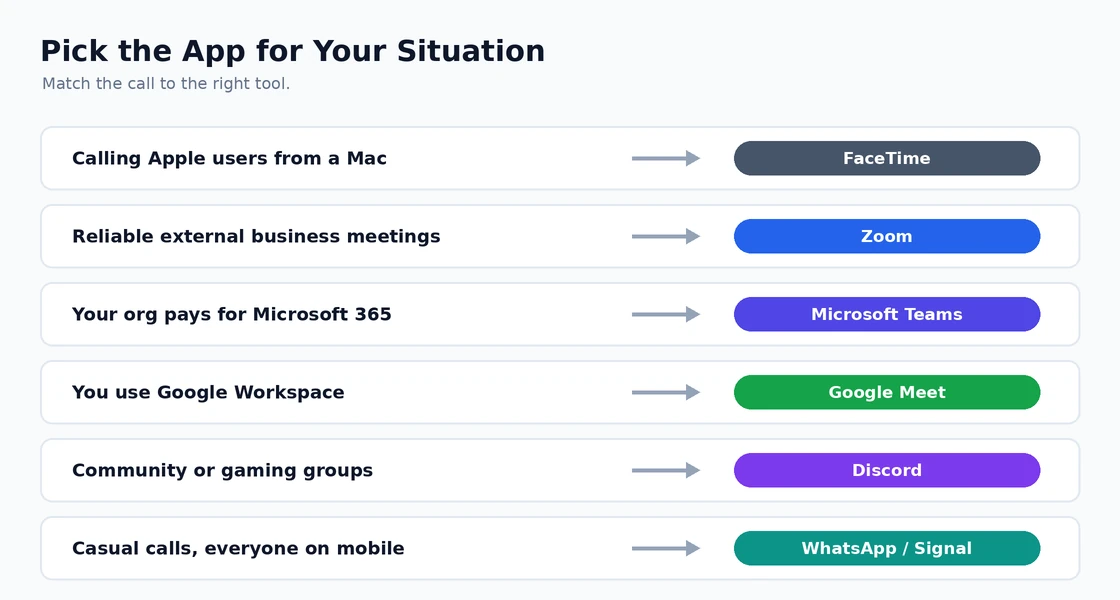
Zoom — best for business meetings with external participants
Zoom became the default business video tool during the pandemic and has held that position despite Teams’ aggressive push. The reasons: it just works, the join experience is friction-free for guests (no account required, click a link, you’re in), and the video and audio quality is reliable.
Pricing: Free for 40-minute meetings up to 100 participants. Pro at $14.99/host/month removes the time limit. Business at $21.99 adds branding and admin features.
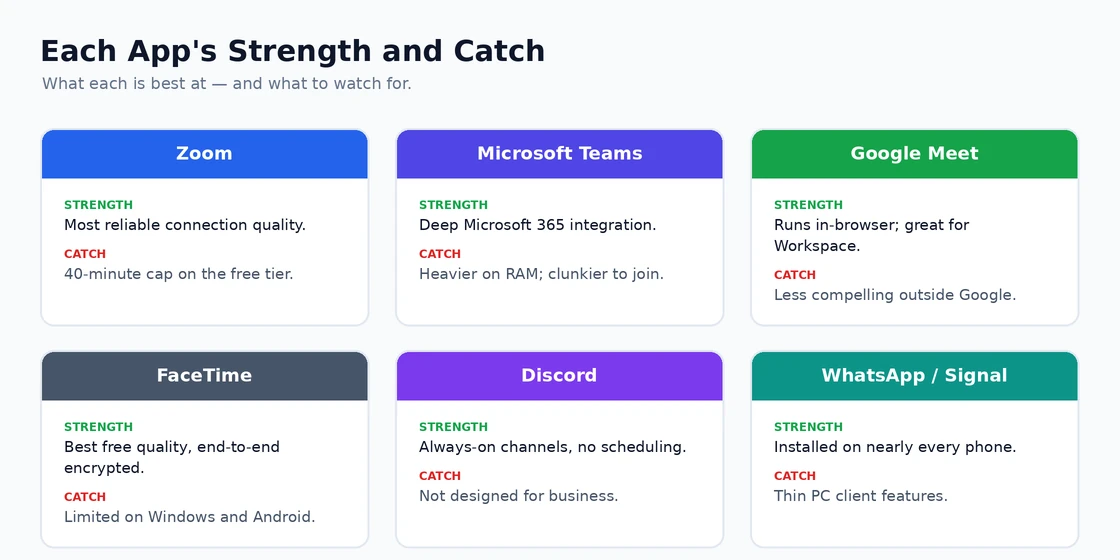
Strengths: Most reliable connection quality of any tool tested, easiest guest join experience, breakout rooms work better than competitors, recording quality is excellent.
Weaknesses: 40-minute limit on free tier interrupts longer meetings, history of security issues (mostly resolved but the reputation persists), file sharing is awkward compared to Teams.
Microsoft Teams — best when you have Microsoft 365
If your organisation pays for Microsoft 365, Teams is essentially free and deeply integrated with Outlook, SharePoint, and the Office apps. Schedule a meeting in Outlook and it auto-creates a Teams link. Files shared in chat live in SharePoint and stay accessible after.
Pricing: Free standalone tier (limited). Included with Microsoft 365 Business plans starting $6/user/month.
Strengths: Deep Office integration, persistent team channels (more than just meetings), strong file sharing, included in M365 so often free at organisations.
Weaknesses: Heavier than competitors (uses more RAM), join experience for guests is more friction than Zoom, occasional video quality issues that don’t affect Zoom.
Google Meet — best for Google Workspace users
If your business uses Google Workspace (Gmail, Drive, Docs), Meet is the obvious choice — built into Calendar, accessible from Gmail, shares files from Drive seamlessly. Meet has dramatically improved since 2020 and now competes directly with Zoom on quality.
Pricing: Free for 60-minute meetings with up to 100 participants. Workspace Starter at $6/user/month removes limits.
Strengths: Excellent for Google Workspace organisations, no app install needed (runs entirely in browser), good captions and translation features, secure by default.
Weaknesses: Outside Google Workspace, less compelling than Zoom for the same use cases, breakout rooms are less polished, fewer power-user features.
FaceTime — best for Apple-to-Apple personal calls
For calls between Apple users (Mac, iPhone, iPad), FaceTime is unbeatable — it’s already installed, requires no setup, the quality is excellent, and it’s free. FaceTime on the web exists for inviting Windows/Android users to a call, though that experience is more limited.
Pricing: Completely free.
Strengths: Best video quality of any free tool, no app install needed on Apple devices, integrated with iMessage, SharePlay lets you watch content together.
Weaknesses: Limited Windows/Android experience, no business features (no meeting recording without screen capture, no admin controls), maxes out at smaller group sizes than business tools.
Discord — best for community and gaming
Discord is technically a chat app with voice and video added, not a video calling app first. But for community calls, gaming sessions, or any group you already have in a Discord server, video and screen-share work well and don’t require scheduling or links.
Pricing: Free for most use. Nitro at $9.99/month adds higher streaming quality and other features.
Strengths: Persistent server channels mean no scheduling needed, excellent screen sharing for gaming, low latency, large active community ecosystem.
Weaknesses: Not designed for business — features and feel are gaming/community oriented, no meeting recording or transcription, video quality limited at free tier.
WhatsApp/Signal — best for casual personal calls
For casual calls where everyone is on their phone and you don’t need PC-specific features (multiple monitors, presentation tools), WhatsApp and Signal handle video calling well. Both are end-to-end encrypted by default.
Pricing: Free for both.
Strengths: Universally installed (WhatsApp has 2+ billion users), end-to-end encryption, works on any device combination.
Weaknesses: Limited PC client features compared to mobile, smaller group sizes than business tools, no business features (recording, transcription, admin controls).
Which video calling app has the best quality?
FaceTime if you’re calling Apple-to-Apple — it uses Apple’s optimised codecs and consistently outperforms cross-platform tools. For cross-platform: Zoom typically has the most reliable quality on bad connections (it adapts aggressively). Google Meet has improved dramatically and is now competitive with Zoom. The biggest quality difference is usually your internet, not the app — any tool on fast internet beats the best tool on bad internet.
Is Zoom or Microsoft Teams better for business?
Depends on your existing tools. If you pay for Microsoft 365, Teams is essentially free and the integration is genuinely useful. If you’re calling people outside your organisation often, Zoom has a friction-free guest experience. Many businesses use both — Teams internally, Zoom for external meetings.
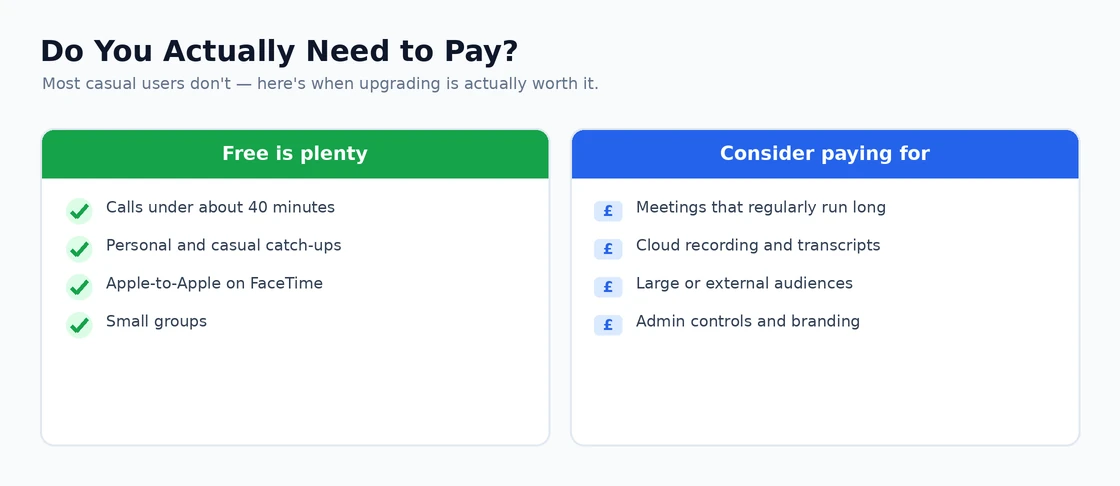
Do I need to pay for any video calling app?
Most casual users don’t. Free Zoom (40-minute limit on group calls), free Google Meet (60-minute limit), free Teams, FaceTime, WhatsApp, Signal, Discord — all are usable for personal use. Pay only if you hit specific limits: longer meetings, more participants, recording, transcription. For most people the free tiers are enough.
Why does my video calling app keep cutting out?
Usually internet, occasionally hardware. Test your internet on speedtest.net — video calls need consistent 1-3 Mbps. Wi-Fi instability is the most common cause; switching to Ethernet often fixes it. CPU usage matters too — open Task Manager during a call, if CPU is near 100% your computer can’t keep up. Other apps consuming bandwidth (cloud sync, updates) also cause cutouts.
Is FaceTime more secure than Zoom?
FaceTime is end-to-end encrypted, Zoom is not by default (though Zoom does offer E2EE as an option in newer versions). For purely private calls between Apple users, FaceTime has stronger encryption by default. For business calls where E2EE isn’t critical, Zoom’s transport encryption is sufficient for most threat models — your bigger security concerns are usually meeting invite leaks, not encryption.
Can I record calls on these video apps?
Most paid tiers support recording. Zoom records to cloud (paid) or local files (free tier sometimes). Teams records with M365 subscription. Google Meet records on Workspace plans. FaceTime doesn’t have built-in recording. For free recording: most operating systems support screen recording (Windows: Win+G, macOS: Cmd+Shift+5) which captures any call but with lower quality than native recording. If this sounds familiar, Best Calendar App for Windows is worth a look.