If Windows 11 says Wi-Fi connected but no internet, the wireless link to your router is working, but traffic is failing somewhere between the PC, router, DNS service, and internet provider. The fastest fix is to identify where that chain breaks before resetting anything.
Start with the one-minute checks below, then follow the diagnostic tests in order. Stop as soon as the connection returns. The same logic also applies to Windows 10, although some Settings labels differ.
What “Wi-Fi Connected but No Internet” Actually Means
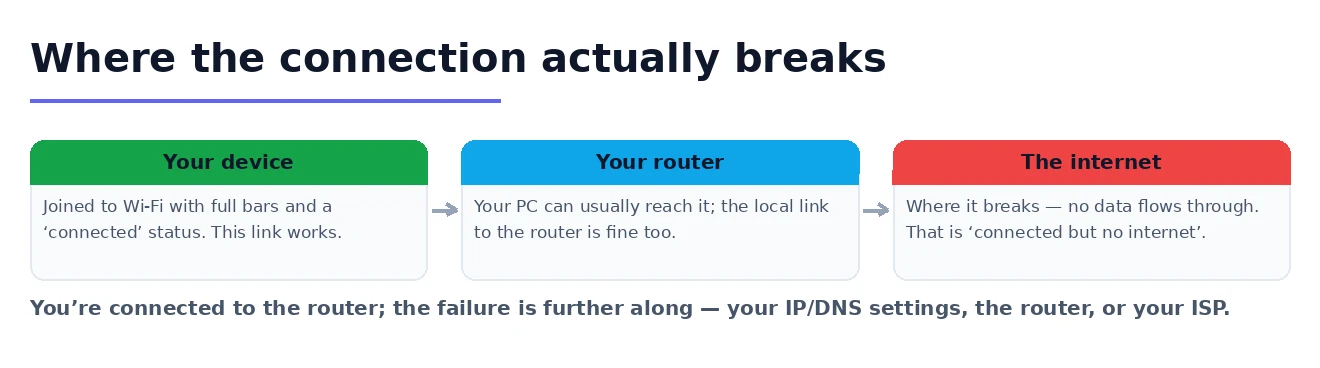
Your connection is really two separate links chained together. The first is between your device and your router—that is the Wi-Fi part, and when it is healthy your PC happily reports that it is connected. The second link runs from your router out to the wider internet. When you see Wi-Fi connected but no internet, it almost always means that first link is fine while something further along the chain has broken. Windows can see the router; it just cannot reach anything beyond it.
That is exactly what the “No internet, secured” label is telling you. “Secured” simply refers to the encryption protecting your Wi-Fi, so it is not a password warning—you are genuinely joined to the network. The “No internet” half, usually paired with a small yellow triangle over the network icon, is the real message: data is not flowing through to the outside world, and your job is to find out why.
The break can sit in one of three places. It might be on your PC—a bad IP address lease, a broken DNS setting, a glitchy wireless driver, or a firewall or VPN blocking traffic. It might be the router—an exhausted address pool, stale firmware, or a unit that simply needs rebooting. Or it might be your ISP suffering an outage. Diagnosing which of the three is responsible is the first and most important step, because it tells you exactly which fixes are worth your time.
Start Here: Quick Checks That Fix It Most of the Time
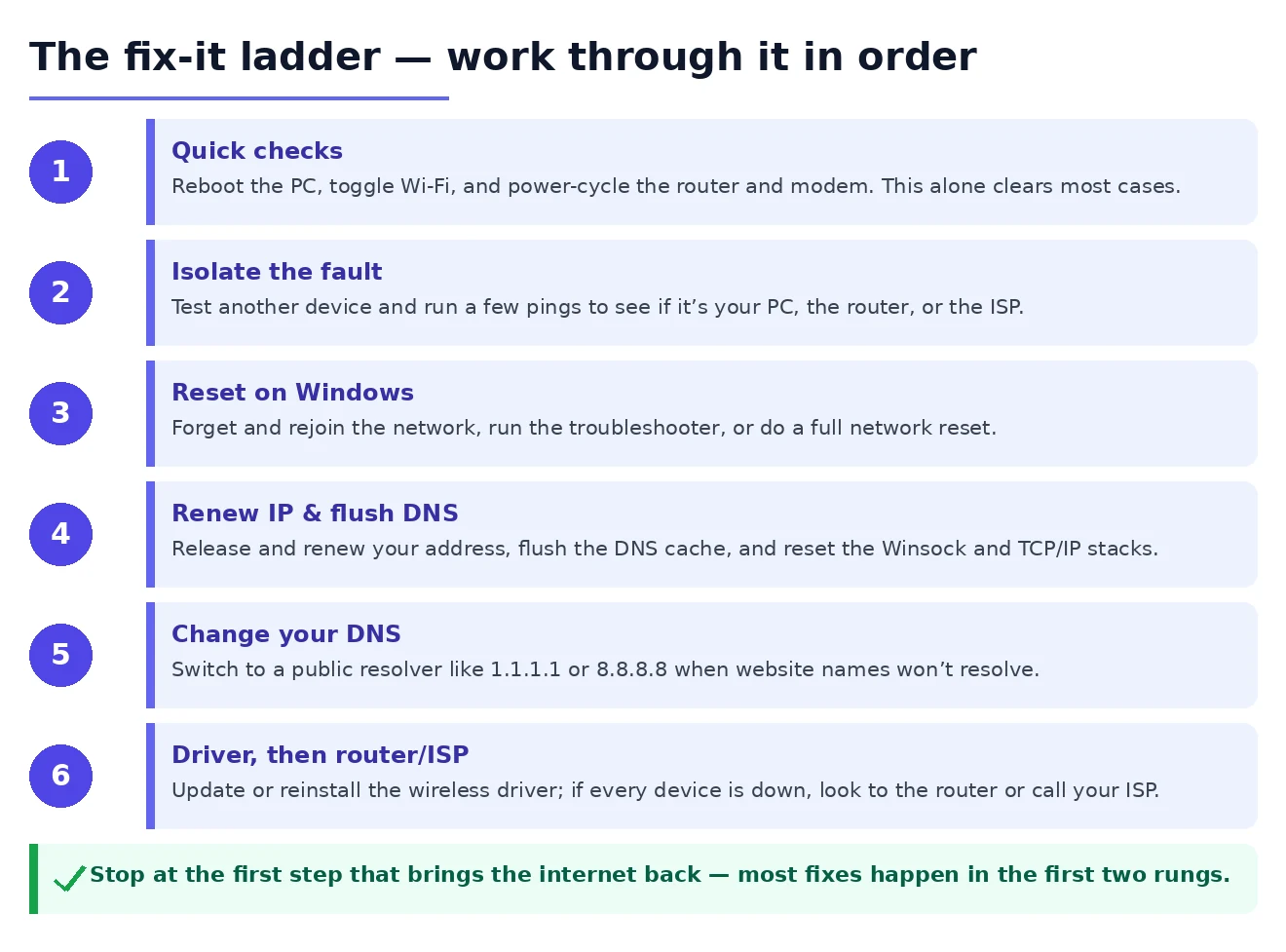
Before changing any settings, run these basic checks. In my experience, checking another device and restarting the network equipment are the best first steps because they quickly show whether the problem affects one PC or the whole network. Spend two minutes here before moving to the advanced fixes.
- Restart your PC. A reboot clears temporary network state and requests a fresh connection, making it a sensible first step.
- Toggle Wi-Fi off and on, or flip Airplane mode on for ten seconds and back off, to force your adapter to reconnect cleanly.
- Power-cycle your router and modem. Unplug both for a full thirty seconds, plug the modem in first, wait for its lights to settle, then the router.
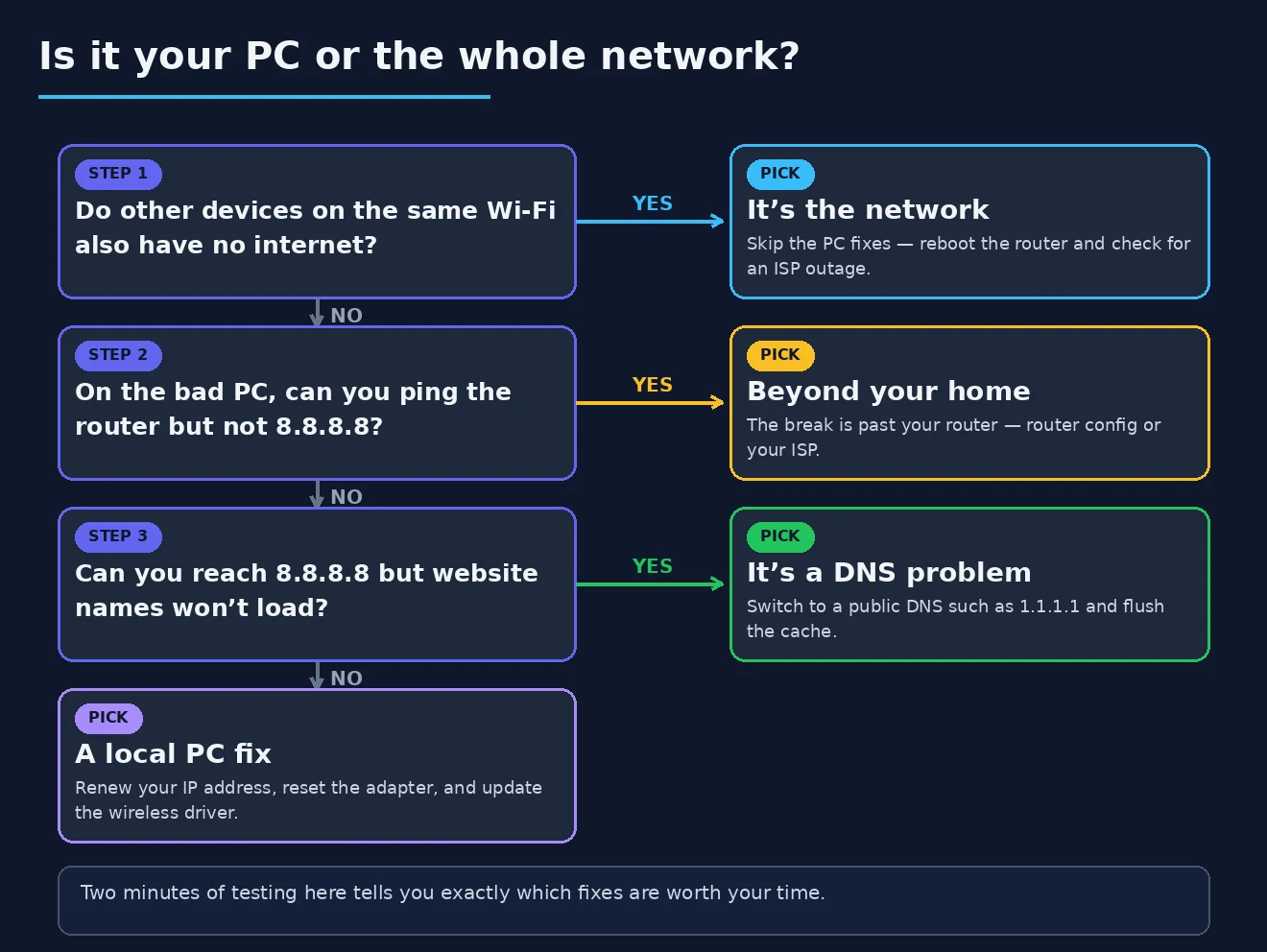
- Test another device. If your phone also has no internet on the same Wi-Fi, the problem is the network, not your PC.
- Check for an outage. Use mobile data to see whether your provider has reported a local fault.
- Confirm you are on the right network and band, and that you are within decent range of the router.
Power-cycling the router clears temporary state and forces the WAN and local network connections to initialize again. Wait for the modem and router status lights to stabilize before retesting; reconnecting too early can make a normal startup look like a continuing failure.
Testing a second device immediately separates a device-specific problem from a network-wide failure. If every device on the Wi-Fi has no internet, you can ignore all the Windows-specific steps below and jump straight to the router and ISP section. If only your PC is affected while phones and tablets browse happily, the fault is on your computer, and the Windows fixes are where your answer lies.
Pinpoint Whether the Fault Is Your PC or Your Network
Once you know whether one device or all of them are affected, you can narrow things further with a couple of quick tests. These help you tell apart a local configuration problem from a genuine connectivity failure, which saves you from applying the wrong fix. A minute of diagnosis here is worth ten minutes of guessing.
Open Command Prompt and try pinging in stages. First ping your router (commonly 192.168.1.1 or 192.168.0.1); if that fails, the trouble is between your PC and the router. Next ping a public address such as 8.8.8.8; if the router replies but this does not, the break is beyond your home. Finally ping a website name like google.com—if the numeric address works but the name does not, you have a DNS problem, which is one of the most common reasons for connected-but-no-internet and one we fix directly below.
It is also worth ruling out anything that sits between your PC and the network. A VPN that has dropped mid-session, an over-aggressive firewall, or a misconfigured proxy can all leave you connected with no internet even when the underlying link is perfect. Temporarily disconnect any VPN and, if you suspect proxy settings, check our guide to a Windows 11 proxy that is not working. If a related symptom is that the network never finishes connecting, the steps for being stuck on identifying network are a useful companion.
Reset the Connection on Windows 11
If the fault is confined to your PC, the fastest cures are the built-in reset tools. Start gently and escalate. The first move is to make Windows forget the network and reconnect from scratch, which rebuilds the connection profile and clears any corrupt saved settings that may be causing the no-internet state.
- Go to Settings > Network & internet > Wi-Fi > Manage known networks, select your network, and choose Forget. Then reconnect by entering the password again.
- Run the built-in troubleshooter: Settings > System > Troubleshoot > Other troubleshooters > Network and Internet (or Internet Connections). It can fix a surprising number of issues automatically.
- Check your clock. A wrong system date or time breaks the secure handshakes many sites rely on, so make sure Set time automatically is on.
If forgetting the network does not help, the heavier option is a full network reset. Open Settings > Network & internet > Advanced network settings > Network reset, then confirm. This removes and reinstalls every network adapter and returns all networking components to their defaults, which clears out deep configuration faults that the gentler steps cannot reach. Your PC will restart, and you will need to reconnect to Wi-Fi afterwards.
A network reset will not touch your personal files—it only affects networking settings—so there is no risk to your documents or photos. It is, however, worth treating as a step beyond the basics: you will have to re-enter Wi-Fi passwords and reconfigure any VPN clients. If you reached this point because trouble began right after a system update, our walkthrough on losing internet after a Windows update covers a few extra rollback options worth trying.
Renew Your IP Address and Flush the DNS Cache
One of the classic causes of Wi-Fi connected but no internet is a stale or invalid IP address lease combined with a corrupted DNS cache. Your PC may be clinging to an address the router no longer recognises, or storing outdated lookups that point nowhere. A short sequence of commands forces everything to refresh, and it is often the step that finally restores the connection.
Open the Start menu, type cmd, right-click Command Prompt, and choose Run as administrator. Then enter the following commands one line at a time, pressing Enter after each:
ipconfig /release
ipconfig /renew
ipconfig /flushdns
netsh winsock reset
netsh int ip reset
The first two commands drop your current IP lease and request a fresh one from the router. The third clears the DNS resolver cache so old or broken lookups are discarded. The final two reset the Winsock catalog and the TCP/IP stack—the low-level plumbing Windows uses for all network traffic—which repairs corruption that nothing in the settings app can reach. Restart your PC afterwards so the changes take full effect. If names still will not resolve after this, our deeper guide to DNS lookup failures on Windows 11 goes further.
Test a Different DNS Server
If your ping tests showed that numeric addresses work but website names do not, your DNS server is the weak link, and it is a frequent reason for a connection that looks fine but loads nothing. DNS is the system that translates names like example.com into the numbers computers actually use, and when the default server your ISP assigned is slow or failing, the result feels exactly like having no internet at all.
- Open Settings > Network & internet > Wi-Fi > Hardware properties.
- Next to DNS server assignment, select Edit, then switch from Automatic to Manual.
- Turn on IPv4 and enter a preferred and alternate DNS—for example 1.1.1.1 and 1.0.0.1, or 8.8.8.8 and 8.8.4.4.
- Save, then run ipconfig /flushdns once more to clear the old cache.
Testing a public resolver can confirm whether the DNS service supplied by the router or ISP is the problem. If you would like to read more about how the service works before changing it, Cloudflare’s Windows setup instructions document the current 1.1.1.1 configuration. If the PC is managed by an employer, school, parental-control service, or security product, confirm its DNS policy before changing the resolver. If the test does not help, switch the setting back to Automatic.
Update or Reinstall the Wireless Adapter Driver
When a single Windows PC stubbornly shows no internet while every other device is online, the wireless adapter driver is a prime suspect—especially if the problem appeared after a Windows update swapped in a generic driver. A corrupt or mismatched driver can maintain the Wi-Fi link while quietly mangling the data passing through it, producing the connected-but-no-internet symptom.
- Right-click Start, open Device Manager, and expand Network adapters.
- Right-click your wireless adapter and choose Update driver, then Search automatically.
- If that does not help, right-click the adapter, choose Uninstall device, and restart—Windows reinstalls a fresh copy on boot.
- Open the adapter’s Properties > Power Management and untick “Allow the computer to turn off this device to save power.”
That power-management setting is an underrated culprit: to save battery, Windows sometimes powers the adapter down and fails to wake it cleanly, leaving you connected on paper but with no internet in practice. Disabling it keeps the radio alive and resolves a whole class of intermittent dropouts, particularly on laptops returning from sleep.
When possible, use the driver recommended for the exact laptop or adapter model by its manufacturer rather than installing an unrelated generic package. If Windows cannot see the adapter at all, that is a different problem covered in our guide to a network adapter not found, and if the connection keeps dropping rather than failing outright, our piece on internet that keeps cutting out digs into the causes.
When the Router or Your ISP Is to Blame
If your earlier testing showed that no device can reach the internet, you can stop poking at Windows—the problem is your router or your provider. Begin with the router itself. Beyond the power-cycle you already tried, log into its admin page (the address is usually printed on a label underneath) and look for a firmware update, since outdated router firmware is a common source of stability issues.
Inside the router settings, a few things are worth checking. An exhausted DHCP address pool can stop new devices getting a working address—our guide to a router not assigning IP addresses covers this in detail. MAC address filtering, band-steering quirks, or a misbehaving 5 GHz channel can also cause selective failures. Treat a router factory reset as a last resort. Export or record the router configuration first, because the reset removes the Wi-Fi name, password, ISP settings, port forwards, parental controls, and other custom settings. If the unit keeps dropping out entirely, see our notes on a router dropping the connection.
When the router checks out but there is still no internet anywhere in the house, the issue points to your ISP. Look at your modem’s status lights for a steady online indicator, check whether neighbours are affected, and call your provider to ask about outages or a line fault. For a broader grounding in how all of these pieces fit together, our complete guide to home networking is a good next read, and Microsoft’s official Windows Wi-Fi troubleshooting guide provides the current Windows 10 and Windows 11 steps.
If the Basic Fixes Fail: Check These Less Common Causes
Force a Captive Portal to Open
Hotel, airport, coffee-shop, and guest networks may connect to Wi-Fi before granting internet access. Open http://neverssl.com to trigger the sign-in page. Use this only to open the portal; do not enter sensitive information on an untrusted public network.
Check Whether Windows Is Reporting a False Alarm
Windows tests connectivity against Microsoft endpoints. A firewall, DNS filter, or network policy can block that check even while ordinary browsing still works. If several known sites open normally, the internet connection is working and the taskbar warning may be incorrect. Do not reset the network solely because of the icon.
Check the Proxy, VPN, and Security Filter
Disconnect an optional VPN and test again. Then open Settings > Network & internet > Proxy and confirm that a manual proxy is not enabled unexpectedly. On a work-managed PC, do not remove corporate VPN, proxy, firewall, or endpoint-security settings; contact the administrator instead.
Check the Default Route
Open an administrator Command Prompt and run:
route printUnder the IPv4 route table, the 0.0.0.0 destination should normally point to the router as its gateway. Multiple unexpected default routes can be left behind by VPN or virtualization software. Do not delete routes at random; first disconnect the related software or use the network-stack reset above.
Investigate Partial Connectivity and MTU
If small sites load but larger pages, downloads, or VPN traffic stall, inspect the interface MTU:
netsh interface ipv4 show subinterfacesDo not assume every Wi-Fi connection must use an MTU of 1500: PPPoE, VPNs, and some provider networks legitimately use smaller values. If the problem began after installing a VPN or changing router settings, restore that product’s default MTU or consult the provider rather than forcing an arbitrary value.
Wi-Fi Connected but No Internet: Frequently Asked Questions
Why does my Wi-Fi say connected but no internet?
It means your device has joined the router successfully, but data is not reaching the wider internet. The cause sits somewhere along the chain—a bad IP or DNS setting on your PC, a router that needs rebooting, or an ISP outage. Working through the checks above in order will isolate which one it is.
Why does only one device have no internet while the others work?
When a single device is affected, the problem is almost certainly local to that device rather than the network. The likeliest causes are a stale IP lease, a broken DNS setting, or a wireless driver issue—all of which the Windows resets, IP renewal, and driver steps above are designed to fix.
Does “No internet, secured” mean my password is wrong?
No. “Secured” simply describes the encryption on your Wi-Fi, and the fact that you are connected at all means the password was accepted. The “No internet” part is the real issue, indicating that traffic is not flowing beyond the router—exactly the Wi-Fi connected but no internet situation this guide addresses.
Will a network reset delete my files?
No. A network reset only removes and reinstalls your network adapters and returns networking settings to their defaults. Your documents, photos, and applications are untouched. You will simply need to reconnect to Wi-Fi and re-enter any VPN details afterwards.
Work through these steps in sequence and you will resolve the overwhelming majority of cases on your own. Start with the quick checks, isolate whether it is your PC or the network, and only then dig into IP, DNS, driver, and router fixes—methodical beats random every time, and your connection will be back before you know it.