Optical character recognition — OCR — is one of those quietly transformative technologies most people only discover when they need it. It turns a picture of text, whether a scanned document, a PDF, or a photo snapped on your phone, into real, editable, searchable words you can copy, edit, and search. The best OCR software can save you hours of retyping and make a mountain of paper genuinely useful again.
The catch is that OCR tools vary enormously, from free features hidden inside apps you already own to powerful paid programs built for serious document work. The right choice depends on how much you scan, how important perfect accuracy is, and whether you need the original layout preserved. There is no single best tool for everyone, but there is a best tool for your particular needs.
This guide explains what to look for, then rounds up the best OCR software across every category — from the industry heavyweights to excellent free options you may already have access to — along with advice on choosing between them and getting the most accurate results. Whether you are digitising a filing cabinet or grabbing text from a single photo, there is something here for you.
What to Look for in OCR Software
Before comparing specific tools, it helps to know which features actually matter, because the differences between OCR programs come down to a handful of key factors. Getting these right is what separates a frustrating experience from a genuinely useful one.
- Accuracy. This is the single most important factor. The best tools read text with very few mistakes, even from imperfect scans, while weaker ones leave you correcting errors that undo the time OCR was meant to save.
- Formatting retention. Good OCR preserves the original layout — columns, tables, headings — rather than dumping everything into one unstructured block, which matters enormously for complex documents.
- Language support. If you work in more than one language, check that your languages are supported, as accuracy drops sharply when the tool guesses wrong.
- Batch processing. If you have many documents, the ability to convert them all at once rather than one at a time is a huge time-saver.
- Output options. Look for the ability to create a searchable PDF, which keeps the original appearance while making the text selectable and searchable underneath.
- Privacy. Web-based tools upload your documents to someone else’s server, so for sensitive material, a tool that works locally on your own computer is the safer choice.
It is also worth being clear about what OCR is and is not. It extracts text from images of text, which is quite different from transcription software, which turns spoken audio into text — if your source is a recording rather than a document, our guide to the best transcription software is the one you want. Everything below is focused specifically on capturing the printed and written word from an image.
With those priorities in mind, the picks below are grouped by what they do best. Weigh them against your own situation — a freelancer digitising the occasional receipt has very different needs from an office converting thousands of contracts, and the right tool reflects that.
The Best OCR Software
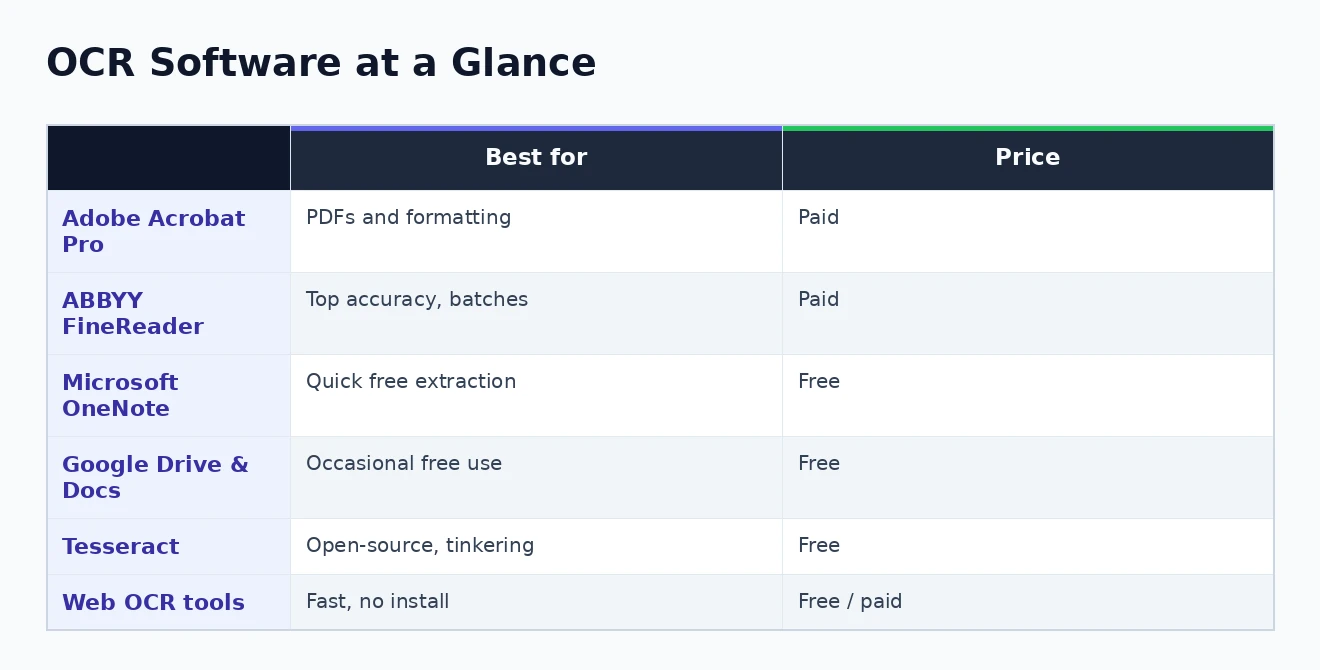
Here are six of the best OCR software options available, spanning premium tools, free built-in features, and open-source projects. The at-a-glance comparison below summarises where each one shines before we look at them in detail.
Adobe Acrobat Pro: Best Overall for PDFs
Adobe Acrobat Pro is the industry standard for working with PDFs, and its OCR is excellent — accurate, quick, and unusually good at preserving the original formatting. It converts scanned documents into fully searchable, editable PDFs in a couple of clicks, and integrates OCR into a complete toolkit for editing and managing documents. It is a paid subscription, which makes it best suited to those who work with PDFs regularly, and the Adobe website has resources you may find useful. If PDFs are central to your work, our roundup of the best PDF editors for Windows is worth a look too.
Because OCR is built into a tool many people already use for viewing and signing PDFs, there is no separate app to learn — you open a scanned document, run text recognition, and carry straight on editing it. That convenience, combined with genuinely reliable accuracy, is a large part of why Acrobat remains the default choice in so many offices.
ABBYY FineReader: Best for Accuracy and Heavy Use
When accuracy is paramount and you have a lot to convert, ABBYY FineReader is widely regarded as the gold standard. Its recognition is exceptionally precise, it excels at reconstructing complex layouts and tables, and it handles large batches of documents with ease. It is a professional tool with a professional price, so it makes most sense for businesses and anyone whose work depends on turning large volumes of scans into flawless, formatted text.
It also goes well beyond simple conversion, with tools to compare documents, edit the recognised text within PDFs, and automate recognition across large workflows — the kind of features busy document-heavy teams rely on daily. For a casual home user it is undoubtedly overkill, but where accuracy and volume genuinely matter, little else competes.
Microsoft OneNote: Best Free Built-In Option
If you use Microsoft’s apps, you may already have capable OCR without realising it. OneNote lets you insert an image and then extract the text from it with a simple right-click, and it is completely free with a Microsoft account. It is not designed for heavy document processing, but for quickly pulling the text out of a picture or a screenshot, it is convenient, accurate enough, and already on your machine.
Microsoft’s free Office Lens app does something similar straight from your phone, using the camera to capture a document and straightening it automatically before extracting the text. Together they make a capable, no-cost option for anyone already in the Microsoft ecosystem, and they pair neatly with note-taking — our roundup of the best note-taking apps covers where that captured text can go next.
Google Drive and Docs: Best Free for Occasional Use
Google offers a genuinely useful free OCR trick that many people miss: upload an image or PDF to Google Drive, then open it with Google Docs, and Google automatically converts the text into an editable document. It is free, requires nothing to install, and works well for occasional jobs, though it keeps only basic formatting. For grabbing text from a photo on the go, Google Lens does the same on your phone, and the Google website has resources you may find useful.
Tesseract: Best Free and Open-Source
For those who want a powerful OCR engine at no cost, Tesseract is the leading open-source option. It is highly capable, supports a huge range of languages, and runs on any platform, which makes it a favourite for developers and anyone building OCR into their own projects. The trade-off is that it is technical — it is run from the command line by default, though friendlier graphical front-ends exist — so it suits tinkerers more than those wanting a polished app.
For most people it will be a step too far, but it is worth knowing that the engine quietly powering many other OCR tools behind the scenes is itself free and open to anyone. If you are comfortable with a little setup, it delivers genuinely professional-grade recognition without any subscription at all.
Web OCR Tools: Best for Quick, No-Install Jobs
A range of browser-based OCR services let you convert an image or PDF without installing anything at all — you simply upload the file and download the text. Many offer a free tier, and some add AI-powered extraction for structured data like invoices and forms. They are wonderfully convenient for one-off tasks, but because your document is uploaded to a third party, they are best avoided for anything confidential; keep sensitive material to an offline tool instead.
Free Versus Paid OCR: Which Do You Need?
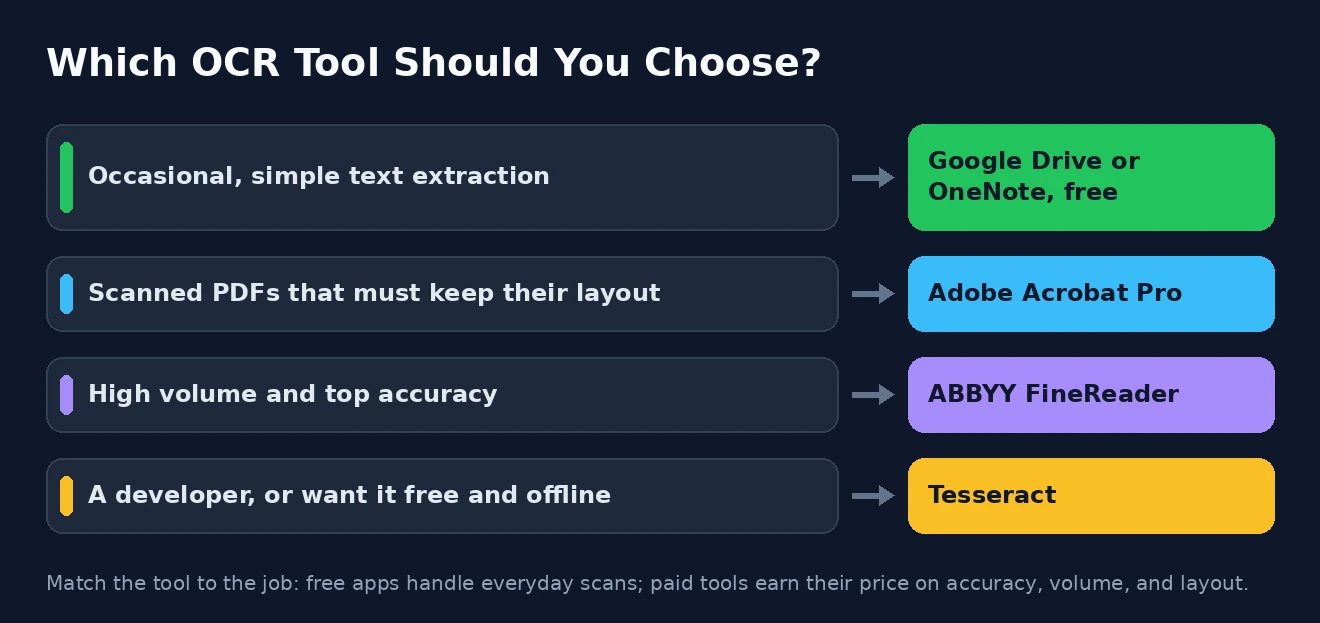
One of the biggest questions is whether you need to pay at all, and the honest answer is that many people do not. Free options have become genuinely good, and for a great many tasks they are all you will ever need. The decision comes down to volume, accuracy, and formatting.
For occasional, straightforward jobs — extracting text from the odd image, digitising a few pages — free tools like Google Drive, OneNote, or a web service do the job admirably. You only really need a paid program when the demands rise: when you are converting large volumes regularly, when near-perfect accuracy is essential, or when preserving complicated layouts and tables matters. In those cases, the accuracy and time savings of a tool like Acrobat or FineReader quickly justify the cost.
There is also privacy to weigh, quite apart from cost. Free web-based tools are convenient precisely because the work happens on someone else’s servers, which means your document is uploaded to a third party — perfectly fine for a menu or a flyer, but not for contracts, medical records, or anything confidential. For sensitive material, a tool that runs locally on your own machine, whether free or paid, is the responsible choice.
A simple rule of thumb: start with a free tool and see how it copes with your actual documents. If the results are accurate enough and the formatting holds up, you have saved yourself a subscription. If you find yourself correcting errors or fighting the layout, that is your signal to invest in a paid tool.
Tips for Getting the Best OCR Results
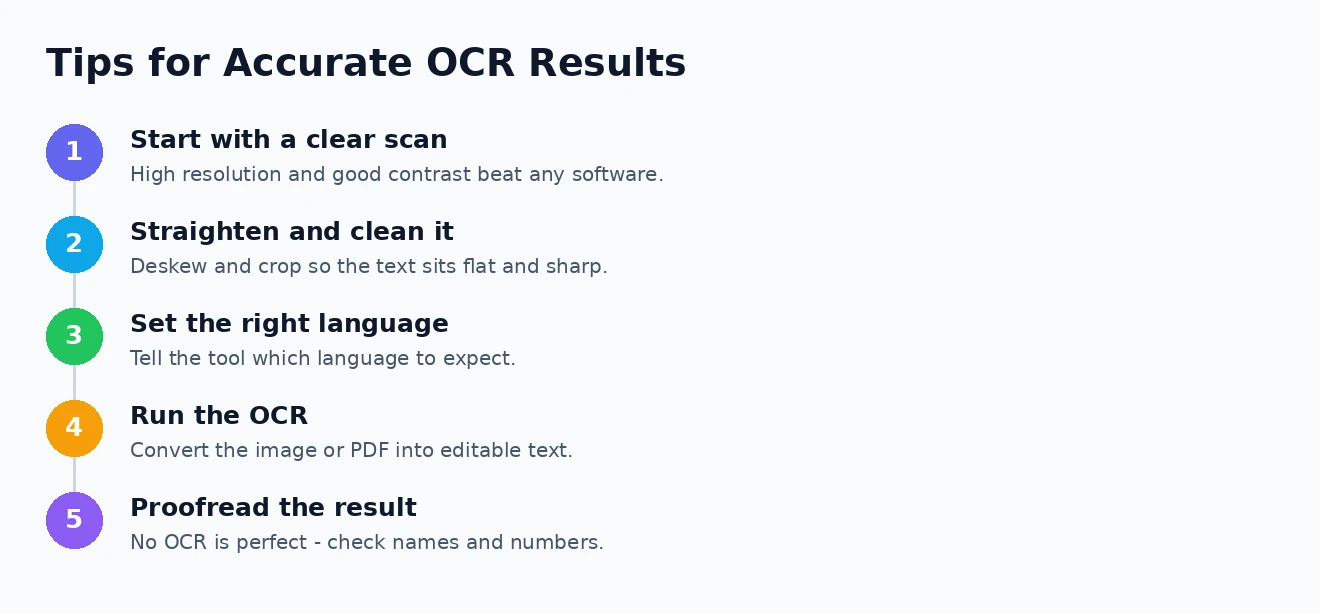
Whichever tool you choose, the quality of your results depends as much on what you feed it as on the software itself. OCR works by interpreting an image, so a better image produces better text — and a few simple habits dramatically improve accuracy.
Start with the highest-quality scan or photo you can manage: good resolution, even lighting, strong contrast between text and background, and a page that is flat and straight rather than skewed or curled. Cropping away clutter and straightening a crooked scan before running OCR both help considerably. Make sure you tell the tool which language to expect, as this guides its recognition, and always proofread the output afterwards — even the best OCR software makes occasional mistakes, particularly with names, numbers, and unusual formatting. Finally, saving the result as a searchable PDF gives you the best of both worlds: the original look with fully searchable text underneath. For turning the results into other formats, our guide to converting a PDF to Word is a handy companion.
If you have many documents to get through, favour a tool with batch conversion so you can queue them all at once rather than feeding them in one at a time. And hold on to your originals until you have confirmed the text came through correctly, because a failed or sloppy conversion is far easier to redo from the source than to reconstruct from flawed output.
Best OCR Software: Frequently Asked Questions
What is OCR?
OCR, or optical character recognition, is technology that reads text from an image — a scan, a photo, or a PDF — and converts it into real, editable, searchable text. It is what lets you turn a picture of a document into words you can copy, edit, and search, rather than retyping everything by hand.
Is there free OCR software?
Yes, and much of it is excellent. Google Drive converts uploaded images and PDFs through Google Docs for free, Microsoft OneNote extracts text from pictures at no cost, and the open-source Tesseract engine is completely free. For occasional use, these free options are often all you need.
Which OCR software is the most accurate?
For demanding work, ABBYY FineReader and Adobe Acrobat Pro are generally considered the most accurate, especially with complex layouts. That said, accuracy depends heavily on the quality of your original image — a clear, high-resolution scan will give good results even from a free tool.
Can OCR read handwriting?
OCR is designed for printed text and handles it very well, but handwriting is much harder. Some modern, AI-powered tools can now read clear handwriting with reasonable success, though results vary and are far less reliable than with typed text. For neat, printed documents, though, accuracy is excellent.
Choosing the best OCR software really comes down to matching the tool to the task. For occasional text extraction, the free features in Google Drive or OneNote are all most people need; for serious, high-volume, or formatting-sensitive work, Adobe Acrobat Pro and ABBYY FineReader earn their price; and for the technically inclined, Tesseract offers open-source power for free. Start with a free option, feed it a clean scan, and you may be surprised how much time this quietly clever technology can save you. It sits comfortably alongside the other tools in our roundup of the best productivity apps for Windows.