Few messages from Windows are as unsettling as the one that reads “Windows detected a hard disk problem,” urging you to back up your files immediately to prevent information loss. It appears without warning, it will not go away, and it strongly hints that your drive — and everything on it — could be about to fail. It is a genuinely important warning, and how you respond in the next few minutes matters.
Here is the single most important thing to do before anything else: back up your irreplaceable files right now, before you start troubleshooting. If the drive really is failing, it could stop working at any moment, so securing your data comes first and diagnosis comes second. Everything else in this guide follows that order for a reason.
The good news is that this warning is not always a death sentence for your drive. Sometimes it signals a genuinely failing disk, and sometimes it is a false alarm caused by fixable errors or a software glitch. This guide explains what the message means, how to protect your data, how to tell whether your drive is actually failing, and what to do in either case — calmly and in the right order.
What Does ‘Windows Detected a Hard Disk Problem’ Mean?
When Windows detected a hard disk problem and shows you that warning, it is reporting that its built-in monitoring has spotted signs your drive may be in trouble. Modern drives include a self-monitoring system, known as SMART, that tracks indicators of wear and impending failure, and Windows also watches for disk errors as it reads and writes. When either raises a red flag, this message is the result.
You may see the message phrased slightly differently, but it almost always urges you to back up immediately and to contact your computer or drive manufacturer about repairing or replacing the disk. It also tends to reappear at every startup, or repeatedly during use, until the underlying cause is addressed — which, understandably, only adds to the alarm. That persistence is Windows trying hard to make sure you do not ignore a potentially serious problem.
Crucially, the warning describes a risk, not a certainty. In many cases it does point to a drive that is genuinely wearing out and heading for failure, which is exactly why the advice to back up is so insistent. In other cases, though, the alert is triggered by problems that have nothing to do with the physical health of the drive — corrupted system files, an outdated storage driver, or an overly sensitive reading — and the drive itself is fine.
Because you cannot tell which situation you are in just from the pop-up, the safe approach is always the same: treat it seriously, protect your data first, and then investigate to find out whether the drive is truly failing. Panicking helps no one, but ignoring it is a genuine risk to your files. The sections below walk through exactly how to proceed.
First and Most Important: Back Up Your Data Now
This is the step that matters more than any diagnosis or repair, so it comes first: back up everything you cannot afford to lose, immediately. A drive that has triggered this warning may have days left or minutes, and there is no reliable way to know, so the only safe assumption is that time is short.
Copy your important files — documents, photos, and anything irreplaceable — to somewhere safe, such as an external drive or a cloud service. Prioritise the things you would be devastated to lose, and do not stop to organise them perfectly; simply get copies off the drive. Our guides to backing up files in Windows 11 and to the best cloud backup services cover the quickest ways to do this.
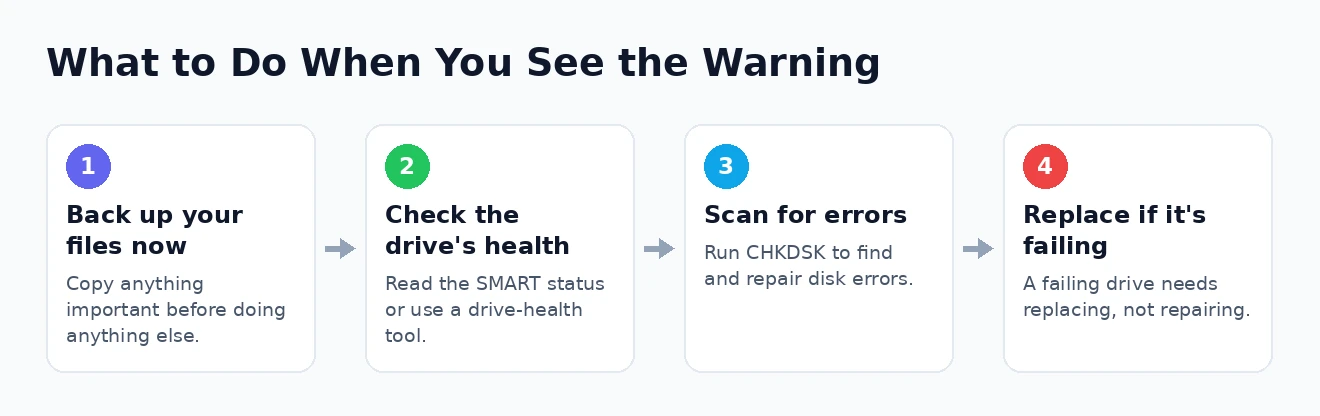
Resist the urge to run repairs or intensive scans before you have backed up. If the drive is physically failing, heavy activity can hasten its demise — and losing the drive after a repair attempt but before a backup is the worst possible outcome. Copy your data first, always.
It is also wise to keep more than one copy in more than one place, rather than trusting a single backup. The widely recommended principle is to hold several copies of important data across different devices or services, with at least one kept separately — so that a single failure, whether of the original drive or of a backup, never leaves you with nothing.
Once your data is safely copied elsewhere, you can investigate without the crushing pressure of potentially losing everything. This single step transforms the situation from a possible catastrophe into a manageable technical problem, and it is why every reputable guide — and Windows itself — puts it before anything else.
Check Whether Your Drive Is Actually Failing
With your files secured, the next task is to find out whether the warning reflects a genuinely failing drive or a false alarm. There are a few reliable ways to check, and together they give a clear picture. The quickest starting point is the drive’s own SMART status, which you can read with a single command in an administrator Command Prompt:
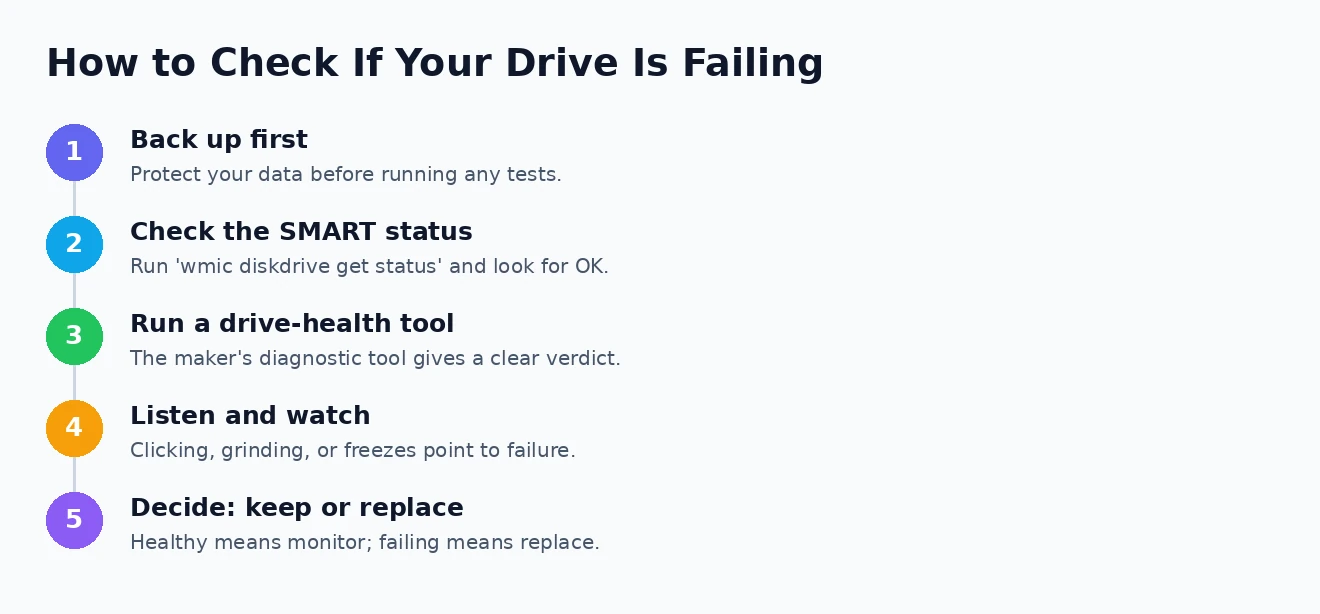
wmic diskdrive get statusA result of “OK” for each drive is reassuring, while anything like “Pred Fail” is a strong sign the drive is failing and should be replaced. For a more detailed view, a free drive-health tool or the diagnostic utility from your drive’s manufacturer will read the full SMART data and give a clear verdict — the Seagate website has resources you may find useful, as do the support pages of other drive makers.
Beyond software, your senses are useful diagnostic tools. On a traditional mechanical hard drive, repeated clicking, buzzing, or grinding noises are classic signs of physical failure. Other warning signs, on any drive, include frequent freezes, files that become corrupted or vanish, and the system slowing to a crawl. If you notice these alongside the warning, treat the drive as failing regardless of what any single test says.
It is worth knowing that traditional hard drives and solid-state drives fail in different ways, so the signs differ. A mechanical hard drive often gives audible warnings — the clicking and grinding mentioned above — as its moving parts wear out. A solid-state drive has no moving parts and tends to fail silently, so watch instead for files suddenly turning read-only, the drive vanishing and reappearing, or a sharp drop in performance. Whichever type you have, a failing drive is a reason to act rather than wait.
Run CHKDSK to Check and Repair Disk Errors
If the warning was caused by file-system errors or bad sectors rather than outright hardware failure, Windows’ built-in Check Disk tool can often find and repair them, sometimes clearing the warning in the process. Only run this after you have backed up, for the reasons already explained. Open an administrator Command Prompt and run:
chkdsk C: /f /r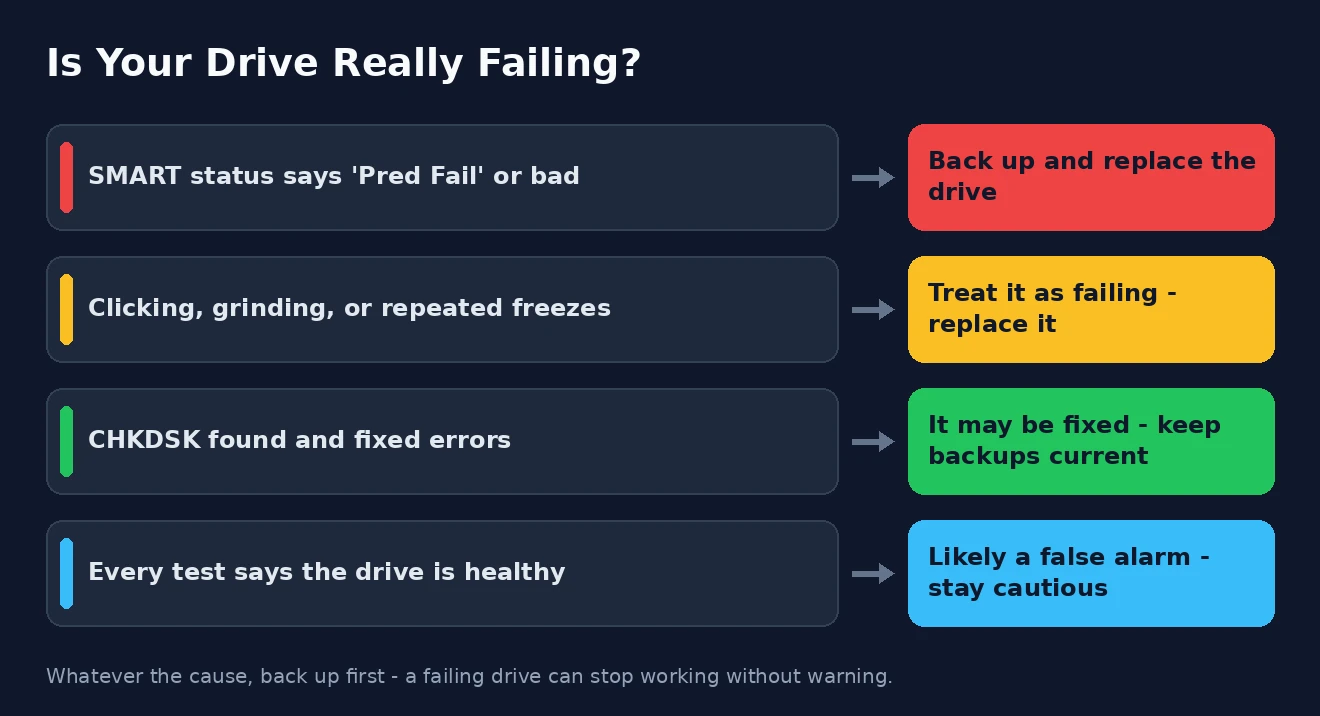
The /f switch fixes file-system errors, and the /r switch locates bad sectors and recovers readable information. Because it is checking the drive Windows is running from, it will ask to schedule the scan for the next restart, so type Y and reboot. Be aware that a thorough scan can take a long time, especially on larger drives, so allow for that before you start.
It helps to understand what CHKDSK can and cannot do. It repairs the logical structure of the drive — the file system, and the map of which sectors are safe to use — and can wall off bad sectors so Windows stops writing to them. What it cannot do is reverse the physical wear on a dying drive; it manages the symptoms rather than curing the cause. Microsoft documents the tool and its options in full, and the Microsoft website has resources you may find useful.
When CHKDSK finishes, note what it reports. If it found and fixed errors and the warning does not return, there is a reasonable chance the problem was software-level and is now resolved — though you should keep your backups current just in case. If it reports serious, unfixable problems, or the warning reappears, that points firmly towards a failing drive. For persistent slowness afterwards, our guide to high disk usage in Windows 11 may also help.
Rule Out a False Alarm
If the drive’s SMART status is healthy, CHKDSK finds nothing serious, and there are no worrying noises or symptoms, the warning may well be a false alarm. In that case, the trigger is often somewhere other than the disk itself, and a couple of quick checks can confirm it.
Corrupted Windows system files can produce misleading hardware warnings, so it is worth running the System File Checker by typing sfc /scannow in an administrator Command Prompt, followed by the DISM repair tool if needed. It is also worth making sure your storage drivers are up to date through Device Manager, and that Windows itself is fully updated, as covered in our guide to the Windows troubleshooters. These steps clear up the common software causes behind a false warning.
Only if every test consistently shows a healthy drive should you consider that the pop-up is a genuine false positive. It is technically possible to stop the specific warning from appearing, but doing so is not a fix — it merely hides the message. Never disable the warning unless you are genuinely confident, after thorough testing, that the drive is sound; otherwise you risk silencing a real and urgent alarm about your data.
If the Drive Is Failing, Replace It
When the evidence points to a failing drive — a bad SMART status, ominous noises, unfixable errors, or a warning that keeps returning — the right response is not to keep patching it but to replace it. A drive that has begun to fail will only get worse, and continuing to rely on it is a gamble with your data.
With your files already backed up, replacing the drive is straightforward. You can install a new drive and either restore your files to it or, if you want an exact copy of your existing setup, clone the old drive to the new one before it deteriorates further. A modern solid-state drive makes an excellent and affordable replacement, and drive manufacturers’ websites offer guidance on choosing and, where relevant, claiming a warranty on a failed drive.
Once the new drive is in place, you can reinstall Windows fresh or restore from your backup, and our guide to resetting or reinstalling Windows 11 walks through a clean setup. Replacing a failing drive promptly, rather than nursing it along, is the surest way to avoid the sudden, total data loss that this warning is trying to help you prevent. It is also a good moment to review your overall backup routine so you are never caught out again.
Windows Detected a Hard Disk Problem: Frequently Asked Questions
Is the warning always real, or can it be a false alarm?
It can be either. Often it signals a genuinely failing drive, but it can also be triggered by corrupted system files, an outdated driver, or an overly sensitive reading. Because you cannot tell from the message alone, back up first, then test the drive’s health to find out which it is.
Should I keep using my computer after seeing it?
Only long enough to back up your data. Once your files are safe, limit heavy use until you know the drive’s condition, since continued activity can worsen a failing drive. If you hear clicking or see repeated freezes, stop using it for anything important and replace the drive.
How do I check if my hard drive is failing?
Check the SMART status with the command wmic diskdrive get status, where anything other than “OK” is a warning sign, or use a free drive-health tool or the manufacturer’s diagnostic utility. Clicking or grinding noises, frequent freezes, and corrupted files are also strong indicators of a failing drive.
Can I stop the warning from appearing?
Yes, it is possible to disable the warning, but you should not unless thorough testing has convinced you the drive is healthy. Hiding the message does not fix anything — if the drive is genuinely failing, you would simply be removing a vital warning about impending data loss.
Seeing “Windows detected a hard disk problem” is alarming, but handled calmly and in the right order it need not end in disaster. Back up your data immediately, check whether the drive is truly failing, repair fixable errors with CHKDSK, and replace the drive if the evidence says it is on its way out. Do that, and whether the warning was a genuine failure or a false alarm, your files — the part that really matters — will be safe.