Few things make your stomach drop quite like opening Chrome to a message saying “Your profile could not be opened correctly” — and then noticing your bookmarks, saved passwords, and settings have apparently vanished. It looks, for a horrible moment, as though everything is gone. The good news is that it almost never is, and the Chrome profile error is one of the more fixable problems the browser can throw at you.
This error appears when the data that makes up your Chrome profile becomes corrupted, so the browser cannot load it properly. Your information is usually still there, or safely backed up in the cloud, and there are several reliable ways to repair the profile and get everything back. It is more of a scare than a catastrophe.
In this guide I will walk through what causes the Chrome profile error, the quick fixes worth trying first, and then the more thorough repairs — renaming the corrupted files, resetting the profile, and creating a fresh one — along with how to recover your bookmarks and stop the whole thing happening again. Work through them in order and you will almost certainly have Chrome back to normal shortly.
What Causes the Chrome Profile Error?
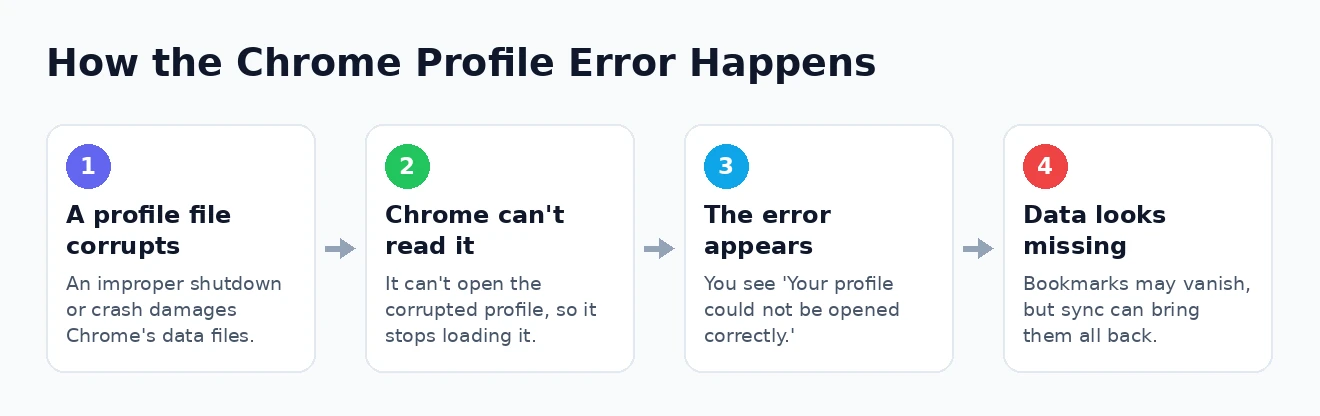
Chrome stores everything about your profile — your bookmarks, history, saved passwords, extensions, and preferences — in a set of files on your computer, tucked away in a folder Chrome calls User Data. The Chrome profile error appears when one or more of those files becomes damaged, leaving the browser unable to read your profile the way it expects to. Rather than crash outright, it shows the warning and often loads a blank temporary profile instead, which is why your data seems to disappear.
The message can appear in slightly different words — “Your profile could not be opened correctly,” “Something went wrong,” or a note that your preferences file is corrupt or invalid — but they all point to the same underlying issue. A small warning icon in the corner of the message, together with a Chrome that has forgotten your bookmarks and signed you out, are the tell-tale signs you are dealing with this and not some other fault.
Several things can corrupt those files. The most common culprit is Chrome, or the whole computer, shutting down improperly — a crash, a power cut, or force-closing the browser while it is still writing to disk. Sync conflicts between devices, errors on the storage drive itself, and overly aggressive antivirus software locking or quarantining Chrome’s files can all do it too. Occasionally a misbehaving extension is to blame.
The reassuring part is that a corrupted profile file is rarely the disaster it looks like. In most cases the underlying data is intact and simply needs Chrome to rebuild the broken file around it, and if you use Chrome’s sync feature, your bookmarks and passwords are safely stored in your Google account regardless. So before trying anything drastic, it is worth understanding that this is a repair job, not a recovery of lost data. If Chrome has been unstable more generally, our guide to when Chrome keeps crashing covers the wider picture.
First, Try the Simple Fixes
Before touching any files, rule out the possibility that this is a passing glitch, because sometimes it genuinely is. These quick steps take moments and occasionally clear the Chrome profile error on their own, saving you the more involved repairs below.
- Fully close Chrome and reopen it. Not just the window — every background process. Open Task Manager, end any running Chrome tasks, then launch the browser again so it starts completely fresh.
- Restart your computer. A reboot clears locked files and temporary glitches, and it is astonishing how often it resolves an error like this without any further effort.
- Update Chrome. An out-of-date browser is more prone to these faults, so make sure you are on the latest version, as a bug fix may already address the problem.
One thing worth checking here is Chrome’s habit of continuing to run in the background after you close the window. If the setting to keep running background apps when Chrome is closed is switched on, ending the window alone will not fully close it — which is precisely why using Task Manager to end every Chrome process matters when you are about to repair its files.
If the error survives a full restart of both Chrome and your PC, then a file really is corrupted and needs repairing directly. Do not worry — the fixes that follow are straightforward, and I will take them one at a time, from the least disruptive to the most thorough. Try each in turn and stop as soon as one works.
Fix 1: Rename the Corrupted Profile File
The single most effective repair is to find the specific damaged file and rename it, which forces Chrome to build a clean replacement the next time it starts. The usual offender is a file called Web Data, and renaming it fixes the Chrome profile error far more often than any other single step. Your bookmarks and passwords live in different files, so this does not touch them.
First, close Chrome completely, including its background processes. Then open File Explorer and paste this location into the address bar to reach your profile folder:
%LOCALAPPDATA%\Google\Chrome\User Data\DefaultIn that folder, find the file named Web Data, right-click it, and rename it to something like Web Data.old. Now start Chrome again. It will notice the file is missing and quietly create a fresh one, and in most cases the error is gone. If it is, you can delete the renamed file later once you are sure everything is working.
If renaming Web Data does not do it, repeat the same process with the files named Preferences and Secure Preferences in that same folder, which store your settings and can also become corrupted. Renaming these resets some of your Chrome settings to their defaults, but it leaves your bookmarks and saved passwords untouched, so it is a small price for a working browser.
Fix 2: Reset the Local State File
If the previous fix did not help, the problem may lie not in your individual profile but in the file Chrome uses to keep track of its profiles overall. This file is called Local State, and it sits one level up from the folder you just visited. When it becomes corrupted, Chrome can struggle to open any profile correctly.
Close Chrome fully once more, then navigate to the User Data folder itself:
%LOCALAPPDATA%\Google\Chrome\User DataFind the file named Local State and rename it to Local State.old. As before, Chrome rebuilds this file automatically when it next launches. This step is safe — the Local State file holds housekeeping information about your profiles rather than your actual bookmarks or passwords — and it resolves cases where the profile list itself has become tangled. Restart Chrome and check whether the error has cleared.
A sensible habit before deleting or renaming anything in these folders: copy the entire Default folder somewhere safe first. If a fix does not work, you can put the original back exactly as it was and try something else, with nothing lost.
Fix 3: Create a Fresh Chrome Profile
When the individual file repairs have not worked, the surest remedy is to have Chrome build a brand-new profile from scratch. This sidesteps the corruption entirely by leaving the damaged profile behind, and because your data is recoverable through sync, you lose very little in the process. It is the most thorough of the fixes and it almost always succeeds.
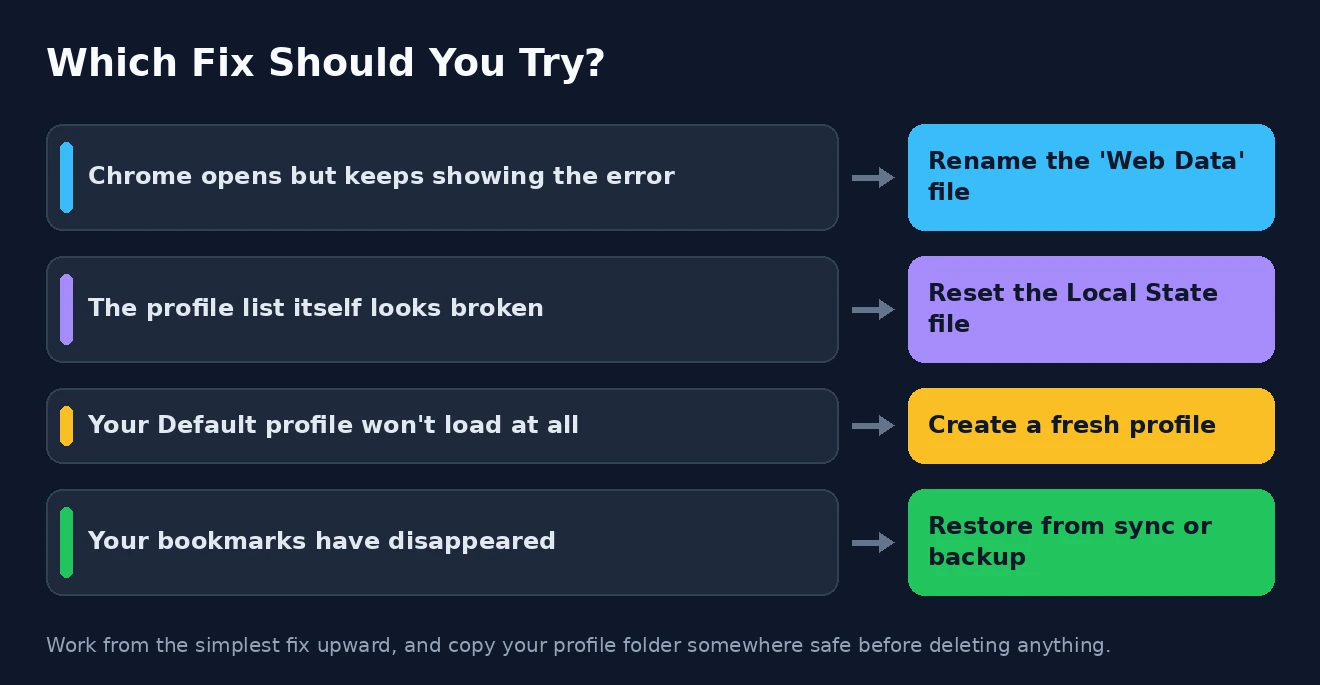
The cleanest way to do this is to let Chrome rebuild its default profile. With Chrome closed, go to the User Data folder, and rename the Default folder to Default.old. When you restart Chrome, it will create a completely new, empty Default profile with no corruption in it. You then simply sign in to your Google account and turn on sync, and your bookmarks, passwords, history, and extensions flow back into the fresh profile within a few minutes.
Alternatively, you can add a new profile from within Chrome itself by clicking your profile icon at the top right and choosing to add a person, then signing in to sync your data into it. Either route gives you a clean profile free of the fault. Once you are settled into the new one and everything has synced, the old Default.old folder can be deleted — though it is worth keeping it until you have confirmed nothing is missing. If you regularly juggle work and personal accounts, our guide to using Chrome profiles is worth a read for setting them up properly.
Recovering Your Bookmarks and Data
The part that panics people most is the apparent loss of their bookmarks, so it deserves its own explanation. In almost every case, they are entirely recoverable, and often the fixes above bring them straight back on their own. There are two reliable routes to getting them returned.
The first and easiest is Chrome’s sync. If you were signed in and syncing before the error struck, your bookmarks and passwords are stored safely in your Google account, and simply signing back in restores them — which is exactly why creating a fresh profile and signing in works so well. If your sync has its own troubles, our guide to fixing Chrome sync can help. The second route, if you were not syncing, is a local backup file: in your profile folder, alongside the Bookmarks file, Chrome keeps a Bookmarks.bak file that is a recent backup. Renaming the current Bookmarks file and then renaming Bookmarks.bak to Bookmarks can restore a working set.
Because this scare is so common, it is genuinely worth keeping a separate copy of your bookmarks from time to time, quite apart from sync. Our guide to backing up your Chrome bookmarks walks through exporting them to a file you control, and if your bookmarks bar has simply disappeared rather than been lost, the fix for Chrome bookmarks not showing may be all you need. For any other Chrome error you run into, our Chrome errors troubleshooting guide is a useful reference.
How to Stop the Chrome Profile Error Coming Back
Once you have your browser working again, a few simple habits make it far less likely that the Chrome profile error will return. None requires any effort beyond a little care, and together they keep your profile healthy.
- Close Chrome properly. Quit the browser normally and let it finish shutting down rather than force-closing it or cutting the power, which is when files are most likely to be corrupted mid-write.
- Keep Chrome updated. Running the current version means you benefit from bug fixes, some of which specifically address profile corruption.
- Turn on sync. With sync enabled, your data lives in your Google account, so even a badly corrupted profile becomes a minor inconvenience rather than a loss.
- Look after your disk and antivirus. Occasional disk checks catch storage errors early, and making sure your antivirus is not needlessly interfering with Chrome’s folder prevents a common cause.
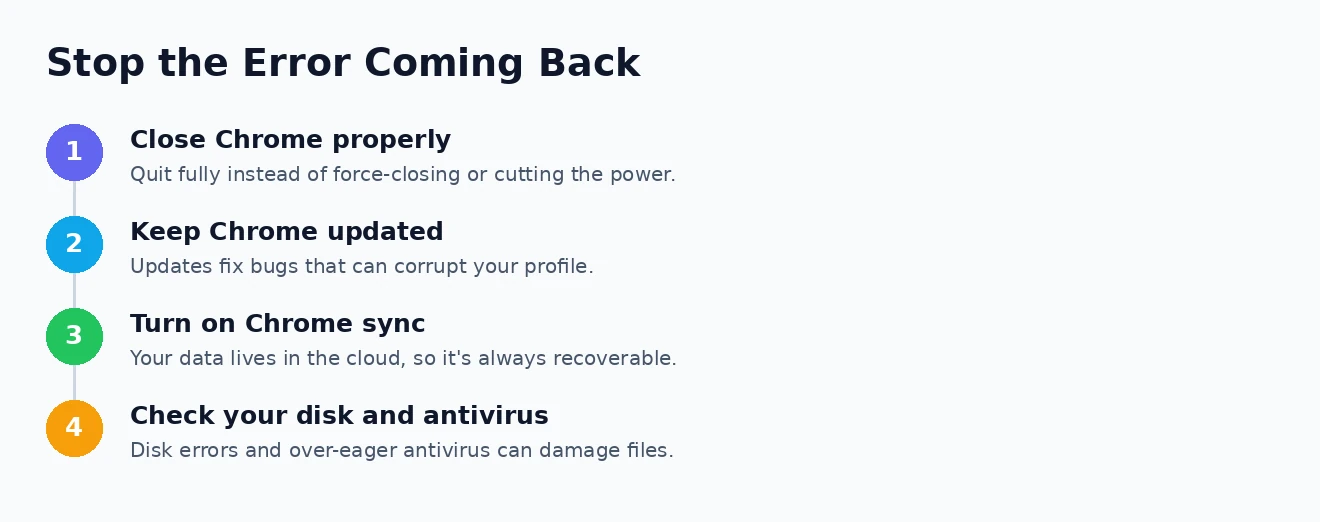
Adopt those and the odds of seeing this message again drop sharply. The single most valuable of them is sync, because it turns the whole problem from a frightening one into a trivial one — when your data is safe in the cloud, repairing a profile is just a matter of signing back in. Other browsers such as Firefox use their own profile systems too, and the Mozilla website has resources you may find useful if you use more than one browser. For Chrome specifically, the Google website has resources you may find useful on managing your profile and sync.
Chrome Profile Error: Frequently Asked Questions
What does “your profile could not be opened correctly” mean?
It means one of the files that stores your Chrome profile has become corrupted, so the browser cannot load your profile properly. Chrome usually opens a blank temporary profile instead, which is why your bookmarks and settings appear to be missing even though the underlying data is almost always still recoverable.
Will I lose my bookmarks and passwords?
Almost certainly not. If you had Chrome sync switched on, your bookmarks and passwords are saved in your Google account and return the moment you sign back in. Even without sync, a local backup file usually allows them to be recovered, so the loss is far less likely than it first appears.
Where is the Chrome profile folder on my computer?
On Windows, it lives at %LOCALAPPDATA%\Google\Chrome\User Data, with your main profile inside the Default folder. You can paste that path straight into File Explorer’s address bar to open it. Remember to close Chrome completely before changing anything in there.
How do I create a new Chrome profile?
You can either rename the Default folder so Chrome builds a fresh profile automatically on its next launch, or click your profile icon at the top right of Chrome and choose to add a new person. In both cases, signing in to your Google account then syncs your data into the new profile.
That is everything you need to put the Chrome profile error behind you. Start with a full restart, rename the corrupted Web Data file, and escalate to resetting the Local State or building a fresh profile if you must — and lean on sync to bring your data back. In the vast majority of cases, what looks like a lost profile is simply a broken file waiting to be rebuilt, and a few minutes is all it takes to set things right.