
Google Workspace is more than a bundle of Google’s apps — it’s an integrated productivity platform where email, documents, spreadsheets, video calls, cloud storage, and team chat all share a single identity layer, a common admin console, and the connective tissue that makes them genuinely work together. Knowing how to use Google Workspace at the organisational level means understanding what the admin console controls, how the apps are configured for team-wide consistency, and how the shared features add up to a coherent working environment rather than a collection of separate tools. For a broader walkthrough, our Complete Guide to Software and Apps is a good next read.
Admin Console setup — first steps
The Admin Console (admin.google.com) is where every Google Workspace configuration decision for the organisation happens. It’s organised into: Users, Groups, Devices, Apps, Security, Reports, and Billing.
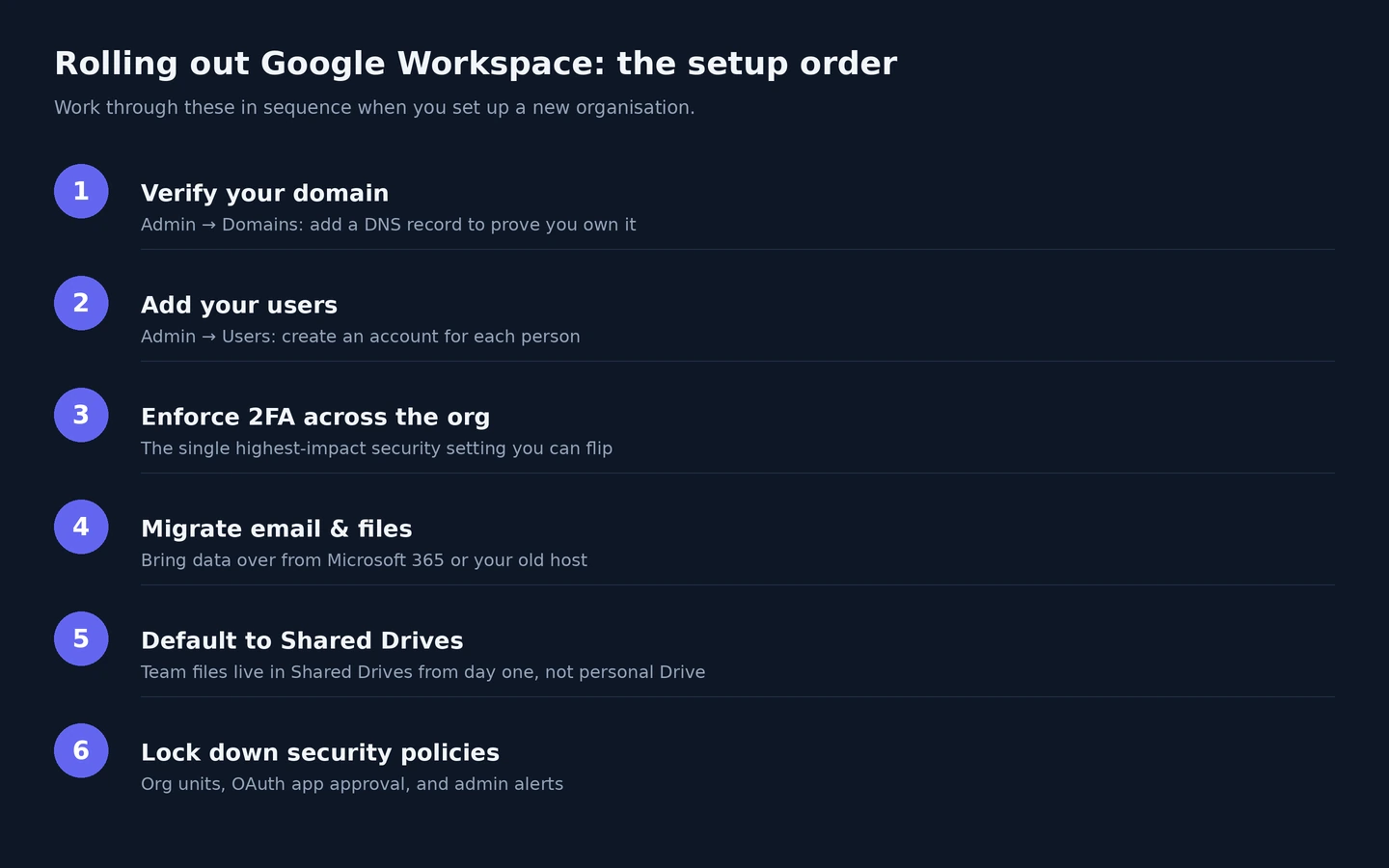
First admin tasks when setting up a new organisation:
- Verify the domain: Admin → Domains → Manage domains → add a DNS TXT record at the domain registrar to prove ownership
- Create user accounts: Admin → Users → Add new user → enter name and email address → generate or set a password → user receives a welcome email
- Configure Organisational Units (OUs): if users need different settings (different storage allocations, different app access levels, different 2FA enforcement timelines) — OUs allow applying different settings to groups of users without affecting the entire organisation
Enforce 2FA organisation-wide — one of the highest-impact security configurations available. Admin → Security → 2-step Verification → start with “Allow users to turn on 2-step verification” (giving users time to enrol) → set an enrolment deadline → then “Require 2-step verification” after the deadline. Communicate the timeline clearly — users who haven’t enrolled by enforcement are locked out until they complete it. Organisations enforcing 2FA for all users experience over 99% reduction in account compromise compared to those that leave it optional.
Core apps and integration benefits
Gmail with a custom domain: every Workspace user gets an @companydomain.com email address. Admin → Apps → Google Workspace → Gmail → configure spam policies and DMARC/DKIM authentication. Create group email addresses (Admin → Groups → Create group) for team-wide addresses — support@, info@, team-specific addresses — emails to the group go to all members’ inboxes.
Shared Drives in Drive: unlike personal Drive (where files are owned by an individual), Shared Drives belong to the organisation. Files stay even if the creator’s account is deleted. Admin → Apps → Drive → Shared Drives → enable creation. Create one Shared Drive per team or department and move team-critical documents there. This single configuration decision prevents the most common data accessibility problem: team files disappearing when an employee leaves.
Meet integration: Google Calendar automatically adds a Meet link to any calendar event with guests. Meet recordings go to the organiser’s Drive automatically. Transcripts are generated and added to Drive alongside the recording. Once Workspace Meet links are in every Calendar invite, team members join from Calendar with no separate app required — the lowest-friction meeting join experience in any productivity suite.
Chat for team messaging: Google Chat provides direct messages, group conversations, and Spaces (persistent channels). Chat integrates with Docs, Drive, and Meet — sharing a Doc in Chat creates a preview; a Meet call can be started from any Chat conversation. For teams already in Workspace, Chat is sufficient for many messaging needs; teams with existing Slack investments typically continue with Slack.
Vault for compliance (Business Plus and above): provides eDiscovery, litigation hold, audit, and data retention for all Workspace data — emails, Drive files, Chat messages, and Meet recordings. Set retention policies and apply litigation holds to prevent data from being deleted during legal proceedings, even if the user manually deletes it.

Productivity features across the suite — the integration value
The integration between Workspace applications creates productivity opportunities only available when using the full suite. A meeting scheduled in Google Calendar automatically has a Meet link; the recording goes to Drive; the transcript can be shared in a Chat Space; the agenda Doc can be attached to the Calendar event; action items can be assigned in Google Tasks, synced with the Calendar.
This end-to-end flow — scheduling through the meeting itself to post-meeting documentation — is what using Workspace as a coherent suite looks like in practice, versus the same workflow spread across five separate tools that share no data.
Smart Canvas embeds one Workspace app’s content directly in another. In a Google Doc, type “@” to mention a person (creates a smart chip showing their availability), a date (linked with reminder options), a file (embeds a Drive file preview), or a meeting (embeds the Calendar event). A Doc with an embedded Sheets chart that updates live when the spreadsheet changes, a Calendar event link that shows meeting details on hover, and @mentions that notify relevant team members — this is a qualitatively different document than a static Word file with the same text.
Use @-embedding for any document element that should update automatically: status dashboards that embed live Sheets data, project briefs that embed the Calendar event for the project kickoff, knowledge base articles that embed related Drive files — creating documents that stay current without manual maintenance.
Apps Script (Extensions → Apps Script in any Workspace app) allows automating repetitive tasks using JavaScript. A script that creates a new expense-tracking Sheet every Monday, auto-populates it with team member names, and emails each person their link — triggered automatically with no manual action. For teams that want automation without code, our guide on using Zapier covers the no-code automation layer connecting Google Workspace to hundreds of other tools.
Plan comparison
| Feature | Starter ($6/user/mo) | Standard ($12/user/mo) | Plus ($18/user/mo) |
| Pooled storage | 30 GB/user | 2 TB/user | 5 TB/user |
| Meet recording to Drive | ✗ | ✓ | ✓ |
| Meet participants | 100 | 150 | 500 |
| Meet transcripts (AI) | ✗ | ✓ | ✓ |
| eDiscovery and Vault | ✗ | ✗ | ✓ |
| Meet noise cancellation | ✓ | ✓ | ✓ |
The Meet recording row is the most consequential upgrade from Starter to Standard for teams using video meetings as a primary communication channel. At the Starter tier, Meet calls cannot be recorded — there’s no in-call recording button. At Standard, every meeting can be recorded to Drive with one click, transcripts are generated automatically, and the recording is shared with all attendees by email. For organisations that regularly hold training sessions, client calls, or all-hands meetings that non-attendees should be able to review, Business Standard is the functional minimum for a complete remote work platform.
Migration and onboarding new users
Migrating to Google Workspace from Microsoft 365 or another email platform: Admin → Data migration → Email → select the source type (Microsoft Exchange, Microsoft 365, or other IMAP) → enter migration credentials → select the users and date range → start. The migration runs in the background, copying emails to the destination Workspace accounts.
Onboarding new employees: create their account (Admin → Users → Add new user) → send the welcome email with sign-in instructions → add them to appropriate groups (team email lists, Shared Drive access). Create a “Workspace Onboarding” Google Doc template with instructions for Day 1 setup — Gmail signature configuration, mobile app installation, joining team Chat Spaces, accessing the team Shared Drive. Link directly to each relevant setup screen with URLs. This self-guided onboarding approach scales without requiring IT to walk each new hire through setup individually.
Our individual guides on using Google Drive, using Google Docs, using Google Sheets, using Google Meet, and using Google Calendar each cover the individual apps in depth. For Google’s official documentation on Admin Console configuration, domain verification, and security policy enforcement, Google Workspace Admin Help provides step-by-step guidance for every admin configuration decision.
Security configuration beyond 2FA
The Admin Console Security section contains several configurations that matter significantly for organisational security beyond the initial 2FA enforcement:
- OAuth app approval: Admin → Security → API controls → App Access Control → set to “Restrict which third-party apps can access Google Workspace data.” Without this, any third-party app a user authorises through “Sign in with Google” gets access to Workspace data. Requiring admin approval for third-party app access prevents shadow IT from introducing unsanctioned data integrations.
- Password policies: Admin → Security → Password management → set minimum length (12 characters minimum recommended), require strength enforcement, and set the reuse prevention window (don’t allow reuse of last 10 passwords).
- Login challenges: Admin → Security → Login → configure whether users prompted for additional verification at unusual locations. Enabling “Suspicious login activity” sends additional login challenges when unusual access patterns are detected.
- Data Loss Prevention (DLP): Admin → Apps → Google Workspace → Drive → Data Protection. Create DLP rules that scan Drive files for sensitive data patterns (credit card numbers, passport numbers, social security numbers) and either flag, restrict sharing, or block external sharing when detected. Available on Business Plus and Enterprise.

Google Workspace vs Microsoft 365 — the practical comparison
- Choose Google Workspace if: real-time co-editing is frequently needed (multiple people editing the same Doc simultaneously is genuinely seamless); browser-based workflows are preferred; the team is mobile-first; cross-platform compatibility (mixing Mac and Windows users) matters; cost is a primary consideration at the Starter tier
- Choose Microsoft 365 if: the team has existing investments in Office file formats and macros that need to run natively; advanced Excel functionality (Power Query, Power BI, complex macros) is heavily used; SharePoint-based intranet and file management is already established; Teams-based communication and meetings are the primary collaboration model
- Consider both if: different teams in the organisation have different primary needs — using Google Workspace for the internal team and Microsoft 365 for specific departments with heavy Office dependency is a pattern some larger organisations adopt
The honest answer: both are mature, capable platforms. For new organisations choosing from scratch in 2026, Google Workspace’s web-first approach, simpler admin console, and lower starting price point make it the more common choice for startups and small businesses. Microsoft 365’s deeper Windows ecosystem integration and Office application depth make it the more common choice for larger enterprises with established Microsoft investments.
Getting the most out of the suite — practical patterns
Teams that get the most from Google Workspace treat it as a connected system rather than separate apps. A few patterns that make the difference:
- All client files in Shared Drives from day one. Not personal Drive, not emailed attachments — Shared Drives. This creates the team’s single source of truth from the start rather than needing a painful consolidation later.
- Every recurring meeting has a linked Google Doc. Meeting notes Doc linked from the Calendar event, used for agenda before and notes during. The Doc accumulates context over time and is always one click away from the calendar invite.
- Templates for every recurring document type. Create a template Doc for weekly status updates, project briefs, and meeting notes. Accessible through Drive → Templates. Every document of the same type starts from the same structure — no rebuilding the wheel each time.
- Chat Spaces for persistent team topics, not just DMs. A team that only uses Chat for direct messages misses the value of Spaces for ongoing project threads that don’t belong in email and don’t need the formality of a meeting.
The single biggest productivity gain from Google Workspace comes not from any individual feature but from the way the apps share context. A file attached to an email is also in Drive; a meeting scheduled in Calendar automatically has a Meet link; a comment in a Doc can notify someone via email and show in Chat. Once the team internalises these connections and stops treating each app as a standalone tool, the total overhead of managing information drops significantly.