
If your laptop touchpad suddenly stopped working — cursor not moving when you touch the pad, or tapping not registering as clicks — the most common cause is that the touchpad got accidentally disabled by a function key. Most laptops have a key combo (usually Fn + F5, F6, F7, F8, or F9 depending on manufacturer) that toggles the touchpad on/off. For the bigger picture, our Complete Guide to Fixing Windows, Browser, and Software Errors pulls everything together.
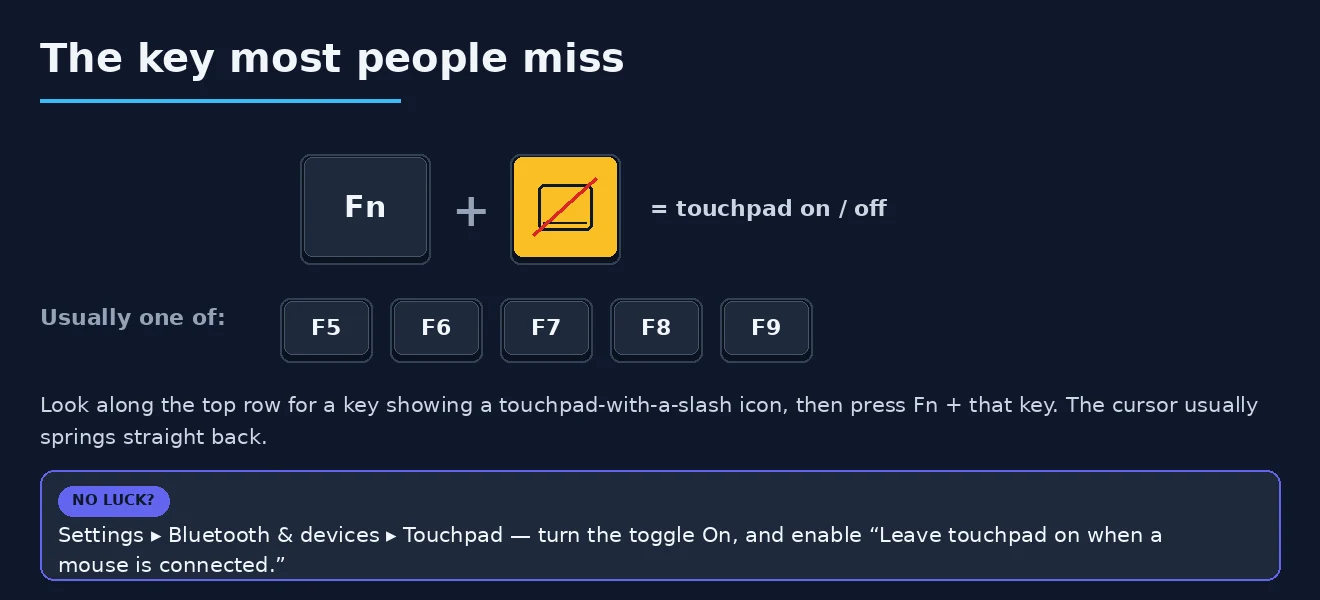
Look at your laptop’s F-keys for an icon that looks like a touchpad with a slash through it. Press Fn + that key. The touchpad usually springs back to life immediately. This single fix resolves the problem for the majority of “sudden touchpad failure” reports — and yet most troubleshooting guides start with reinstalling drivers.
If the function key combo doesn’t work or your laptop doesn’t have one, the next quickest check: Settings → Bluetooth & devices → Touchpad. Make sure the Touchpad toggle is On. If both checks pass and the touchpad still doesn’t work, the full diagnostic below covers drivers, BIOS settings, and hardware issues — but try the function key first because it’s a 5-second test.
First: keyboard shortcut toggle
Most laptops have an Fn key combination that disables the touchpad. Look for the key with a touchpad icon (often Fn+F5, F7, or F9 depending on the brand). Press it. The touchpad may also have a small LED that lights up when disabled on some models. If the cursor appears after pressing the key: done.
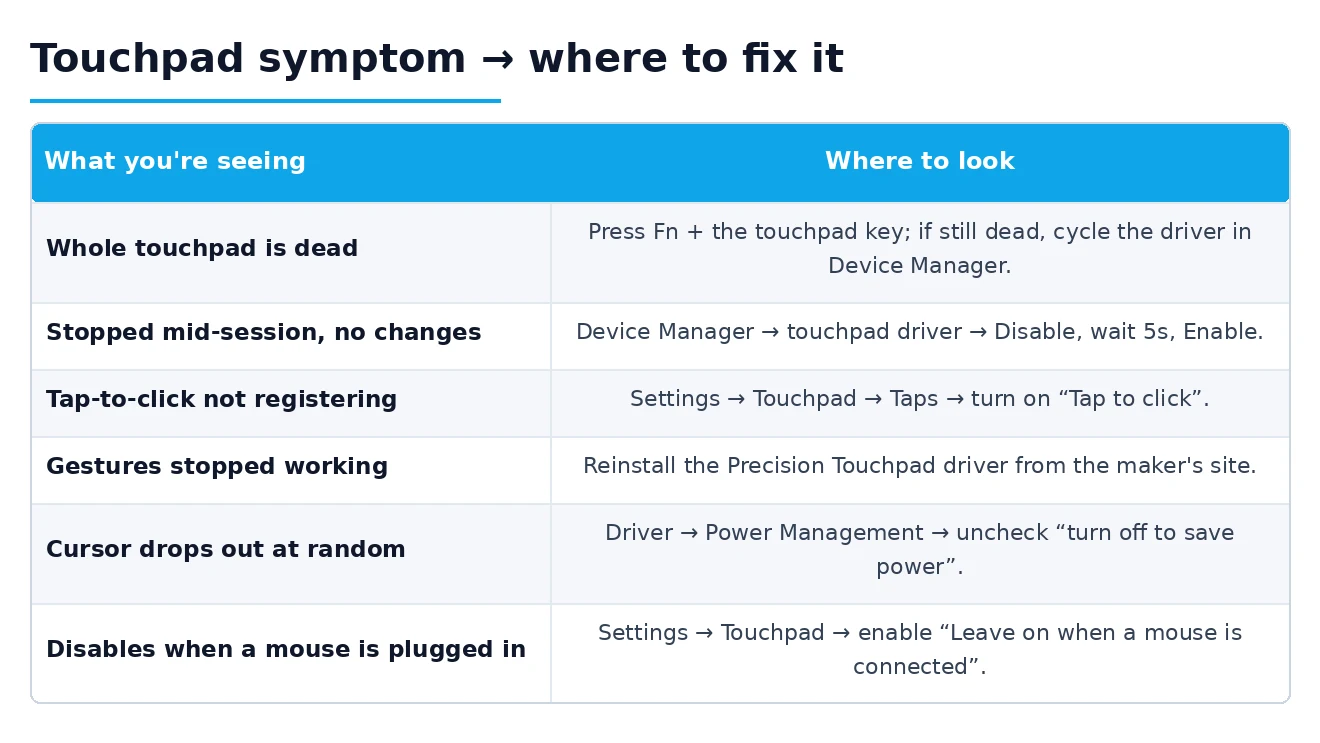
Settings → Bluetooth and devices → Touchpad → the toggle should be On. Also check: “Leave touchpad on when a mouse is connected” — if an external mouse is plugged in and this is off, the touchpad disables automatically.
Driver recovery for mid-session failures
If the touchpad stopped working during use without any settings change: the driver likely crashed. This is recoverable without a restart. Device Manager → HID-compliant mouse (or the named touchpad driver) → right-click → Disable device → wait 5 seconds → right-click → Enable device. This cycles the driver and reconnects it to the hardware without a full restart.
If Device Manager isn’t accessible without the touchpad: use keyboard navigation. Win key → type “Device Manager” → Enter → Tab to navigate → use arrow keys to find the touchpad entry → Shift+F10 to right-click → disable/enable.
Driver reinstall from manufacturer’s page
The most effective fix for touchpad problems that survive the enable/disable cycle: download the touchpad driver from the laptop manufacturer’s support page for the specific model number. Not from ELAN’s or Synaptics’ generic pages — those lack the per-model configuration that makes gestures and sensitivity work correctly.
After installing: restart → the driver reinitialises cleanly with fresh configuration. Windows Update frequently replaces these specialised drivers with generic HID drivers that work for basic pointing but don’t support gestures, sensitivity adjustment, or edge scrolling.
Tap-to-click specifically not working
If the cursor moves but tapping doesn’t register as a click: Settings → Bluetooth and devices → Touchpad → Taps → “Tap with a single finger to single-click” → enable. This is the tap-to-click setting and it’s often off by default or reset by Windows updates. Physical clicks (pressing the touchpad down) should work regardless of this setting — if they don’t, it’s a hardware issue rather than software.
Gestures stopped working
Two-finger scroll, pinch-to-zoom, three-finger swipes — these require a Precision Touchpad (PTP) driver rather than the generic HID driver. If Settings → Touchpad shows limited options (just on/off, no gesture configuration): the generic driver is installed. Installing the manufacturer’s touchpad driver upgrades to PTP and restores gesture support.
Power management causing intermittent dropout
Touchpad that works then stops, works then stops — especially after brief inactivity — is power management suspending the device. Device Manager → Human Interface Devices → right-click the touchpad → Properties → Power Management → uncheck “Allow the computer to turn off this device to save power.” The touchpad stays active continuously rather than being suspended.
BIOS-level check
If the touchpad doesn’t respond at all and none of the above fixes it: test during BIOS/UEFI access (F2 or Delete at startup). Navigate BIOS menus with the touchpad. If it responds in BIOS: it’s a Windows software/driver issue. If it doesn’t respond even in BIOS: the hardware or the BIOS configuration has the touchpad disabled. Check BIOS → Advanced → Internal Pointing Device → ensure it’s Enabled.
If nothing works — immediate workarounds
While resolving the root cause: Tab and arrow keys navigate Windows. Win+X → keyboard shortcuts work for system functions. Pressing Tab to cycle through elements, Enter to select, and Shift+F10 for right-click context menus provides full computer control without pointer input. A USB mouse also works immediately — plug it in and Windows recognises it without any driver installation on Windows 11.
Our guide on general touchpad troubleshooting covers the registry-level driver entries and SFC system file repairs for deeper touchpad issues. For the Precision Touchpad driver specifically and its gesture capabilities, our pointer device performance guide covers the driver architecture differences. Microsoft’s Precision Touchpad certification documentation covers which gestures are part of the PTP standard versus manufacturer additions, and which Windows versions introduced each gesture capability.
Application-specific touchpad interference
Some applications — particularly drawing software (Clip Studio Paint, Adobe Photoshop), gaming software (Logitech GHUB, Razer Synapse), and remote desktop clients — take enhanced control of pointer input when running. This can conflict with the touchpad driver, causing gestures to fail or the touchpad to behave strangely only when those applications are active.
Test: close all non-essential applications → does the touchpad behave normally? If yes: one of the closed applications was interfering. Reopen them one at a time to identify which one. The conflicting application may have a setting to release exclusive pointer control — check its input or accessibility settings.
Profile-specific vs system-wide touchpad issues
Create a new Windows user account → log in → test the touchpad. If it works in the new account but not the regular one: the touchpad issue is profile-specific — corrupted user-level driver settings or preference files. The fix is either repairing the profile data or migrating data to the new account.
If it also doesn’t work in the new account: it’s a system-wide issue affecting all users — driver or hardware. This test saves significant time by immediately separating profile corruption from system corruption.
Touchpad sensitivity and accidentally-disabled features
Settings → Bluetooth and devices → Touchpad has several sub-sections beyond the main toggle. Check each:
- Taps: tap-to-click settings for single, double, and two-finger tap
- Scroll and zoom: two-finger scroll direction and speed, pinch-to-zoom toggle
- Three-finger gestures: swipe actions, tap function
- Four-finger gestures: if supported by hardware
A Windows Update sometimes resets specific sub-settings to defaults while leaving others intact. A quick review of all four sections often reveals the specific reset that explains why only certain touchpad functions stopped working.
Windows 11 specific: Settings app display of touchpad options
Some touchpad models show different options in Windows 11 compared to Windows 10 due to the new Precision Touchpad configuration UI. If the touchpad worked with different settings under Windows 10 and Windows 11 shows fewer options: either the generic HID driver was installed during the upgrade (install the manufacturer driver to restore PTP and full options), or the Windows 11 PTP UI simply removed some options that were in the Windows 10 UI.
For options that genuinely disappeared in Windows 11: the manufacturer’s dedicated touchpad utility (Synaptics TouchPad Control Panel, ELAN Smart Pad, Alps TouchPad) provides these settings outside of Windows’ built-in Touchpad page. Installing the full driver package from the manufacturer (not just the driver file but the associated software) restores the additional configuration options.
Checking actual hardware button configuration
Some touchpads have physical left and right click buttons below the trackpad (traditional design), while others use the entire trackpad surface as a clickpad (no separate buttons). Clickpads have specific areas defined as left-click and right-click zones — typically the bottom-left corner for left-click and bottom-right for right-click.
If clicking doesn’t register: try clicking in the lower-left corner explicitly rather than anywhere on the pad. Some touchpad models have a very specific zone requirement that feels non-obvious but is the actual hardware click area. Settings → Touchpad → the touchpad diagram in the settings page shows the click zone configuration for clickpad-style touchpads.
Palm rejection and accidental input suppression
Palm rejection systems sometimes over-aggressively suppress input, particularly on touchpads with wider surface areas. When typing, the algorithm temporarily suppresses touchpad input to prevent accidental cursor movement. If this suppression period is too long or too sensitive: the touchpad appears to stop working momentarily after typing stops.
Settings → Touchpad → sensitivity → reduce from High to Medium. This makes the palm rejection less aggressive. Also look for a “Typing exclusion zone” setting in manufacturer utilities that controls how long after typing the touchpad waits before accepting input.
Advanced: checking I2C bus for internal touchpad
Modern internal touchpads communicate via I2C (Inter-Integrated Circuit) bus — a different bus than external USB mice. When the I2C bus controller driver has issues: the internal touchpad stops responding while Device Manager may still show it as present (it’s detected but not communicating). Device Manager → Human Interface Devices or System Devices → look for “Intel I2C Controller” or “HID-Compliant Touch Pad (I2C HID)” entries. If these show warning triangles: the I2C driver needs updating — download it from the laptop manufacturer’s support page specifically (not Intel’s generic drivers) as it requires laptop-specific configuration.
Firmware update for touchpad hardware
Touchpad hardware itself occasionally receives firmware updates separate from Windows drivers. These updates fix gesture recognition bugs, sensitivity calibration, and connectivity issues at the hardware level. Check the laptop manufacturer’s support page → firmware or utility downloads → look for “touchpad firmware” or “embedded controller update.” These are less common than driver updates but occasionally resolve touchpad issues that driver reinstalls can’t address because the problem is in the touchpad’s own firmware, not the Windows driver.
The practical order for laptop touchpad issues: keyboard toggle → Settings toggle → mid-session: Device Manager disable/enable → driver reinstall from manufacturer’s page → tap-to-click sub-settings → power management → BIOS check → new user account test. This sequence identifies the vast majority of touchpad failures in under 15 minutes, with each step taking under 2 minutes individually.
For touchpad problems on business laptops managed through Intune or Group Policy: some organisations disable touchpad features through MDM policies to prevent data entry in certain contexts. If the touchpad settings page in Windows shows “Managed by your organisation” labels next to settings: IT controls those settings and local changes won’t persist. Reporting the specific touchpad feature that’s needed to IT, along with the business justification, is the path to resolution rather than local settings investigation.
Physical connection check for persistent hardware failures
If the touchpad doesn’t respond in BIOS, doesn’t appear in Device Manager even with hidden devices shown, and the laptop has been dropped or subjected to physical impact: the touchpad ribbon cable inside the laptop may have come loose from its connector. This is a 5-minute repair on most laptops — open the bottom panel, locate the ribbon connector, press it firmly into its ZIF (zero-insertion-force) socket. iFixit guides for most laptop models show the exact connector location.
Don’t assume hardware failure immediately — ribbon connector loosening is common on laptops that have been dropped or shipped, and it presents identically to complete hardware failure in software diagnostics. The distinction is that a loose connector costs nothing to fix while hardware replacement costs money and time. Checking the physical connection first is always the right approach for touchpads that fail completely and don’t respond in BIOS.
Two more quick things worth knowing: (1) If the touchpad started misbehaving immediately after spilling liquid near the keyboard area — even if the spill seemed minor — liquid may have reached the touchpad controller or ribbon cable. Liquid damage causes intermittent, unpredictable touchpad behaviour that worsens over time. Drying the machine (powered off, upright, 24–48 hours) sometimes resolves minor moisture issues; deeper liquid damage requires professional service. (2) Touchpads that work correctly when the machine is cold but fail as it warms up indicate thermal issues near the touchpad controller — relatively rare but documented. If the touchpad always fails after 20 minutes of use: note whether it correlates with CPU and chassis temperature. Improving thermal management (cleaning vents, adjusting power profile) sometimes resolves this.

In summary: the three failure types (completely unresponsive / cursor works but no taps or gestures / was working then stopped) each have distinct first fixes. Completely unresponsive → keyboard toggle → Settings toggle → BIOS check. Gestures only → manufacturer driver reinstall (generic driver is installed). Mid-session dropout → driver disable/enable cycle → power management. Addressing the right type with the matching first fix resolves most touchpad issues faster than working through a generic list of all possible fixes.
Which function key toggles the touchpad on my laptop?
It varies by manufacturer. Dell typically uses Fn+F5 or Fn+F9. HP uses Fn+F5 or has a dedicated touchpad button. Lenovo ThinkPad uses Fn+F6 or F8. ASUS uses Fn+F9. Acer uses Fn+F7. Look at your F-keys for a touchpad icon (small rectangle with a slash). The function key that has that icon is the toggle. Press Fn + that key once to test.
Why does my touchpad work but tap-to-click doesn’t?
Tap-to-click is a separate setting from the touchpad working in general. Go to Settings → Bluetooth & devices → Touchpad → expand Taps → enable ‘Tap with a single finger to single-click.’ Some users prefer tap disabled to prevent accidental clicks during typing — if you find this useful but it disabled itself after an update, just re-enable it.
My touchpad works in Windows but not when I’m typing — why?
Windows has a setting that automatically disables the touchpad while you’re typing to prevent accidental cursor jumps from your palm. Settings → Bluetooth & devices → Touchpad → expand Sensitivity → change ‘Touchpad sensitivity’ to a less restrictive setting. The default ‘Medium sensitivity’ is too aggressive for some users.
Should I reinstall the touchpad driver?
Only if the function key fix, Settings toggle, and BIOS check have all failed. Driver reinstall: Device Manager → Mice and other pointing devices → right-click your touchpad → Uninstall device → restart computer (Windows auto-reinstalls the driver). If that doesn’t help, download the latest driver from your laptop manufacturer’s support site — generic Windows drivers often miss laptop-specific gestures. Related: Laptop Fan Not Working.
Why does the touchpad work in BIOS but not Windows?
This is good news — it confirms the hardware is fine and the problem is software-side in Windows. The cause is almost always a driver problem or Windows accidentally disabling the device. Try: uninstall the touchpad driver from Device Manager, restart, let Windows reinstall. If that fails, download the manufacturer’s specific driver. If the touchpad doesn’t work in BIOS either, it’s likely a hardware problem requiring service. If this sounds familiar, Slack Notifications Not Working is worth a look.
Can I use an external mouse while the touchpad is being fixed?
Yes — plug in any USB or wireless mouse and Windows will use it. This is essential during troubleshooting because you’ll need to navigate Settings and Device Manager while the touchpad is broken. Bluetooth mice work too but pairing requires either touchpad or another input device, so USB is the safest choice. Our guide on Chrome Not Playing Audio covers an adjacent issue.