Adobe Acrobat is the default answer to “what PDF editor should I use” — and for most people, it’s wrong. Acrobat Pro costs $239.88/year and includes capabilities that the vast majority of users never touch. There are excellent alternatives that handle the everyday tasks (editing text, adding signatures, merging files, OCR) for free or a one-time payment under $100. This fits into the wider topic we cover in our Complete Guide to Windows Software.
The quick recommendations: PDFgear is the best fully-free option (genuinely free, no watermarks). PDF24 Creator for batch operations on Windows. Foxit PDF Editor is the best paid alternative to Acrobat at lower price. Nitro PDF for business document workflows. PDF-XChange Editor for technical PDF work and form filling. Adobe Acrobat Pro remains the right choice if your work requires advanced collaboration features that the alternatives don’t match.
The detailed comparison below covers what each tool actually does well and where each falls short — based on testing real document editing tasks rather than just listing feature checklists.
Best PDF Editor for Windows: Adobe Acrobat
Adobe Acrobat Standard (from £12.99/month) is the definitive answer to “what is the best PDF editor” if cost is not the primary consideration. Acrobat originated the PDF format and its editing capability — particularly text editing within existing PDFs — is the most accurate and reliable available. When I need to make substantive text changes to a formatted PDF document, Acrobat handles font matching, text reflow, and layout preservation better than any alternative I have tested. The OCR (optical character recognition) for making scanned documents searchable and editable is also the most accurate available. The honest barrier: Acrobat’s subscription cost is high for occasional users. £12.99/month is appropriate if PDF editing is a regular professional activity; it is expensive for someone who needs to edit a PDF a few times a year. For those users, the alternatives below provide sufficient capability at substantially lower cost.Best PDF Editor for Windows: PDF-XChange Editor
PDF-XChange Editor (free with watermark on some outputs; Plus from £30.96 one-time) is the PDF editor I recommend most confidently as an alternative to Acrobat — the annotation tools, form filling, digital signature, and basic text editing capabilities are excellent, and the free tier covers annotation and commenting without watermarks. The text editing for existing PDF content is not as polished as Acrobat’s on complex documents, but for the most common PDF editing tasks it is entirely adequate. The interface is more complex than some alternatives but provides more capability per pound than any other tool in this guide. In my testing, PDF-XChange Editor handles annotation (highlights, comments, stamps, drawings), form filling, and page management (reorder, delete, add, crop pages) better than most free alternatives. The OCR functionality requires the Pro version. The Plus one-time purchase licence eliminates the watermark on all outputs — a better deal for regular users than a subscription.Best PDF Editor for Windows: Foxit PDF Editor
Foxit PDF Editor (free basic version; PDF Editor from £10.99/month or £119.99/year) is the closest Adobe Acrobat competitor in terms of feature set and text editing quality. The subscription pricing is meaningfully lower than Acrobat for comparable functionality. The collaboration features — shared review, comments synchronised in real time — are strong for team environments where multiple people annotate the same PDF. For organisations that need Acrobat-level capability at lower cost, Foxit is the most compelling alternative. The free version of Foxit is limited — viewing and basic annotation only. The full PDF Editor subscription unlocks text editing, OCR, form creation, and the features that distinguish a PDF editor from a PDF viewer. For the occasional user who needs full editing capability, the annual cost versus the one-time cost of PDF-XChange Plus is worth considering based on usage frequency.Best PDF Editor for Windows: Smallpdf and iLovePDF (Web-based)
For users who need to edit PDFs occasionally and do not want to install desktop software, Smallpdf (smallpdf.com) and iLovePDF (ilovepdf.com) are web-based tools that handle the most common PDF tasks — merge, split, compress, convert to/from Word or Excel, rotate pages, and add watermarks — directly in a browser without installation. Both have free tiers with daily limits and paid tiers for unlimited use. The honest limitation of web-based tools: uploading sensitive or confidential documents to a third-party web service is a data privacy concern that desktop software avoids. For PDFs containing personal, financial, or commercially sensitive information, desktop software that processes the file locally is more appropriate than a web service.
Best PDF Editor for Windows: Free Annotation (Sumatra PDF + Drawboard)
For users who specifically need annotation — highlighting, comments, freehand drawing — without text editing: Sumatra PDF is the fastest, most lightweight PDF viewer for Windows with annotation support via its built-in tools. Drawboard PDF (free basic; Pro from £4.49/month) is specifically designed for stylus annotation on touch-screen Windows devices — Surface users in particular will find Drawboard’s pen pressure and palm rejection support superior to any other option for handwritten annotation.| Tool | Cost | Text Editing Quality | Best For |
|---|---|---|---|
| Adobe Acrobat Standard | £12.99/month | Best available | Professional PDF editing; complex documents |
| PDF-XChange Editor | Free / £30.96 one-time | Good | Best value; annotation and basic editing |
| Foxit PDF Editor | £10.99/month | Very good | Acrobat alternative at lower subscription cost |
| Smallpdf / iLovePDF | Free / paid tiers | Basic | Occasional simple tasks; no install required |
| Drawboard PDF | Free / £4.49/month | N/A (annotation only) | Stylus annotation on Surface/touch devices |
PDFgear — best free PDF editor
PDFgear is genuinely free with no watermarks, no time limits, and no premium tier paywalling features. It’s the most surprising recommendation in this category — there’s no obvious catch.
What it does well: Edit text and images in existing PDFs, add signatures, merge and split PDFs, convert PDFs to Word/Excel/PowerPoint and back, OCR scanned documents, AI-powered chat with documents (ask questions about PDF content). The interface is clean and modern.
Where it falls short: No advanced form creation, limited collaboration features, AI features require an internet connection and process content on their servers (privacy concern for sensitive documents), still relatively new so future direction uncertain.
Best for: Users who want a capable free PDF editor for everyday tasks and don’t process sensitive material that would be a concern uploading to their AI features.
PDF24 Creator — best for batch operations
PDF24 is a free German-made PDF toolkit that excels at batch processing — converting dozens of files at once, applying watermarks to multiple PDFs, compressing batches. The interface is utilitarian rather than slick, but the functionality is comprehensive.
What it does well: All processing happens locally (no cloud upload — privacy positive), batch convert between PDF and other formats, compress, merge, split, rotate, watermark, encrypt, sign. Bundled PDF24 Reader handles viewing.

Where it falls short: The text editing in existing PDFs is limited compared to dedicated editors, the UI looks dated, lots of separate small tools rather than one unified workflow, occasional ads bundled with installer (uncheck during install).
Best for: Users who frequently batch-process PDFs and want everything local — invoices, scanned documents, archived files. Pairs well with PDFgear for the rare cases requiring text editing.
Foxit PDF Editor — best paid alternative to Acrobat
Foxit positions itself as the direct Adobe Acrobat alternative — similar feature set at lower price. Used widely in enterprise as a less expensive licensed alternative to Acrobat.
Pricing: Standard is $129 one-time or $14.99/month subscription. Pro is $179 one-time or $19.99/month. Perpetual licenses available unlike Acrobat (Adobe is subscription-only now).
What it does well: Nearly all Acrobat capabilities, fast performance on large PDFs, good redaction tools, OCR is competent, form creation works well, collaboration features through Foxit Cloud.
Where it falls short: Interface is dense and takes adjustment if coming from Acrobat, occasional bugs in handling complex form documents, customer support feedback is mixed.
Best for: Professionals who need a near-Acrobat feature set but want a perpetual license or significant cost savings versus Acrobat Pro.
PDF-XChange Editor — best for power users
PDF-XChange has an unusual model: the free version is genuinely useful for most users, but some features add a watermark to your output. Paying removes the watermarks and unlocks more advanced editing.
What it does well: Excellent form filling and creation, very fast at opening large PDFs (better than Acrobat in this respect), comprehensive markup and annotation tools, customisable interface for power users.
Where it falls short: Free version watermarks output for premium features (visible reminder you’re using the free version), interface is intimidating for casual users, no Mac version, OCR is a separate paid plugin.
Best for: Power users who specifically need fast PDF performance and don’t mind paying $46.50 (Editor Plus) for the perpetual license.
When Adobe Acrobat Pro is actually the right choice
Despite the cost criticism, Acrobat Pro is genuinely the right answer for some users:
- You’re required to use it by employer policy or regulatory framework
- You need its industry-standard digital signature workflows (legal, accounting, etc.)
- You need real-time collaborative PDF editing through Adobe’s cloud
- You work in advanced PDF accessibility (Acrobat Pro’s accessibility checker is unmatched)
- You need PDF/A archival format compliance verification
If none of those describe you, the alternatives above almost certainly handle what you actually do with PDFs for a tiny fraction of the Acrobat subscription cost.
Is there a truly free PDF editor that doesn’t add watermarks?
Yes — PDFgear is currently the standout in this category. PDF24 Creator also is free without watermarks but has a more limited text-editing experience. Both are genuinely free without trial limits. PDF-XChange Editor’s free version is functional but adds watermarks when you use premium features.
Can I edit text in a PDF the same way I would in Word?
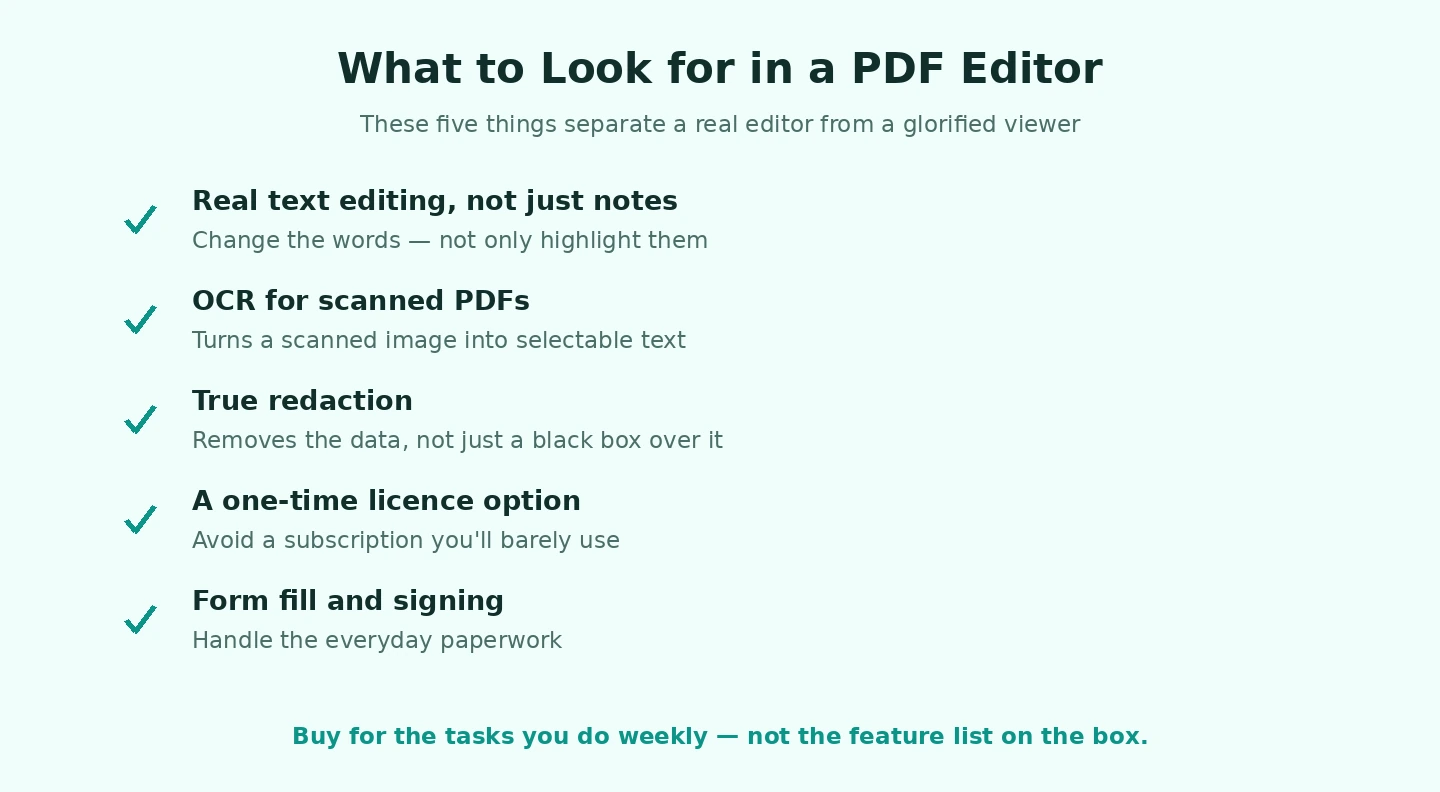
Modern PDF editors (PDFgear, Foxit, Acrobat) handle text editing reasonably well for PDFs that were created from Word/text sources. PDFs that were scanned from paper need OCR first to convert images to editable text — most editors handle this with one click. PDFs with complex layouts (designed brochures, magazines) can break visually when edited; in those cases editing the source file and re-exporting to PDF gives better results.
How do I sign a PDF without printing and scanning?
Every editor in this list supports digital signatures. PDFgear and PDF24 add image-based signatures (draw or upload your signature image). Foxit and Acrobat support cryptographic digital signatures that verify the document hasn’t been altered after signing. For legal documents requiring verifiable signatures, the cryptographic option is what’s expected.
Will Adobe Acrobat files work in alternative editors?
Yes — PDF is a standard format. Files created in Acrobat open and edit cleanly in all the alternatives. The reverse is also true: files created in PDFgear or Foxit open fine in Acrobat. The only exception is files with Acrobat-specific advanced features (some Form fields, certain digital signatures) that some alternatives don’t fully support — but these are unusual cases.
Can I convert a PDF back to Word?
Yes, all the editors in this list do this. The conversion quality depends on the PDF’s original source. PDFs created from Word convert back almost perfectly. PDFs created from designed layouts (InDesign, Photoshop) convert with formatting that needs manual cleanup. Scanned PDFs need OCR first to extract text — most editors automate this if you choose ‘convert with OCR.’
Do I need a PDF editor or just a PDF reader?
If you only view PDFs and occasionally fill out forms, a reader is enough — Chrome and Edge’s built-in PDF readers handle this. You need an editor if you’ll edit text in PDFs, combine multiple PDFs, add signatures cryptographically, redact sensitive info, or convert PDFs to Word/Excel. For most users who occasionally fill forms, a reader is sufficient. See also Best Cloud Storage for Personal Use for a related case. If converting to an editable document is the specific thing you need, our step-by-step on turning a PDF into a Word file walks through the free and paid routes.