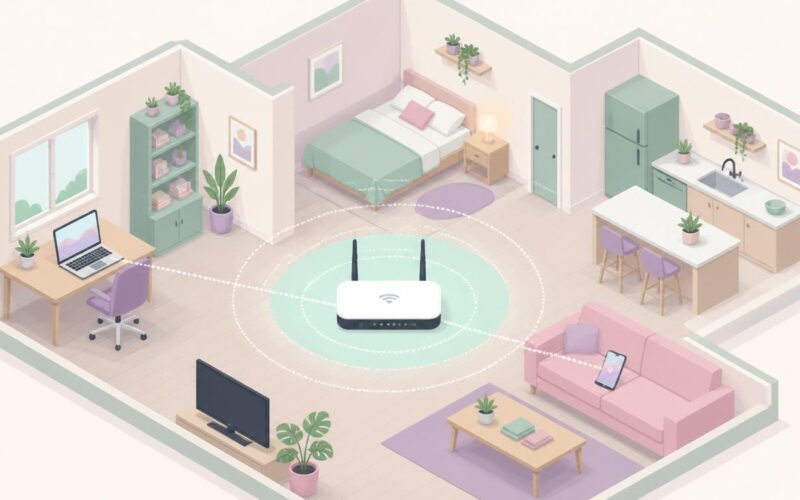
Wi-Fi calling lets you make and receive phone calls over a Wi-Fi network when cellular coverage is weak or absent. When it stops working — calls drop immediately, “Wi-Fi calling unavailable” appears, or the Wi-Fi calling icon never shows — the issue is usually one of three things: a carrier setting not fully provisioned, a network configuration the carrier’s servers can’t reach, or a VPN or firewall blocking the specific ports Wi-Fi calling uses. This fits into the wider topic we cover in our Complete Guide to Fixing Windows, Browser, and Software Errors.
Quick check on your phone: Settings → Network → Wi-Fi calling → make sure it’s actually enabled. Sounds basic, but updates occasionally reset this setting. Some phones also have it nested in Cellular → Wi-Fi calling, or Connections → More connection settings. Toggle it off then back on — this forces re-registration with the carrier’s IMS (IP Multimedia Subsystem) servers, which often resolves “feature is on but doesn’t work” situations.
Carrier support and provisioning
Not all carriers support Wi-Fi calling on all plans. And even where they do, it sometimes needs to be manually enabled from your account’s end — the carrier provisions the feature to your line before the phone can use it.
Check your plan details on the carrier’s website or app. Common situations:
- You’ve changed plans recently and the new plan doesn’t include Wi-Fi calling
- You’re on a legacy MVNO plan (smaller carrier riding a bigger carrier’s network) that doesn’t pass through Wi-Fi calling
- Wi-Fi calling requires a specific enabled feature on your account — some carriers call it “HD Voice” or “VoLTE” alongside Wi-Fi calling
- Wi-Fi calling on a newly activated SIM can take 24-48 hours to provision
If uncertain: call customer support and specifically ask “Is Wi-Fi calling provisioned on my account?” They can confirm and enable it remotely in a few minutes.
Network compatibility — what Wi-Fi calling actually needs
Wi-Fi calling uses specific ports and protocols. The carrier’s IMS system requires:
- UDP ports 500 and 4500 (IKEv2 VPN tunnel for call security)
- UDP port 4060 (SIP signalling in some implementations)
- TCP/UDP port 5060 and 5061 (SIP)
Corporate networks, hotel Wi-Fi, and many public hotspots block these ports — often because they look like VPN traffic. This is why Wi-Fi calling that works fine at home fails at the office or in a hotel. The solution isn’t on your phone; it’s that the specific network isn’t compatible.
For office networks: IT can whitelist the required ports for your carrier’s IMS servers. This is sometimes done automatically if the company has a policy of allowing “employee personal communications,” but often isn’t considered until someone requests it.
For hotel or cafe Wi-Fi: use mobile data instead. There’s generally no way to fix a blocking Wi-Fi network without network admin access.
VPN interference
This catches a lot of users. A VPN on the phone (or a VPN router) wraps all traffic including Wi-Fi calling in its own tunnel. The carrier’s IMS infrastructure can’t authenticate the call through an unrecognised VPN endpoint, and Wi-Fi calling fails or drops mid-call.
Test: disconnect the VPN → wait 30 seconds → try Wi-Fi calling. If it works: the VPN is the cause. Options:
- Enable split tunnelling in your VPN app → exclude the carrier IMS traffic (difficult — you’d need to know your carrier’s exact IP ranges)
- Pause VPN when making Wi-Fi calls and re-enable after
- Use a VPN that supports IMS traffic passthrough (some enterprise VPN systems have this)
This is especially common in corporate environments where a work VPN is always-on on company phones. The VPN routes everything including phone calls, and the corporate VPN endpoint isn’t set up to relay IMS traffic correctly.
E911 address and registration
In several countries, Wi-Fi calling requires you to register an emergency services address (E911 in the US, equivalent in other regions). This is so emergency services can locate you when calling from Wi-Fi (since Wi-Fi doesn’t have the cellular tower location data).
If you haven’t registered an E911 address and your carrier requires one: Wi-Fi calling either won’t activate, or will activate but immediately deactivate when you try to enable it. Your carrier’s app or website usually has a “Wi-Fi calling address” section where you set this.
After updating the address: toggle Wi-Fi calling off and back on to re-register with the carrier’s system using the new address.
Our guide on Wi-Fi disconnection troubleshooting covers the network stability issues that can affect Wi-Fi calling quality, and our VPN connection issues covers VPN conflicts in more depth. For carrier-specific Wi-Fi calling requirements and E911 registration, your carrier’s support portal is the definitive source — requirements vary significantly between operators.
Android-specific fixes
On Android phones, Wi-Fi calling implementation varies significantly between manufacturers. Samsung, Google Pixel, and OnePlus all have slightly different menu locations and quirks.
Samsung specifically: Settings → Connections → Mobile networks → Wi-Fi calling → if toggled on but not working, also check Settings → Connections → Mobile networks → “Allow mobile data switching” — this affects how calls hand off between Wi-Fi and cellular. Disable it if calls are dropping when you walk away from Wi-Fi range.
Google Pixel: Settings → Network & internet → Calls & SMS → Wi-Fi calling. If it shows as “Not available on this network,” the current Wi-Fi network is blocking the required ports. Try a different network.
All Android: clear the Phone app’s cache and data. Settings → Apps → Phone → Storage → “Clear cache” (try this first) → if still broken, “Clear data” (this resets call log and phone settings). Re-enable Wi-Fi calling afterward. Phone app data corruption occasionally causes persistent Wi-Fi calling failures that no other fix resolves.
iPhone-specific fixes
On iPhone: Settings → Phone → Wi-Fi calling. The toggle must be on. Also check Settings → Cellular → Cellular Data Options → “Wi-Fi Calling” if your iOS version puts it there. iOS 17+ sometimes separates these options.
iPhone-specific steps to try:
- Settings → General → Transfer or Reset iPhone → Reset → “Reset Network Settings” — this clears Wi-Fi passwords and cellular settings, forcing fresh registration with carrier
- Remove and re-insert the SIM card — physical reseating triggers re-provisioning on some carriers
- Settings → General → VPN & Device Management → check if any MDM profile is installed. If yes, a mobile device management profile from a work IT system may be restricting Wi-Fi calling
- Airplane mode on → wait 30 seconds → airplane mode off → wait for cellular registration → enable Wi-Fi calling
Network Settings Reset is the most commonly effective iPhone fix for Wi-Fi calling. It forces the phone to re-register all its network features with the carrier, which resolves provisioning issues that show as Wi-Fi calling not working after plan changes or SIM swaps.
Windows 11 and the Your Phone / Phone Link app
Windows 11 includes “Phone Link” (formerly Your Phone) which can route calls through a paired Android phone over Bluetooth or Wi-Fi. This is different from standalone Wi-Fi calling but often confused with it. If you’ve set up Phone Link and calls aren’t coming through to Windows: that’s a Phone Link configuration issue, not Wi-Fi calling itself.
For Phone Link specifically: open the Phone Link app → Settings → “Calls” → confirm calls are enabled and the paired phone is connected. The Android phone needs to be actively paired via Bluetooth for calls to route. If Bluetooth drops: calls stop routing to Windows, even if Phone Link is “connected” via Wi-Fi.
Phone Link call quality also depends on Bluetooth quality — it streams audio over Bluetooth to Windows. For clearer calls, ensure the phone and PC are within good Bluetooth range (3-5 meters, no heavy interference) and the phone’s Bluetooth audio profile is working correctly.
Call quality issues during Wi-Fi calls
Wi-Fi calling connected and working but calls are choppy, distorted, or keep dropping? That’s a Wi-Fi quality issue rather than a Wi-Fi calling activation problem.
Requirements for good call quality:
- Minimum ~1 Mbps upload and download (calls use very little bandwidth)
- Latency under 150ms round-trip (high latency makes voice sound unnatural)
- Packet loss under 1% (packet loss causes the distinctive “digital breaking up” sound)
Test your Wi-Fi for these specifically: tools like Waveform’s 5G Speed Test or DSLReports Speed Test show both speed and bufferbloat/packet loss, not just speed. If packet loss is above 1%: fix your Wi-Fi quality (router placement, interference, congestion) and call quality improves automatically.
Phone call audio uses extremely low bandwidth — less than any video. If calls are breaking up, the Wi-Fi quality problem is significant enough to affect even minimal bandwidth applications. The fix is the Wi-Fi connection, not the calling feature.
| Symptom | Likely cause | Fix |
| Feature won’t enable at all | Carrier hasn’t provisioned it | Call carrier; confirm it’s active on account |
| Works at home, not office/hotel | Network blocking IMS ports | Ask IT to open ports; use mobile data instead |
| Drops mid-call | VPN or Wi-Fi quality issue | Disable VPN; check for packet loss on Wi-Fi |
| Choppy audio | High latency or packet loss | Move closer to router; resolve Wi-Fi interference |
| Won’t activate after plan change | Re-provisioning needed | Toggle off/on; reset network settings |
| iPhone: “not available on this network” | Network port blocking | Switch to different Wi-Fi or use cellular |
The most important diagnostic question for Wi-Fi calling: “Does it work on a different Wi-Fi network?” If yes at home but no at work or public hotspots: the specific network is blocking it. If no on any Wi-Fi network: carrier provisioning is the issue. If it works on some networks and fails on others with call quality problems: Wi-Fi quality varies between locations. Each answer points to a completely different fix track.
International roaming and Wi-Fi calling
Wi-Fi calling is supposed to work internationally — one of its key advantages is letting you receive calls on your home number without international roaming charges. In practice, carrier support for international Wi-Fi calling varies significantly.
AT&T and T-Mobile in the US allow international Wi-Fi calling to most countries. UK carriers (EE, O2, Vodafone) have similar international Wi-Fi calling support. But smaller carriers and MVNOs often restrict Wi-Fi calling to domestic networks only.
If Wi-Fi calling stops working when you travel abroad: check your carrier’s international Wi-Fi calling policy. For carriers that support it, ensure you have a registered E911/emergency address at home — some carriers won’t route international Wi-Fi calls without this being configured. Also check that your phone’s date and time are set correctly (based on the local timezone) — authentication issues can arise when the device time is significantly different from the carrier’s servers.
SIM type matters — eSIM vs physical SIM
Users who have switched to eSIM sometimes find Wi-Fi calling behaves differently. Some older carrier eSIM profiles don’t include IMS credentials for Wi-Fi calling. If you transitioned from a physical SIM to eSIM and Wi-Fi calling stopped working: contact the carrier — they may need to re-provision the eSIM profile to include IMS access.
Also: some phones support dual-SIM with one physical and one eSIM, and Wi-Fi calling needs to be configured separately on each line. If you have two lines and only one supports Wi-Fi calling: check which line is set as the default for calls, and ensure Wi-Fi calling is enabled on that specific line rather than the other.
When Wi-Fi calling simply isn’t the right tool
Sometimes the right conclusion is that Wi-Fi calling isn’t worth the trouble in a specific environment, and a different solution works better:
- WhatsApp, FaceTime, Signal, or Google Meet calls over Wi-Fi work on any network and don’t need carrier provisioning — they’re just internet calls
- A SIP client app connected to a VoIP service (RingCentral, Google Voice, Vonage) works similarly to Wi-Fi calling but connects through the internet rather than the carrier’s IMS
- A cellular signal booster at home improves regular cellular coverage without needing Wi-Fi calling at all — £150-£400, but eliminates the dependence on Wi-Fi calling for indoor coverage
Knowing these alternatives matters because not every network environment will ever support Wi-Fi calling — some corporate firewalls are configured to prevent it permanently. Having alternatives to fall back on prevents total communication failure when Wi-Fi calling isn’t available.
The realistic diagnostic path: confirm carrier provisioning → test on a known-good network (your home Wi-Fi) → if it works there but not elsewhere, the other network is blocking it. If it doesn’t work anywhere, the provisioning or phone-side configuration needs fixing. In most cases, toggle off/on, reset network settings, and a carrier call resolves it within an hour.
One environment-specific note for office workers: corporate IT often doesn’t realise their firewall is blocking Wi-Fi calling until someone asks specifically. The request to open UDP ports 500 and 4500 for personal device cellular handover is usually straightforward for IT to approve — these ports are commonly whitelisted for corporate VPN anyway, and explaining that it’s for employee Wi-Fi calling (rather than a generic VPN request) tends to get a faster, friendlier response. You might also run into Wi-Fi Not Working on Windows 11.