Microsoft Word is the most widely used word processor in the world, sitting on the vast majority of work and home computers, and sooner or later almost everyone needs to write something in it — a letter, a report, a CV, an essay. Yet for a newcomer, that ribbon crammed with buttons and tabs can feel surprisingly intimidating. Learning how to use Microsoft Word, though, comes down to a handful of core skills that you will use again and again.
The good news is that you do not need to master every feature to be productive. Once you can create a document, format text so it looks right, and save and share your work, you can handle the overwhelming majority of everyday tasks with ease. The more advanced tools are there when you need them, but they are not a barrier to getting started.
This guide walks a complete beginner through everything that matters: getting Word, creating and saving a document, formatting text, using styles for a professional finish, adding images and tables, checking and sharing your work, and a few time-saving tips. By the end, Word will feel far less daunting and a good deal more useful.
Getting Started With Microsoft Word
Before diving in, it helps to know how to get Word and find your way around it. Word is available in a few forms: as part of a Microsoft 365 subscription, as a one-time purchase of Office, and — usefully for anyone on a budget — as a free version that runs in your web browser, alongside free mobile apps for phones and tablets. The free web version covers the essentials most people need, so you can follow along even without a paid copy.
It is worth saying at the outset that learning how to use Microsoft Word is a gradual process, and there is no need to memorise everything before you begin. The best approach is to open a document and try things as you read, since the skills stick far better through doing than through reading alone. Everything below is arranged roughly in the order you would naturally reach for it.
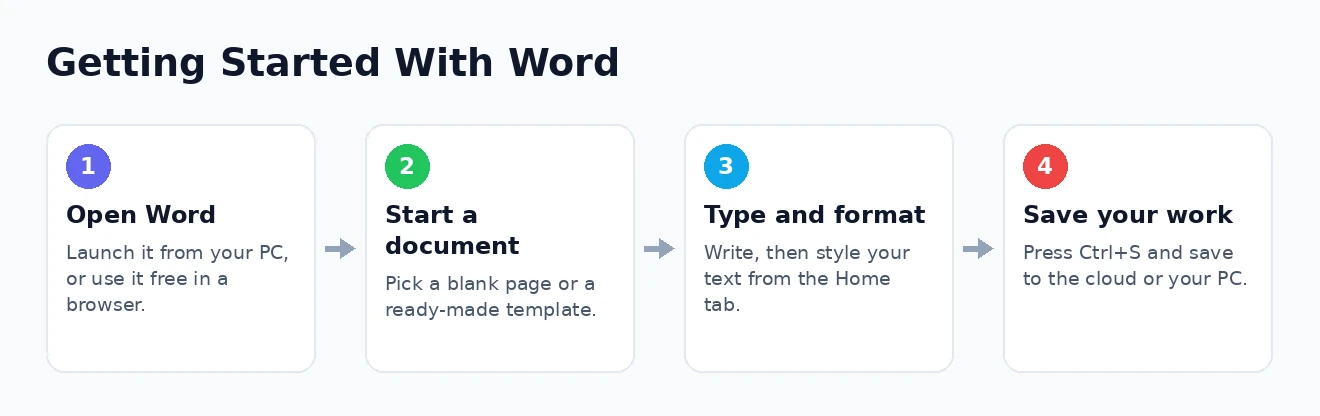
When you open Word, you are greeted by a start screen offering a blank document or a wide range of ready-made templates for things like letters, resumes, and reports. Choosing a blank document gives you a clean page to work on, while a template provides a professionally designed starting point you can simply fill in. For learning the basics, a blank document is the place to begin.
The interface itself is organised around the Ribbon, the strip of tools running across the top, divided into tabs such as Home, Insert, and Layout. Each tab groups related tools together — all your text formatting lives on the Home tab, for instance. Below the Ribbon is the document area where you type. It looks busy at first, but you will quickly find that you rely on just a few tabs for almost everything, and the rest fades into the background until needed.
Creating and Saving Your First Document
With a blank document open, you can simply start typing — the flashing cursor shows where your text will appear, and Word handles wrapping to the next line automatically. That part is easy. The step that genuinely matters, and the one beginners most often neglect, is saving your work, so make it a habit from the very start.
To save, press Ctrl+S or click the save icon. The first time, Word asks where to keep the file and what to call it. Saving to a cloud location like OneDrive is well worth doing, because it enables AutoSave, which then saves your changes continuously so a crash or power cut cannot wipe out your work. If you prefer, you can save to your PC instead, and Word stores documents in the modern .docx format by default.
It is worth understanding the difference between Save and Save As. Save updates your existing file with the latest changes, while Save As creates a separate copy — ideal when you want to keep the original intact and work on a variation. Getting into the rhythm of saving regularly, or letting AutoSave do it for you, means you never lose more than a moment’s work.
Formatting Text: The Essentials
Making your document look the way you want is mostly done from the Home tab, which holds the everyday formatting tools you will reach for constantly. The golden rule of formatting in Word is simple: select the text you want to change first, then apply the formatting, and only the highlighted text is affected.
From the Home tab you can change the font and its size, make text bold, italic, or underlined, and change its colour. You can also control alignment — left, centre, right, or justified — and create bulleted or numbered lists, which are invaluable for breaking information into readable points. Adjusting line spacing to make a document less cramped lives here too. These few tools cover the great majority of the formatting an everyday document needs.
Do not feel you must format as you type; many people find it easier to write everything first and format afterwards, which keeps you focused on the words. And if you make a mistake, the Ctrl+Z shortcut undoes your last action — one of the most reassuring keystrokes in all of computing. With these basics, you can already produce a clean, readable document.
None of this is complicated once you have done it a few times, and it quickly becomes second nature. In truth, most of what people mean when they talk about knowing how to use Microsoft Word is simply this everyday combination of typing, saving, and formatting — the reliable foundation on which everything else is built.
Using Styles for Professional, Consistent Documents
Here is the single tip that most separates confident Word users from frustrated ones, and that beginners almost always overlook: use Styles instead of formatting everything by hand. Styles are pre-defined sets of formatting — for headings, body text, quotes, and more — that you apply with a single click from the Home tab.
The benefit is twofold. First, styles keep a document perfectly consistent, so every heading looks the same without you having to remember the exact font and size each time. Second, and more powerfully, applying heading styles lets Word understand the structure of your document, which means it can generate a clickable table of contents automatically, let you navigate long documents easily, and reformat the whole thing instantly if you change your mind about the look.
If you learn one advanced habit in Word, make it this: apply heading styles rather than manually enlarging and bolding your headings. It takes the same effort at first but saves enormous time later and produces far more professional results.
For a simple one-page letter this matters little, but for anything longer — a report, a dissertation, a proposal — styles transform the experience from a formatting battle into something genuinely manageable. It is a habit well worth building early, and it applies just as much in Google Docs, which works in a very similar way.
Adding Images, Tables, and More
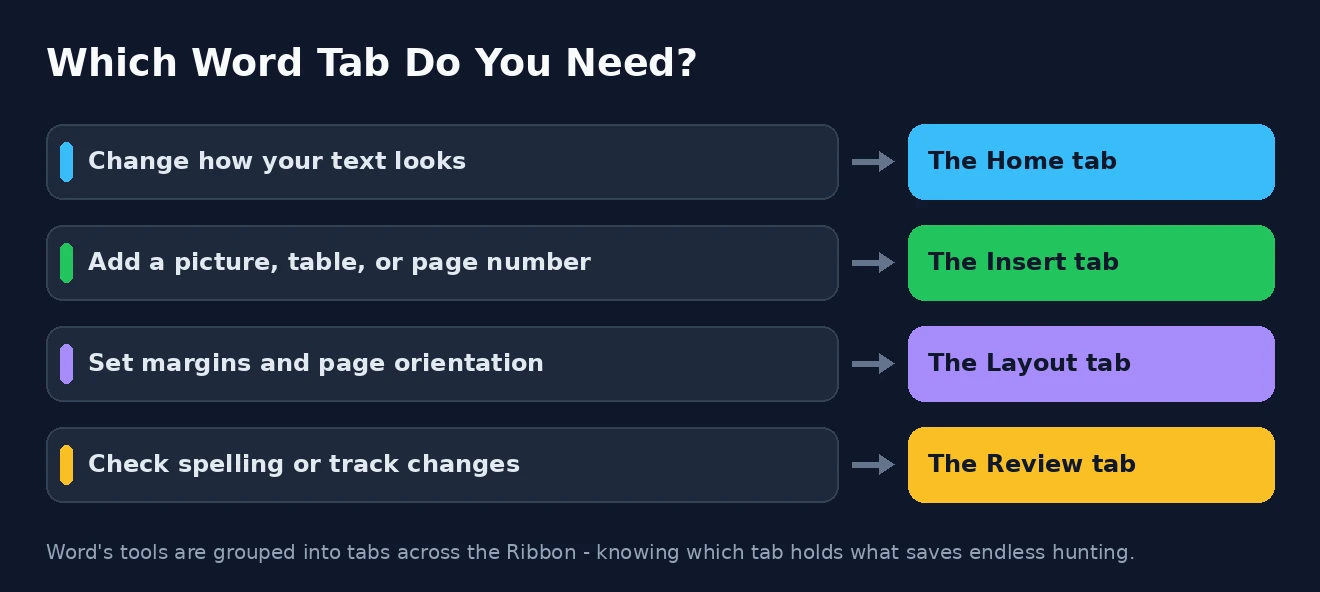
Documents are rarely just text, and the Insert tab is where you add everything else. It is worth a little exploration, because the elements it offers can make a document far clearer and more engaging than words alone.
From the Insert tab you can add pictures from your computer or the web, and tables for laying out information in neat rows and columns — a table is often the clearest way to present figures or comparisons. The same tab lets you insert page numbers, headers and footers that repeat on every page, hyperlinks to websites, and special symbols. Each is added at your cursor’s position, and once inserted, clicking on an element usually reveals extra tools for adjusting it.
You do not need to learn all of these at once; simply knowing they live on the Insert tab means you can find them when a document calls for them. Adding a well-placed image or a tidy table is often the difference between a document that merely conveys information and one that presents it well. Experiment a little, and you will soon know which of these you reach for most.
Checking, Reviewing, and Sharing Your Work
Once your document is written, Word offers a set of tools to polish and share it, mostly found on the Review tab and the Share options. The first thing worth doing is checking your spelling and grammar, which Word’s built-in Editor flags as you type and can review in full on request.
If you are working with others, the Review tab is invaluable: Track Changes records every edit so collaborators can see and approve them, and Comments let people leave notes without altering the text. For writing quality beyond the basics, a dedicated tool like Grammarly works alongside Word to catch more subtle issues. When it comes to sharing, you can print, share a link directly through OneDrive so others can view or edit online, or export your document.
Exporting to PDF deserves a special mention, because it is the best way to share a finished document that should look identical for everyone and cannot be easily altered — you will find it under Save As or Export. If you ever need to go the other way and turn a PDF back into an editable document, our guide to converting a PDF to Word covers it. These sharing options make Word documents easy to send, present, and collaborate on.
Handy Tips and Time-Savers
As you grow comfortable, a few habits and shortcuts will make you noticeably faster and more confident in Word. None takes long to pick up, and together they smooth out the everyday experience considerably.
- Learn the core shortcuts. Ctrl+C, Ctrl+V, and Ctrl+Z for copy, paste, and undo; Ctrl+B, Ctrl+I, and Ctrl+U for bold, italic, and underline; and Ctrl+S to save cover most of what you do all day.
- Use Find and Replace. Ctrl+F finds any word instantly, and Replace can swap every instance of a word for another in one go — a huge time-saver in long documents.
- Start from templates. For CVs, letters, invoices, and reports, a template saves you from designing the layout yourself and gives a polished result.
- Keep an eye on the word count. Shown at the bottom of the window, it is essential for essays and anything with a length limit.
- Do not fight the formatting. If text behaves oddly, using styles and the “Clear Formatting” button is usually quicker than wrestling with it manually.
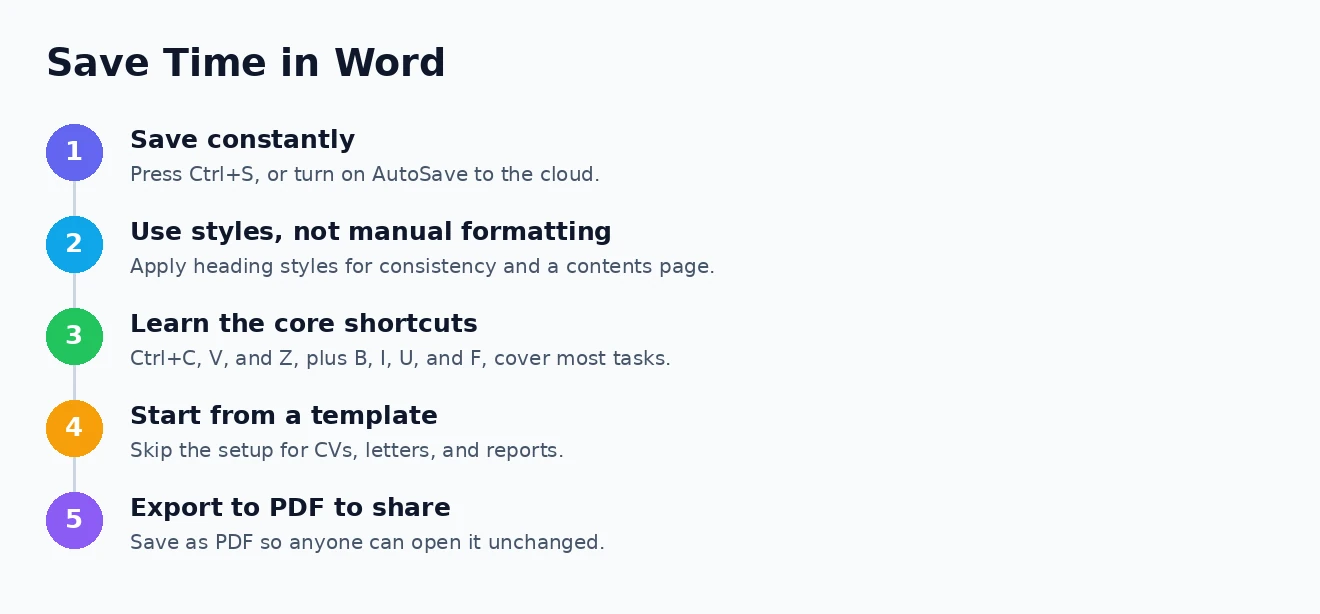
The most valuable habit of all remains saving often and using styles, but even a couple of these shortcuts will make Word feel more responsive to your intentions. As part of a wider Microsoft Office toolkit alongside Excel and Outlook, a confident grasp of Word is one of the most useful everyday computer skills you can have. Microsoft’s own help pages go deeper still, and the Microsoft website has resources you may find useful; if you would rather not pay for Word, the free, compatible LibreOffice website has resources you may find useful too.
How to Use Microsoft Word: Frequently Asked Questions
Is Microsoft Word free?
The full desktop version is paid, through either a Microsoft 365 subscription or a one-time Office purchase. However, there is a free version of Word that runs in your web browser, along with free mobile apps, and these cover the essential features most people need for everyday documents.
What is the difference between Word and Google Docs?
Both are word processors that do similar things. Word is more feature-rich and works offline as a desktop app, while Google Docs is free, browser-based, and built around easy real-time collaboration. Many people use both, and the core skills — typing, formatting, and using styles — carry over between them.
How do I save a Word document as a PDF?
Go to Save As or Export, and choose PDF as the file type. This creates a copy of your document that looks the same on any device and cannot be easily edited, which makes it ideal for sending finished work, CVs, or anything you want to present professionally.
Can I use Microsoft Word on a phone or tablet?
Yes. Microsoft offers free Word apps for both Android and iOS devices, letting you create and edit documents on the go. They include the most common features, and because your documents sync through the cloud, you can start on your phone and finish on your computer seamlessly.
That is everything you need to start using Microsoft Word with confidence. Create and save a document, format your text from the Home tab, lean on styles for a professional finish, add images and tables from the Insert tab, and export to PDF to share — and the rest will come with practice. What looks like an intimidating wall of buttons is really just a handful of everyday tools, and once they are familiar, Word becomes one of the most useful programs on your computer.