


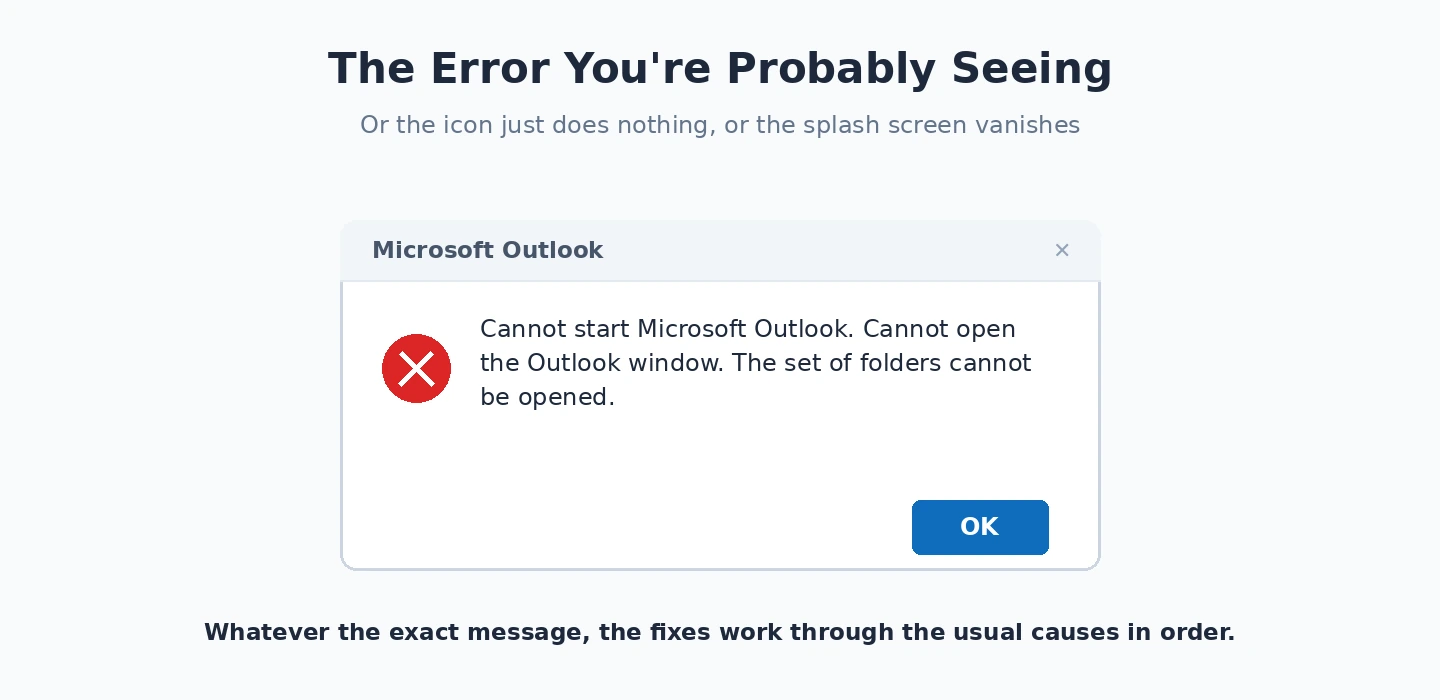
Outlook refusing to open — clicking the icon does nothing, or Outlook shows a splash screen then disappears, or you get “Cannot start Microsoft Outlook” — usually traces to one of three things: a hung Outlook process still running invisibly from a previous session, a corrupted navigation pane, or a damaged Outlook profile. We go deeper on the whole subject in our Complete Guide to Fixing Windows, Browser, and Software Errors.
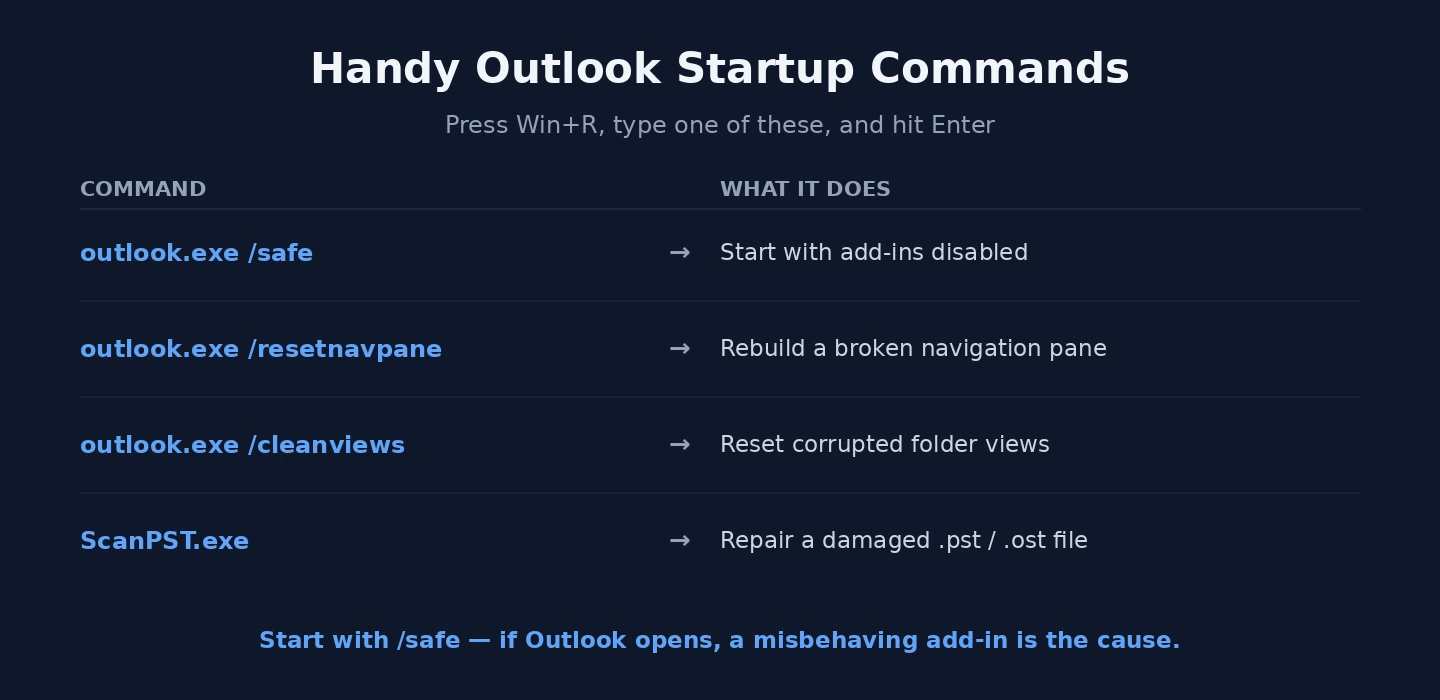
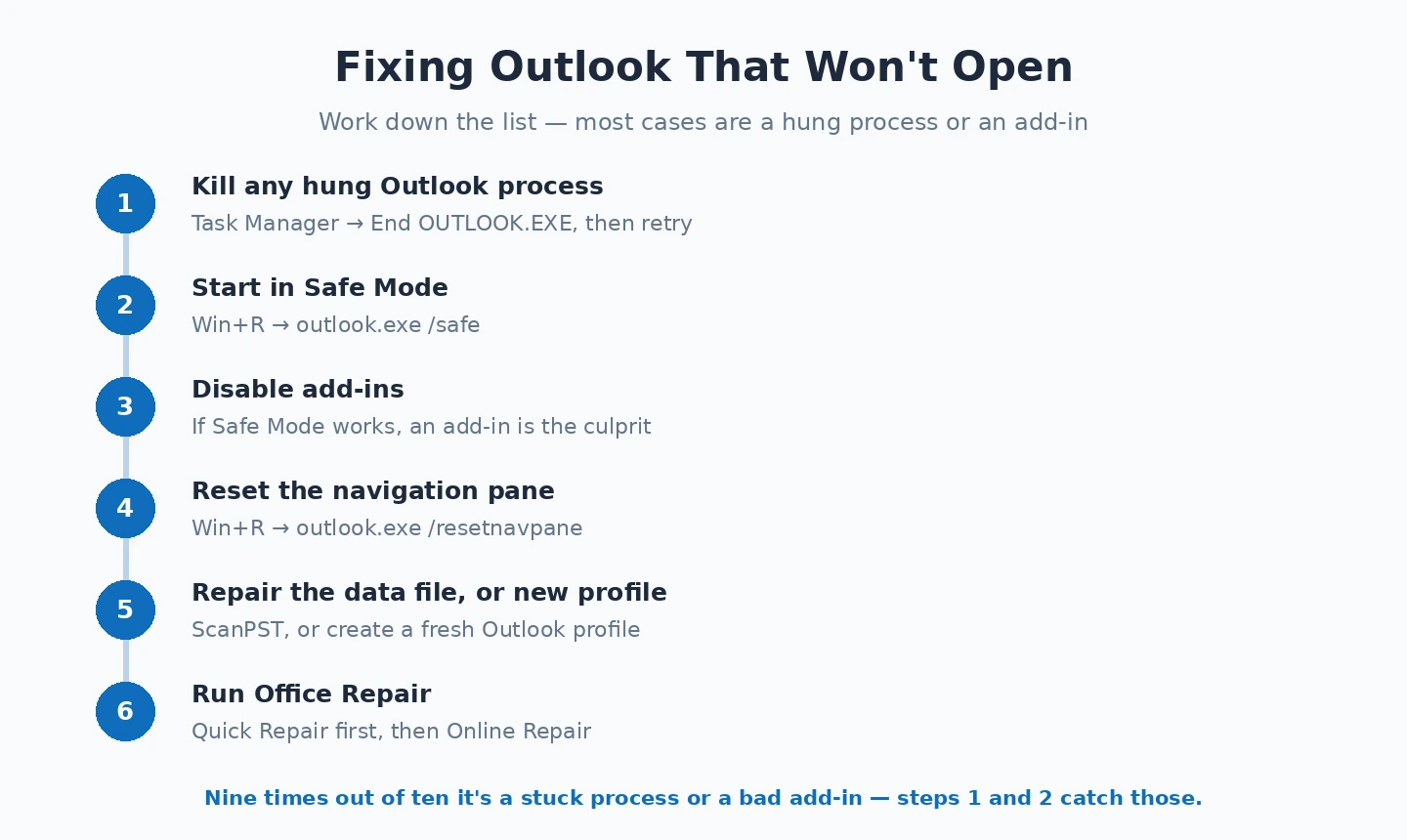
The fix that resolves about 80% of cases takes 30 seconds: Win+R → type “outlook.exe /resetnavpane” → Enter. This rebuilds Outlook’s navigation pane, which becomes corrupted often enough that Microsoft built a dedicated switch for it. Most fix guides never mention this command — they jump straight to “reset your profile” which is significantly more disruptive.
If /resetnavpane doesn’t help, the next quickest check: open Task Manager (Ctrl+Shift+Esc) → look for OUTLOOK.EXE in the Processes tab. If one is running but the Outlook window isn’t visible, it’s a hung process — End Task on it, then try opening Outlook normally. The full guide below covers Safe Mode, add-in audits, profile reset, and the registry fixes for stubborn cases — but try those two 30-second checks first because they resolve the majority of cases.
Identify Your Failure Type
The failure pattern tells you where to look:
- Clicking Outlook does absolutely nothing — No window, no process in Task Manager. Usually a hung process blocking launch (kill it) or a Windows permissions problem.
- Opens briefly then closes — Outlook starts but crashes during initialisation. Add-in crash or corrupted data file.
- Loading splash appears then freezes — Outlook got through the splash but hangs during data file loading. Navigation pane or data file corruption. Try
outlook.exe /resetnavpane. - Error about data file — The .pst or .ost file has a problem. Use Scanpst.exe to repair it.
Fix 1: Disable Add-ins
Add-ins are the most common cause when Outlook opens briefly and immediately closes. They load during startup, and a broken add-in crashes Outlook before it can show the window. Safe Mode confirms this — if Safe Mode works, an add-in is responsible.
In Safe Mode, go to File → Options → Add-ins → Manage: COM Add-ins → Go → uncheck all add-ins → OK → close Safe Mode → open Outlook normally. If it opens, re-enable add-ins one at a time (File → Options → Add-ins after each restart) until the crash returns. The last add-in enabled before the crash is the culprit — update it or leave it disabled.
Common add-in offenders: CRM integrations, meeting scheduling tools, signature managers, and add-ins from vendors that haven’t updated for the current Outlook version. Check the add-in vendor’s website for an update before permanently disabling it.
Fix 2: Reset the Navigation Pane
The navigation pane configuration file stores your Outlook folder layout, pinned folders, and panel positions. When this file becomes corrupted — which happens after crashes, some Windows updates, and Exchange account changes — Outlook hangs indefinitely on the loading splash screen trying to read it.
Fix: press Win + R → type outlook.exe /resetnavpane → Enter. This tells Outlook to rebuild the navigation pane configuration from scratch rather than reading the corrupted file. If Outlook then opens successfully, the navigation pane was the issue. Your mail, calendar, and contacts are unaffected — only the visual panel layout resets.
Fix 3: Repair the Data File With Scanpst
When Outlook’s error message explicitly mentions the data file, or when Outlook crashes specifically when trying to open with a “Cannot open your default email folders” error, the .pst or .ost file has corruption that needs repair.
Scanpst.exe (the Inbox Repair Tool) is built into every Office installation. Find it: search for “scanpst” in File Explorer, or look in C:Program FilesMicrosoft OfficerootOffice16 (the folder name varies by Office version). Run Scanpst.exe:
- Close Outlook completely (Task Manager → end OUTLOOK.EXE if needed)
- Open Scanpst.exe
- Click Browse and navigate to your data file — usually in
%localappdata%MicrosoftOutlookfor .ost files (Exchange) orDocumentsOutlook Filesfor .pst files - Click Start — the tool scans and reports errors
- If errors are found, click Repair — it creates a backup of the original file before writing the repaired version
- Open Outlook normally
For .ost files (Exchange/Microsoft 365 accounts): if Scanpst doesn’t resolve it, the ost file can simply be deleted and rebuilt from the server. Close Outlook, navigate to %localappdata%MicrosoftOutlook, rename the .ost file to .ost.old, and reopen Outlook. It rebuilds the file by syncing from the server — this takes time for large mailboxes but produces a clean, uncorrupted cache.
Fix 4: Create a New Outlook Profile
The Outlook profile stores account credentials, data file locations, and configuration settings. When the profile becomes corrupted — which can happen after a Windows account change, a domain password reset, or after certain Office updates — Outlook may crash immediately when trying to load the profile without any informative error message.
Create a new profile: Control Panel → Mail → Show Profiles → Add → give it a name → configure your email account → set “Always use this profile” to the new one → OK. Open Outlook — it loads the new profile and connects to your email server. Your mailbox data is on the server and downloads fresh.
After confirming the new profile works, you can delete the old corrupted one from the same Mail dialog. If Outlook works correctly with the new profile, the original profile was the cause.
Fix 5: Run Office Repair
When Outlook’s installation files are corrupted — from a failed update, an interrupted installation, or disk errors — Outlook fails to launch in ways that don’t respond to profile fixes or add-in disabling. Office’s built-in repair reinstalls the application files without removing your data or settings:
Settings → Apps → Installed apps → find Microsoft 365 (or Microsoft Office) → three-dot menu → Modify → Quick Repair → Repair. Quick Repair takes about 5 minutes and fixes most installation issues without an internet connection. If Quick Repair doesn’t resolve it, try Online Repair — this downloads fresh installation files from Microsoft’s servers and takes longer but is more thorough.
Fix 6: Check Antivirus Scanning the Data File
Antivirus real-time scanning of the Outlook .pst or .ost data file during startup creates a file lock conflict — Outlook tries to open the data file while the antivirus is scanning it, the scan holds the file lock, and Outlook either hangs or crashes with a file access error. The symptom is Outlook loading slowly or hanging at a specific point in the splash screen, with Task Manager showing high disk activity from the antivirus process at the same time.
Fix: add Outlook’s data file folder (%localappdata%MicrosoftOutlook and DocumentsOutlook Files) to the antivirus exclusion list. In Windows Defender: Windows Security → Virus and threat protection → Manage settings → Exclusions → Add an exclusion → Folder → navigate to the Outlook data location. This prevents real-time scanning of Outlook’s files while they’re in use, which eliminates the lock conflict. The data files are still protected — Outlook’s own attachment scanning and Microsoft’s server-side scanning provide protection for email content.
Fix 7: Microsoft 365 Activation Problems
Outlook may refuse to open properly when Microsoft 365 subscription has lapsed or when activation is failing. The symptom: Outlook opens to a screen asking for activation or showing a “subscription has expired” message rather than the mailbox. Other Office apps like Word and Excel may show the same activation prompt.
Check: open Word or Excel first (which are simpler to get into a working state). If they show activation errors or “Product Deactivated” warnings, the subscription or licence is the issue, not Outlook specifically. For personal Microsoft 365: check the subscription status at account.microsoft.com. For corporate Microsoft 365: contact IT to verify the licence assignment. After fixing the subscription, signing out and back into Office (File → Account → Sign Out in any Office app, then re-sign in) re-activates all applications including Outlook.
Outlook with Exchange: OAuth Token Expiry
Modern Exchange and Microsoft 365 authentication uses OAuth tokens rather than stored passwords. When these tokens expire — typically after a password change, a security policy update, or a token service issue — Outlook may fail to open because it can’t authenticate to Exchange during startup. The symptom is often “Need Password” prompts that don’t resolve even with correct credentials, or Outlook hanging at “Loading Profile.”
Fix: remove the account from Outlook’s profile and re-add it. This forces a fresh OAuth authentication flow through the current login credentials. File → Account Settings → Account Settings → select the Exchange account → Remove → re-add using your current work email and credentials. The OAuth flow runs fresh and establishes a new valid token.
Our guide on Outlook not syncing covers the related email sync failures that often follow a successful Outlook launch — the data file and authentication issues overlap between the two problems. For the Microsoft 365 authentication issues that affect Outlook alongside other Microsoft 365 apps, our Microsoft account sign-in guide covers the credential cache and token management. Microsoft’s Outlook support documentation covers the SaRA (Support and Recovery Assistant) tool which automatically diagnoses and fixes many Outlook opening failures without manual steps.
Outlook Opening Slowly vs Not Opening At All
Slow Outlook startup is worth distinguishing from Outlook refusing to open. If the loading splash appears but sits there for 2–5 minutes before the mailbox shows, Outlook is technically opening but performing slowly during initialisation. Common causes of slow startup (not covered above because the app eventually loads):
Large data file: .pst files over 5 GB and .ost files with years of cached email become progressively slower to open as they grow. Archiving old email to a separate .pst file and keeping the main data file under 2–3 GB significantly improves startup time. In Outlook: File → Tools → Clean Up Old Items for automatic archiving configuration.
Too many plugins loading: Every active add-in adds initialisation time. Even add-ins that function correctly contribute to startup overhead. Disabling unused add-ins (File → Options → Add-ins) improves startup time proportionally — each disabled add-in is one less thing that has to initialise before Outlook shows the mailbox.
Exchange server sync at startup: If Outlook is configured to sync a large number of Exchange folders on startup, the initial sync takes time before the mailbox appears. Check the Exchange account settings for “Download shared folders” and “Download Public Folder Favorites” — if these are enabled and the mailbox has many shared folders, disabling them reduces startup sync time significantly.
Corrupted Profile Registry Entries
When the standard profile creation (Fix 4 above) doesn’t resolve the issue and Outlook still won’t open with a new profile, the Outlook profile registry entries may be corrupted in a way that affects all profiles including newly created ones. This is a less common cause but worth checking when new profiles also fail to launch Outlook successfully.
The Outlook profile registry keys are at HKEY_CURRENT_USERSoftwareMicrosoftOffice16.0OutlookProfiles (substitute 16.0 for your Office version number). If all profiles in this key are corrupted, even a newly added profile inherits corrupted base settings. Deleting the entire Profiles key (after exporting it as a backup via File → Export in Registry Editor) forces Outlook to rebuild the profile infrastructure from scratch when reopened. This is a last resort before Office repair but resolves a specific category of profile corruption that the Mail control panel can’t fix.
Outlook in a Virtual or Remote Desktop Environment
Outlook behaves differently in virtual machine or Remote Desktop environments, and some opening failures are specific to these contexts. In Remote Desktop sessions, Outlook’s offline mode may conflict with the cached Exchange mode configuration. In virtual machines, Outlook’s path to the data file may break if the VM snapshot was taken while Outlook was open.
For Remote Desktop: ensure Outlook is not configured for Cached Exchange Mode in an RDP environment — this causes data file conflicts when multiple RDP sessions connect simultaneously. Administrators can configure Exchange accounts to disable cached mode for Remote Desktop connections through Group Policy. For VMs: verify the data file path is accessible from within the VM and that the VM has proper network connectivity to the Exchange server or Microsoft 365 endpoints — VMs sometimes have DNS resolution issues that prevent Exchange connections even when other internet services work.
Windows Search Integration and Outlook
Outlook integrates with Windows Search for email indexing, and a corrupted Windows Search index sometimes prevents Outlook from opening because the initialisation code checks for index availability. This is an unusual cause but appears on machines where Windows Search service is stopped or malfunctioning.
Check: search for “Indexing Options” in Start → confirm the status shows “Indexing complete” or is actively indexing. If it shows errors or has stopped, click Advanced → Rebuild. Also ensure the Windows Search service is running: search “Services” in Start → find Windows Search → confirm Status is Running and Startup type is Automatic (Delayed Start). Restarting this service and then attempting to open Outlook sometimes resolves the initialisation check that was blocking the launch. If this sounds familiar, Outlook Keeps Freezing is worth a look.





